> For the complete documentation index, see [llms.txt](https://help.ppgg.in/llms.txt). Markdown versions of documentation pages are available by appending `.md` to page URLs; this page is available as [Markdown](https://help.ppgg.in/docs/admin-console/login-with-sso/trusted-devices/approve-a-trusted-device.md).

# 批准受信任设备

{% hint style="success" %}
对应的[官方文档地址](https://bitwarden.com/help/approve-a-trusted-device/)
{% endhint %}

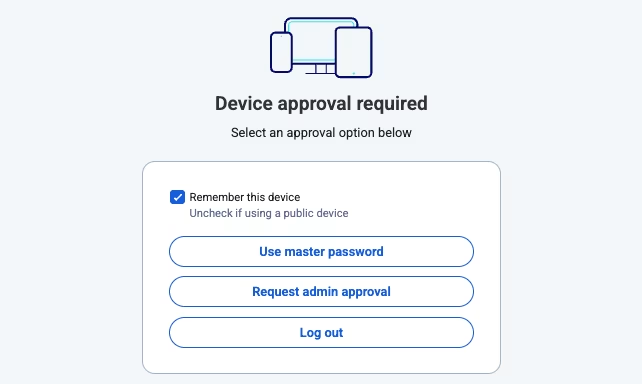
当某个组织成员登录新设备时，他们需要[批准或信任该设备](/docs/account/log-in-and-unlock/using-single-sign-on/add-a-trusted-device.md)。其中一种方法是选择**请求管理员批准**选项，将设备批准请求发送给组织内的管理员和所有者进行批准。

<div align="left" data-with-frame="true"><figure><img src="https://bitwarden.com/assets/5IMJBQOrklcOuLVEpaR6gX/60ead8f10e34f7acd2467eaaa34ff93d/2025-06-16_15-22-15.png?w=642&#x26;fm=avif" alt=""><figcaption><p>请求管理员批准</p></figcaption></figure></div>

作为管理员，每当组织成员提交设备批准请求时，您都会收到一封电子邮件。要批准请求，您需要是组织管理员、所有者或具有**管理账户恢复**权限的[自定义用户](/docs/admin-console/manage-members/member-roles.md#custom-role)：

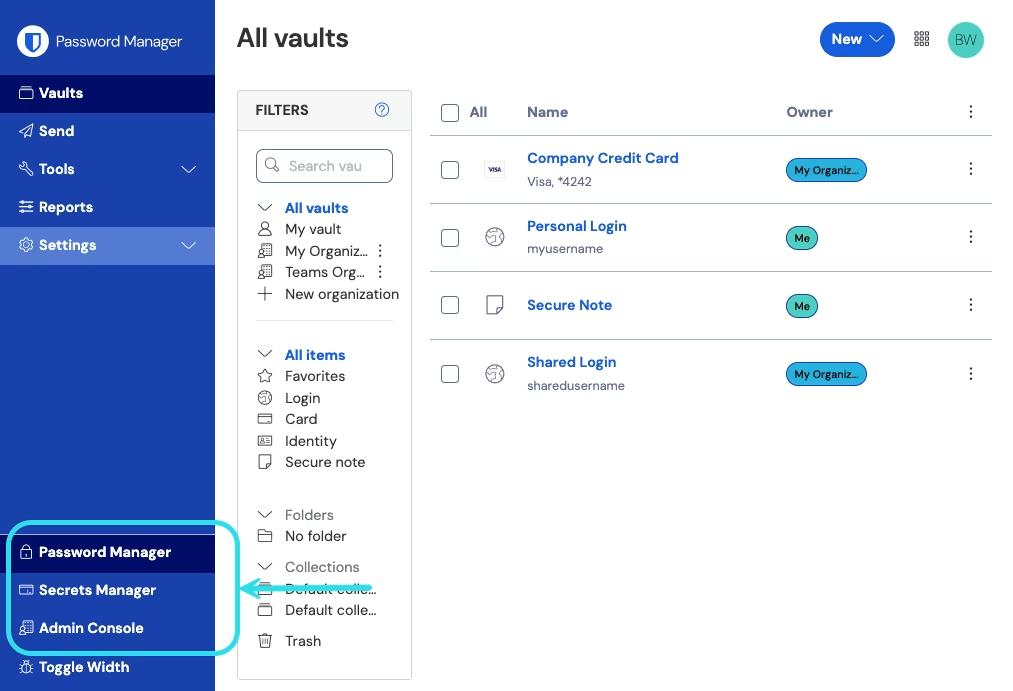
1、登录到 Bitwarden 网页 App，然后使用产品切换器打开 Admin Console：

<div align="left" data-with-frame="true"><figure><img src="https://bitwarden.com/assets/2uxBDdQa6lu0IgIEfcwMPP/e3de3361749b6496155e25edcfdcf08b/2024-12-02_11-19-56.png?w=1013&#x26;fm=avif" alt=""><figcaption><p>产品切换器</p></figcaption></figure></div>

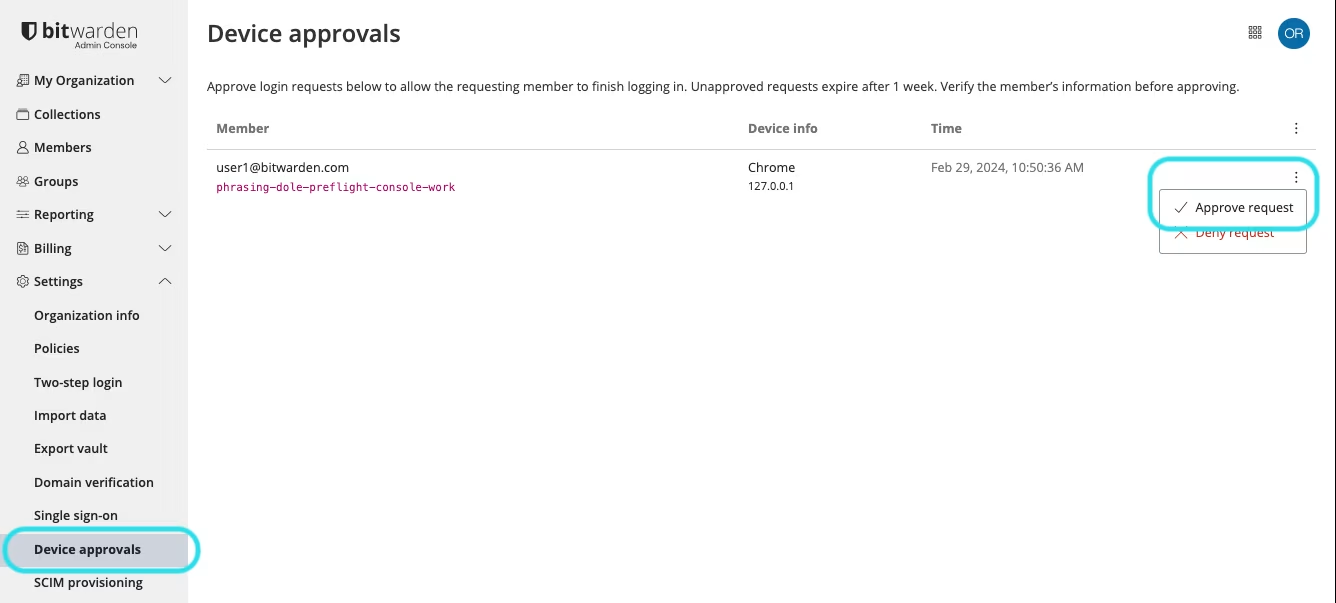
2、从导航栏选择**设置** → **设备批准**。

3、使用选项 **☷** 菜单，选择 **✔︎批准请求**。

<div align="left" data-with-frame="true"><figure><img src="https://bitwarden.com/assets/1iPurecgskOyt0NGDRidBM/3a85c233b2a208dc2c939c8e79fd9b4f/Screenshot_2024-02-29_at_10.52.50_AM.png?w=1336&#x26;fm=avif" alt=""><figcaption><p>批准设备请求</p></figcaption></figure></div>

{% hint style="info" %}
当成员请求设备批准时，指纹短语会显示在成员的设备上。可以通过检查该指纹短语与成员栏中显示的指纹短语是否一致来执行额外验证。此方法是可选的，需要提出请求的成员与管理员之间**进行同步沟通**。
{% endhint %}

## 批量批准请求 <a href="#bulk-approve-requests" id="bulk-approve-requests"></a>

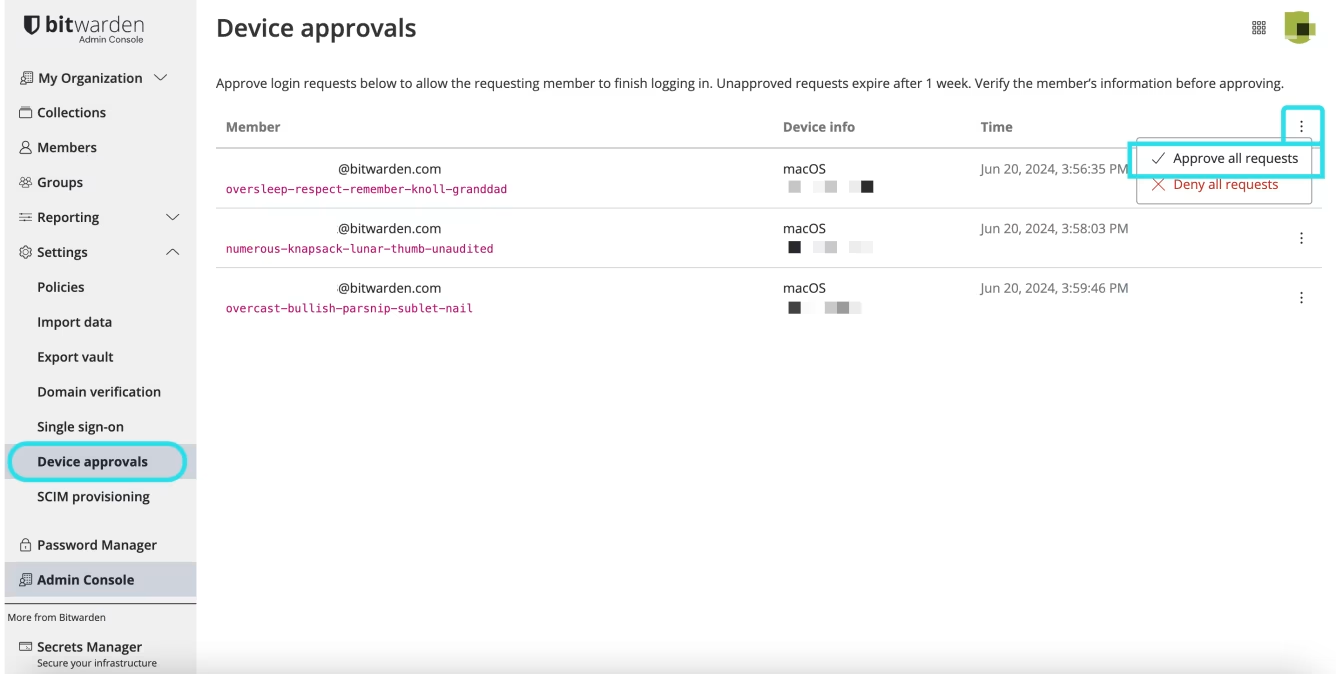
使用顶部的选项 **☷** 菜单，然后选择 **✔︎批准所有请求**，可以一次性批准多个设备请求。

<div align="left" data-with-frame="true"><figure><img src="https://bitwarden.com/assets/4ozBvrFFLPYcRmuCWNCuCz/504a206008a06c4e98d0058478f21d26/TDE_Bulk_Device_sc3.png?w=1336&#x26;fm=avif" alt=""><figcaption><p>批准或批量批准设备</p></figcaption></figure></div>

{% hint style="danger" %}
使用**批准所有请求**选项进行批量设备批准，可能会忽略管理员为确保请求合法而执行的验证步骤，例如检查用户报告的指纹短语。

Bitwarden 建议在启用和使用批量设备批准之前，先审查重要的安全控制措施，例如 IdP 凭证标准、IdP MFA 以及 IdP 设备注册与信任。
{% endhint %}

当设备请求获得批准后，发起请求的用户会收到一封电子邮件，通知他们可以继续在该设备登录。用户必须在 12 小时内登录新设备，否则批准将失效。

未批准的请求将在 1 周后失效。您可以通过选择 **✘拒绝请求**来拒绝登录尝试，或者通过选择最上面的选项 **≡**&#x83DC;单然后选择 **✘拒绝所有请求**来拒绝所有现有请求。

[事件](/docs/admin-console/oversight-visibility/event-logging/event-logs.md)在以下情况发生时会被记录：

* 用户请求了设备批准。
* 设备请求被批准。
* 设备请求被拒绝。


---

# Agent Instructions
This documentation is published with GitBook. GitBook is the documentation platform designed so that both humans and AI agents can read, navigate, and reason over technical content effectively. Learn more at gitbook.com.

## Querying This Documentation
If you need additional information that is not directly available in this page, you can query the documentation dynamically by asking a question.

Perform an HTTP GET request on the current page URL with the `ask` query parameter, and the optional `goal` query parameter:

```
GET https://help.ppgg.in/docs/admin-console/login-with-sso/trusted-devices/approve-a-trusted-device.md?ask=<question>&goal=<endgoal>
```

`ask` is the immediate question: it should be specific, self-contained, and written in natural language.
`goal` is optional and describes the broader end goal you are ultimately trying to accomplish on behalf of the user. GitBook uses it to tailor the answer towards what is most useful for that goal.

The response will contain a direct answer to the question and relevant excerpts and sources from the documentation.

Use this mechanism when the answer is not explicitly present in the current page, you need clarification or additional context, or you want to retrieve related documentation sections.