> For the complete documentation index, see [llms.txt](https://help.ppgg.in/llms.txt). Markdown versions of documentation pages are available by appending `.md` to page URLs; this page is available as [Markdown](https://help.ppgg.in/docs/admin-console/manage-members/automatic-confirmation.md).
# 自动确认
{% hint style="success" %}
对应的[官方文档地址](https://bitwarden.com/help/automatic-confirmation/)
{% endhint %}
默认情况下,被邀请加入 Bitwarden 组织的用户在接受邀请后,必须[由管理员进行确认](/docs/admin-console/manage-members/user-management.md#confirm)。「确认」是完成三步入职流程的关键步骤,该流程旨在促进组织及其成员之间端到端加密的项目共享。
如果不想让管理员手动确认每个加入组织的用户,企业版组织可以选择设置用户自动确认。
要有资格使用自动确认功能:
* **由您的 Bitwarden 团队添加**:要获得此自动化功能的访问权限,Bitwarden 支持团队需要将其添加到您的组织中。第一步是[联系我们](https://bitwarden.com/contact/)。
* **单一组织策略将扩展到所有角色**:[单一组织策略](/docs/admin-console/oversight-visibility/enterprise-policies.md#single-organization)必须启用,并且所有成员(包括通常不受该策略约束的所有者和管理员)都必须遵守该策略。
* **没有紧急访问**:为了降低使用自动确认的风险,将移除您组织中所有成员的紧急访问。使用紧急访问的成员将收到一封邮件通知其已被停用。
* **没有配置提供商账户**:[提供商](/docs/provider-portal/provider-portal-overview.md)的成员可能不是您组织中已配置的成员。提供商仍然可以管理您的组织,但其成员不能占用您组织的席位。
* **接受潜在的安全风险**:自动确认可能会对您组织的数据构成安全风险。在使用自动确认之前,请确保您已阅读[本文中概述的风险](#potential-security-risks)并接受它们。
激活后,自动确认是由已解锁的浏览器扩展(属于具有**管理用户**权限的[所有者、管理员和自定义角色成员](/docs/admin-console/manage-members/member-roles.md))执行的后台进程。通过下面的章节了解如何激活自动确认。
{% hint style="info" %}
当为组织启用了或停用了自动确认、每一位管理员启用了或停用了自动确认,以及某位成员被自动确认时,都会记录[事件](/docs/admin-console/oversight-visibility/event-logging/event-logs.md)。
{% endhint %}
## 启用自动确认
要启用新成员的自动确认,您必须在组织层面以及您希望执行该流程的每个 Bitwarden 客户端上将其启用。
### 对于组织
要为您的组织启用自动确认,请确保您已满足上述资格要求。当您联系了您的 Bitwarden 团队,并且该功能已对您的组织开放:
1、所有者和管理员将收到一封主题为 **Automatic confirmation is available for \** 的电子邮件。
{% hint style="info" %}
如果您正是自托管 Bitwarden:
* 此电子邮件将发送至与您的自托管组织关联的云端组织的所有者和管理员。
* 该云端组织也必须满足本文中所述的自动确认标准。
* 其中一位所有者或管理员必须在继续执行步骤 2 之前更新自托管组织的许可证文件。许可证文件更新后,步骤 2 及后续所有步骤均可从自托管服务器完成。
{% endhint %}
2、组织所有者和管理员将在下次登录时收到一个激活面板,提示他们启用该策略。
当 Bitwarden 为您的组织添加了该功能后,您还可以从 Admin Console 中的**设置** → **策略**菜单,通过[策略](/docs/admin-console/oversight-visibility/enterprise-policies.md#automatic-user-confirmation)来激活自动确认。无论哪种方式,选择**继续**即可为组织启用自动确认:
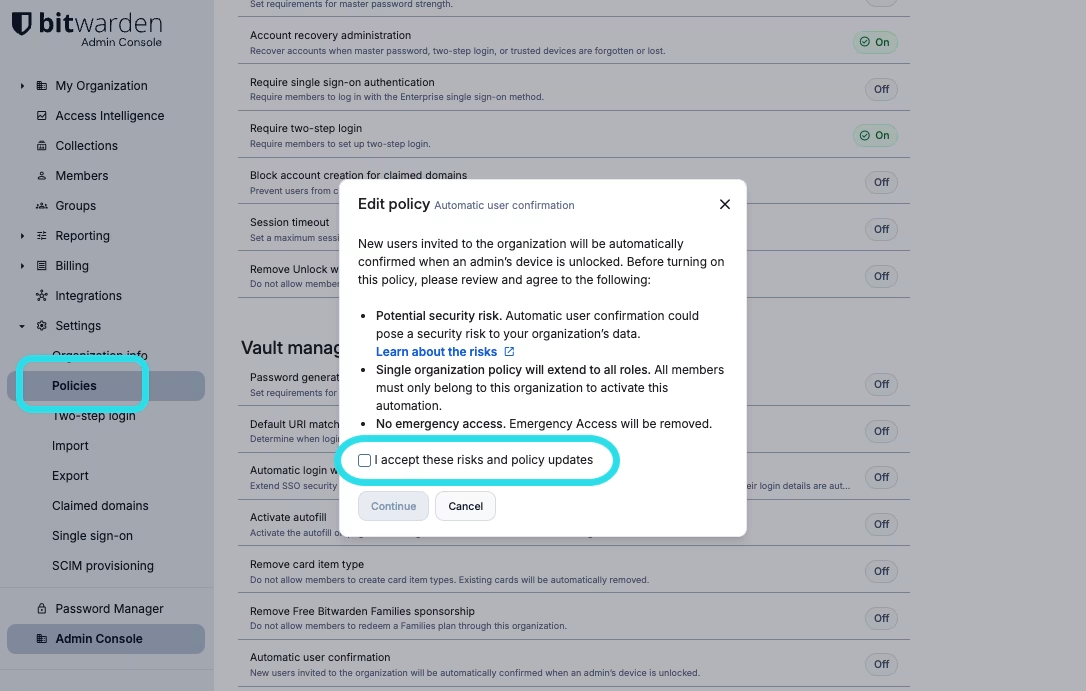
新用户自动确认
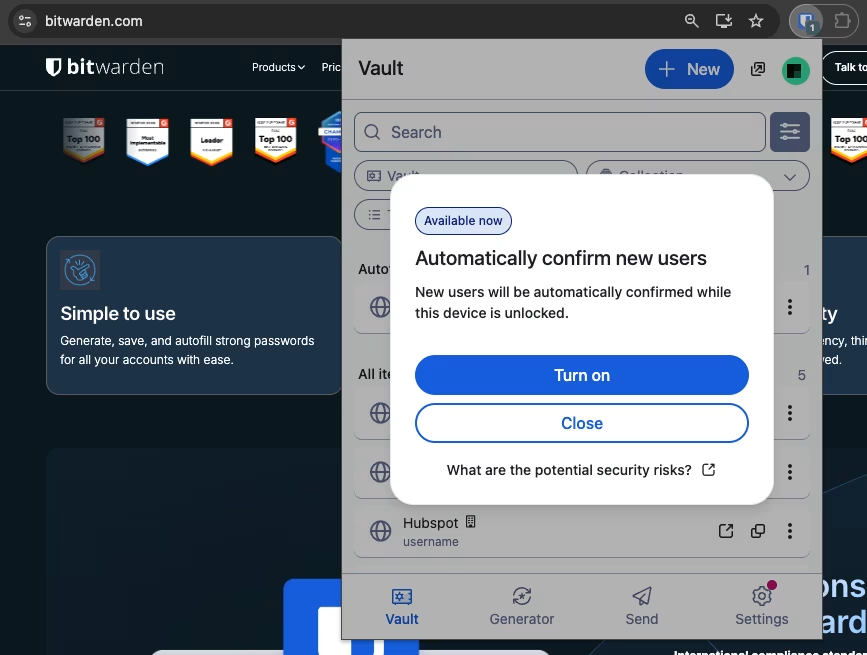
启用自动确认