# 使用 OneLogin 同步

{% hint style="success" %}
对应的[官方文档地址](https://bitwarden.com/help/article/onelogin-directory/)
{% endhint %}

本文将帮助您使用 Directory Connector 将您的 OneLogin 目录中的用户和群组同步到您的 Bitwarden 组织。

## 创建 API 凭据 <a href="#creating-api-credentials" id="creating-api-credentials"></a>

Directory Connector 需要 OneLogin 生成的 API 凭据信息才能连接到您的目录。完成以下步骤以创建和获取供 Directory Connector 使用的 API 凭据：

1. 从您的 OneLogin Administration Portal（`https://yourdomain.onelogin.com/admin`），从导航菜单中选择 **Developers** → **API Credentials**。
2. 选择  **New Credential** 按钮并给您的凭据指定一个专用于 Bitwarden 的名称（比如 `bitwaren-dc`）
3. 选择 **Read Users** 单选按钮以对用户字段、角色和群组授予读取权限，然后选择 **Save**。
4. 复制生成的  **Client ID** 和 **Client Secret**。您也可以随时返回查看这些内容。

## 连接到您的目录 <a href="#connect-to-your-directory" id="connect-to-your-directory"></a>

完成以下步骤以配置 Directory Connector 使用您的 OneLogin 目录：

1. 打开 Directory Connector [桌面 App](https://help.ppgg.in/docs/admin-console/manage-members/directory-connector/directory-connector-desktop-app)。
2. 导航到 **Setting** 标签页。
3. 从 **Type** 下拉列表中选择 **OneLogin**。\
   此部分中的可用字段将根据您选择的类型而变化。
4. 输入[从 OneLogin 获取](#creating-api-credentials)到的 **Client ID** 和 **Client Secret**。
5. 从 **Region** 下拉列表中，选择您的地区。

## 配置同步选项 <a href="#configure-sync-options" id="configure-sync-options"></a>

{% hint style="success" %}
完成配置后，请导航至 **More** 标签页，然后选择 **Clear Sync Cache** 按钮，以防止与先前的同步操作发生潜在冲突。有关更多信息，请参阅[清除同步缓存](https://help.ppgg.in/docs/admin-console/manage-members/directory-connector/clear-sync-cache)。
{% endhint %}

完成以下步骤以配置当使用 Directory Connector 同步时要使用的设置：

1. 打开 Directory Connector [桌面 App](https://help.ppgg.in/docs/admin-console/manage-members/directory-connector/directory-connector-desktop-app)。
2. 导航到 **Setting** 标签页。
3. 在 **Sync** 部分，根据需要配置如下选项：

| 选项                                                                                             | 描述                                                                                                                                                                             |
| ---------------------------------------------------------------------------------------------- | ------------------------------------------------------------------------------------------------------------------------------------------------------------------------------ |
| Interval                                                                                       | 自动同步检查的时间间隔（分钟为单位）。                                                                                                                                                            |
| Remove disabled users during sync                                                              | 选中此框以从 Bitwarden 组织中删除已在您的组织中禁用的用户。                                                                                                                                            |
| Overwrite existing organization users based on current sync settings                           | <p>选中此框以始终执行完全同步，如果任何用户不在同步用户集中，则将其从 Bitwarden 组织中移除。</p><p></p><p><strong>推荐用于 OneLogin 目录。</strong></p>                                                                      |
| More than 2000 users or groups are expected to sync                                            | 如果预计同步 2000 个以上用户或群组，请选中此框。如果不勾选此框，Directory Connector 会将同步限制在 2000 个用户或群组。                                                                                                    |
| If a user has no email address, combine a username prefix with a suffix value to form an email | <p>选中此框可为没有电子邮箱地址的用户生成有效的电子邮箱选项。<strong>没有真实或没有生成电子邮箱地址的用户将被 Directory Connector 跳过。</strong></p><p></p><p>生成的电子邮箱 = <code>username</code> + <strong>Email Suffix</strong></p> |
| Email Suffix                                                                                   | 用于生成电子邮箱地址时创建后缀的字符串（ `@example.com`）。                                                                                                                                          |
| Sync Users                                                                                     | <p>选中此框以将用户同步到您的组织。</p><p></p><p>选中此框将允许您指定<strong>用户筛选器</strong>。</p>                                                                                                         |
| User Filter                                                                                    | 参阅指定[同步筛选器](#specify-sync-filters)。                                                                                                                                            |
| Sync Groups                                                                                    | <p>选中此框以将群组同步到您的组织。</p><p></p><p>选中此框将允许您指定<strong>群组筛选器</strong>。</p><p></p><p><strong>请注意，Directory Connector 使用 OneLogin  <code>role</code> 值来创建 Bitwarden 群组。</strong></p> |
| Group Filter                                                                                   | 参阅[指定同步筛选器](#specify-sync-filters)。                                                                                                                                            |

## 指定同步筛选器 <a href="#specify-sync-filters" id="specify-sync-filters"></a>

使用逗号分隔的列表可根据用户电子邮箱、群组在同步中包含或排除。

{% hint style="info" %}
Directory Connector 将基于 OneLogin 角色而不是 OneLogin 群组来创建 Bitwarden 群组。
{% endhint %}

### 用户筛选器 <a href="#user-filters" id="user-filters"></a>

要基于电子邮箱地址在同步中包含或排除特定用户：

```python
include:joe@example.com,bill@example.com,tom@example.com
```

```python
exclude:joe@example.com,bill@example,tom@example.com
```

### 群组筛选器 <a href="#group-filters" id="group-filters"></a>

要基于 OneLogin 角色在同步中包含或排除群组：

```
include:Role A,Role B
```

```
exclude:Role A,Role B
```

## 测试同步 <a href="#test-a-sync" id="test-a-sync"></a>

{% hint style="success" %}
在测试或执行同步之前，请检查 Directory Connector 是否连接到正确的云服务器（如 US 或 EU）或自托管服务器。了解如何使用[桌面 App](https://help.ppgg.in/docs/admin-console/manage-members/directory-connector/directory-connector-desktop-app) 或 [CLI](https://help.ppgg.in/docs/admin-console/manage-members/directory-connector/directory-connector-cli) 进行检查。
{% endhint %}

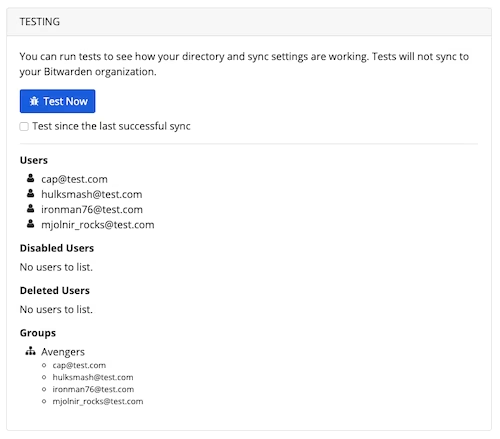
要测试 Directory Connector 是否成功连接到您的目录并返回所需的用户和群组，导航到 **Dashboard** 标签页并选择 **Test Now** 按钮。如果成功，则用户和群组将根据指定的[同步选项](https://help.ppgg.in/docs/admin-console/manage-members/sync-with-ldap-or-ad#configure-sync-options)和[筛选器](https://help.ppgg.in/docs/admin-console/manage-members/sync-with-ldap-or-ad#specify-sync-filters)显示在 Directory Connector 窗口中：

{% embed url="<https://images.ctfassets.net/7rncvj1f8mw7/5QYMxvtCPhjbluuoLcCapD/96e9c630ead9ceba5124b55f9d2764a3/dc-okta-test.png?fm=webp&h=439&q=50&w=500>" %}
测试同步的结果
{% endembed %}

## 启动自动同步 <a href="#start-automatic-sync" id="start-automatic-sync"></a>

配置并测试[同步选项](https://help.ppgg.in/docs/admin-console/manage-members/sync-with-ldap-or-ad#configure-sync-options)和[筛选器](https://help.ppgg.in/docs/admin-console/manage-members/sync-with-ldap-or-ad#specify-sync-filters)后，就可以开始同步了。完成以下步骤以使用 Directory Connector 启动自动同步：

1. 打开 Directory Connector [桌面 App](https://help.ppgg.in/docs/admin-console/manage-members/directory-connector/directory-connector-desktop-app)。
2. 导航到 **Dashboard** 标签页。
3. 在 **Sync** 部分选择 **Start Now** 按钮。\
   或者你可以选择 **Sync Now** 按钮以运行一次性手动同步。

Directory Connector 将根据配置的[同步选项](https://help.ppgg.in/docs/admin-console/manage-members/sync-with-ldap-or-ad#configure-sync-options)和[筛选器](https://help.ppgg.in/docs/admin-console/manage-members/sync-with-ldap-or-ad#specify-sync-filters)开始轮询目录。

如果您退出或关闭了 Directory Connector，自动同步将停止。最小化或隐藏此程序到系统托盘，以保持后台运行。

{% hint style="info" %}
如果您使用的是[团队入门版](https://help.ppgg.in/plans-and-pricing/password-manager/about-bitwarden-plans#teams-starter-organizations)计划，则只能同步 10 个成员。如果您尝试同步超过 10 名成员，Directory Connector 将显示错误并停止同步。

**该计划已不再提供购买**。此错误不适用于团队版计划。
{% endhint %}
