> For the complete documentation index, see [llms.txt](https://help.ppgg.in/llms.txt). Markdown versions of documentation pages are available by appending `.md` to page URLs; this page is available as [Markdown](https://help.ppgg.in/docs/admin-console/oversight-visibility/siem-integrations/blumira-siem.md).

# Blumira SIEM

{% hint style="success" %}
对应的[官方文档地址](https://bitwarden.com/help/blumira-siem/)
{% endhint %}

Blumira 是一个安全信息与事件管理 (SIEM) 和扩展检测与响应 (XDR) 平台，可集中管理来自您整个环境的日志数据。Bitwarden 通过转发组织事件日志数据与 Blumira 集成，使安全团队能够统一查看密码管理活动以及其他安全数据。

Bitwarden 使用 HTTP 数据摄取方式向 Blumira 发送事件。在 Blumira 中生成唯一端点和令牌后，您需要将这些值添加到 Bitwarden Admin Console 中的 Blumira 集成设置中。

## 要求 <a href="#requirements" id="requirements"></a>

要在 Blumira 中将 Bitwarden 设置为日志源，您必须：

* 拥有 Bitwarden 团队版或企业版组织。
* 拥有能够添加 HTTP 数据摄取实例的 Blumira 账户。
* 拥有 Bitwarden 和 Blumira 的管理访问权限。

## 设置 <a href="#setup" id="setup"></a>

将 Bitwarden 与 Blumira 集成需要在这两个平台上进行简短的设置过程。

### 在 Blumira 中设置 HTTP 数据摄取 <a href="#set-up-http-ingestion-in-blumira" id="set-up-http-ingestion-in-blumira"></a>

在从 Bitwarden 连接之前，请生成 Bitwarden 用于向 Blumira 发送事件的凭据：

1、登录 Blumira App，然后转到 **Ingestion** → **HTTP Ingestion**。

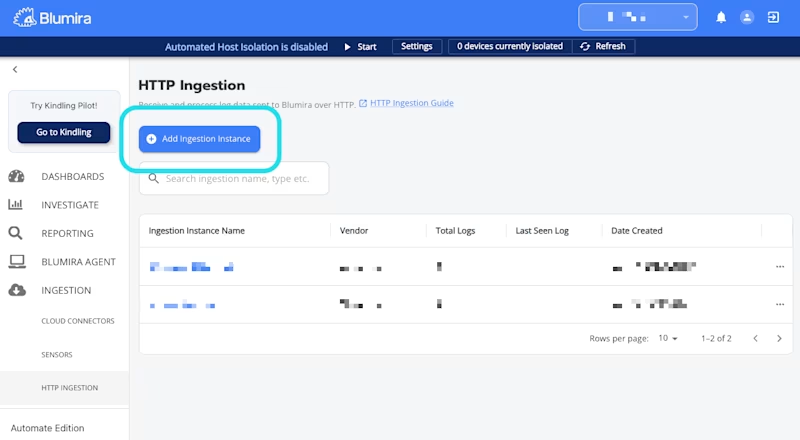
2、选择 **Add Ingestion Instance**：

<div align="left" data-with-frame="true"><figure><img src="https://bitwarden.com/assets/1MI8gE0thIwBSXgvgkBUxX/82efcf3cf23be0862ff8efa06e001087/2026-05-20_09-42-37.png?w=800&#x26;fm=avif" alt=""><figcaption><p>在 Blumira 中添加实例</p></figcaption></figure></div>

3、在设置窗口中：

* 从 **Vendor** 下拉菜单中选择 **Bitwarden** 。
* （可选）编辑预先填充的 **Ingestion Instance Name**。
* （可选）输入 **Description** 以提供额外的上下文。
* 选择 **Save**。

4、您的**凭据**将显示出来，其中包括 **HTTP Event Collector URL** 和 **HTTP Event Collector Token**。完成下一章节需要这两个信息。

{% hint style="info" %}
**HTTP Event Collector Token** 只会显示一次。您可以立即将此值复制并保存到安全的位置，或者在完成 Bitwarden 设置的同时，将此窗口保持在单独的浏览器标签页中打开。
{% endhint %}

### 从 Bitwarden 连接到 Blumira <a href="#connect-to-blumira-from-bitwarden" id="connect-to-blumira-from-bitwarden"></a>

拥有 **HTTP Event Collector URL** 和 **HTTP Event Collector Token** 后，请在 Bitwarden 组织中提供这些信息以完成设置：

1、登录 Bitwarden 网页 App 并打开 **Admin Console**。

2、在 **Admin Console** 中，转到**集成** → **事件管理。**

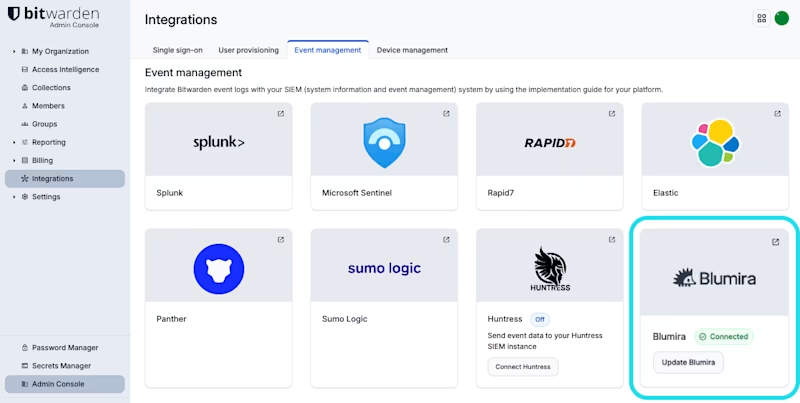
3、找到 **Blumira** 卡片并选择**连接**：

<div align="left" data-with-frame="true"><figure><img src="https://bitwarden.com/assets/21ppzLWsQU55qNt44Hf2sN/8630153cae92e04e5c15babb1c2e010d/2026-05-20_10-14-45.png?w=800&#x26;fm=avif" alt=""><figcaption><p>从 Bitwarden 连接到 Blumira</p></figcaption></figure></div>

4、输入您的 **HTTP Event Collector URL** 和 **HTTP Event Collector Token**。

5、选择**保存**。

## 更多资源 <a href="#additional-resources" id="additional-resources"></a>

* 了解更多有关 [Bitwarden 会显示哪些事件](/docs/admin-console/oversight-visibility/event-logging/event-logs.md)的信息。
* 了解更多有关[在 Blumira 中管理 HTTP 数据摄取](https://blumirabeta.zendesk.com/hc/en-us/articles/51420656192147-Using-Blumira-HTTP-Ingestion)的信息。


---

# Agent Instructions
This documentation is published with GitBook. GitBook is the documentation platform designed so that both humans and AI agents can read, navigate, and reason over technical content effectively. Learn more at gitbook.com.

## Querying This Documentation
If you need additional information that is not directly available in this page, you can query the documentation dynamically by asking a question.

Perform an HTTP GET request on the current page URL with the `ask` query parameter:

```
GET https://help.ppgg.in/docs/admin-console/oversight-visibility/siem-integrations/blumira-siem.md?ask=<question>
```

The question should be specific, self-contained, and written in natural language.
The response will contain a direct answer to the question and relevant excerpts and sources from the documentation.

Use this mechanism when the answer is not explicitly present in the current page, you need clarification or additional context, or you want to retrieve related documentation sections.