# Huntress SIEM

{% hint style="success" %}
对应的[官方文档地址](https://bitwarden.com/help/huntress-siem/)
{% endhint %}

Huntress 是一个提供威胁检测、调查和响应能力的托管安全平台。Huntress 托管的 SIEM 能够集中整合来自整个环境的日志数据，并可与 Bitwarden 集成，使安全团队能够统一查看密码管理活动以及其安全环境中的其他内容。

## 要求 <a href="#requirements" id="requirements"></a>

要在 Huntress 中将 Bitwarden 设置为日志源，您必须：

* 拥有 Bitwarden 团队版或企业版组织。
* 拥有包含托管 SIEM 的 Huntress 组织。
* 对 Bitwarden 和 Huntress 均拥有管理权限。

{% hint style="info" %}
Bitwarden 和 Huntress 均使用「组织」一词来描述将用户和数据联系在一起的实体。由于在设置过程中需要同时访问这两者，本文档将在适用情况下区分 Bitwarden 组织和 Huntress 组织。
{% endhint %}

## 将 Bitwarden 添加为源 <a href="#add-bitwarden-as-a-source" id="add-bitwarden-as-a-source"></a>

要将 Bitwarden 添加为 Huntress 托管的 SIEM 平台上的日志源：

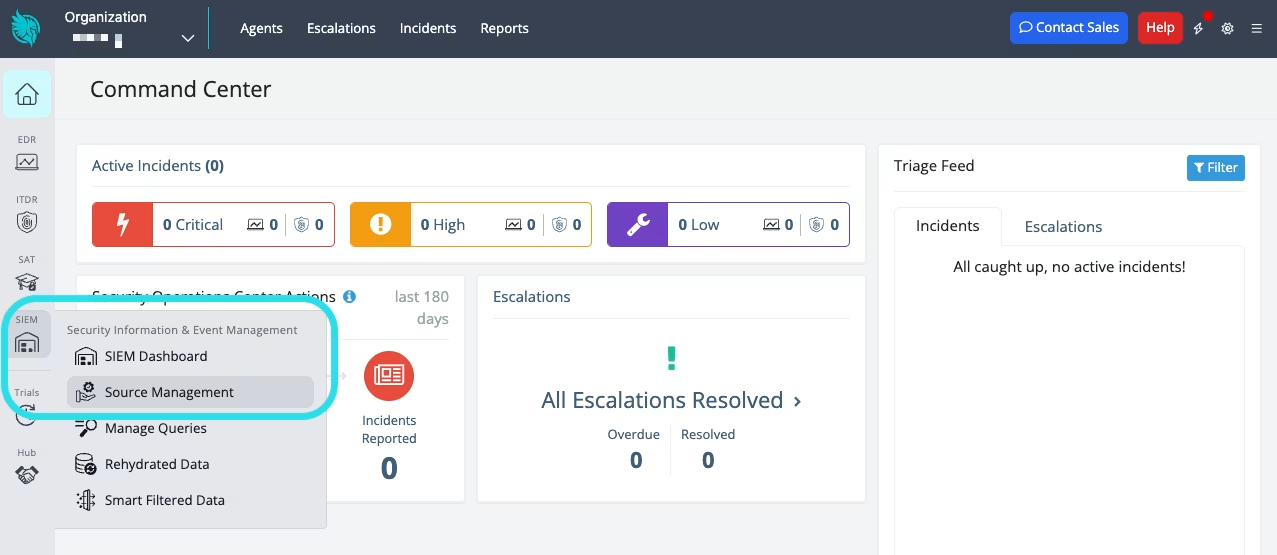
1、在 Huntress 中，导航至 **SIEM** → **Source Management**。

<div align="left" data-with-frame="true"><figure><img src="https://bitwarden.com/assets/30FE7CyWJrv4aztO5zNLXV/b5f85e14faaeb34f5023afe16ba7d54a/2026-02-18_13-12-18.png?w=1277&#x26;fm=avif" alt=""><figcaption><p>源管理</p></figcaption></figure></div>

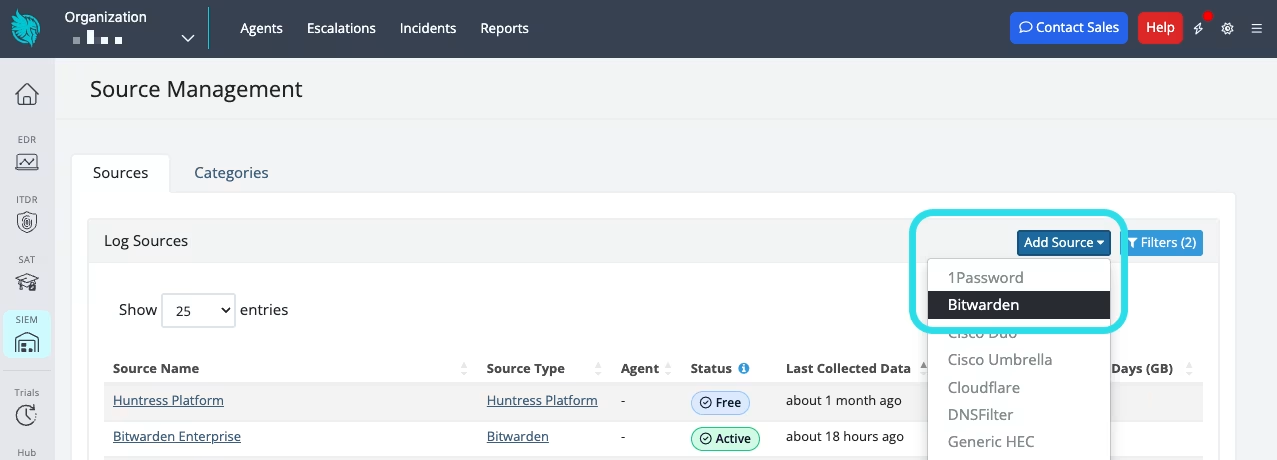
2、选择 **Add Source**，然后从下拉菜单中选择 **Bitwarden**。

<div align="left" data-with-frame="true"><figure><img src="https://bitwarden.com/assets/33tJYy7Wg9swFU36TmSfsp/4a4d8198c5ee47f52f003c93d147623e/2026-02-18_13-13-34.png?w=1277&#x26;fm=avif" alt=""><figcaption><p>添加源</p></figcaption></figure></div>

3、选择 **Add** 。如果您已有其他现有的 Bitwarden 日志源，它们也会列在此页面上。

4、选择一种配置方法。要选择的方法取决于您的 Bitwarden 组织位于 Bitwarden 云服务器上还是位于自托管服务器上：

{% tabs %}
{% tab title="云托管" %}
如果您的 Bitwarden 组织位于 Bitwarden 云服务器（US 或 EU）上：

1、选择 **I am using Bitwarden's Cloud Hosting**，然后选择 **Next**。

2、从 **Organization** 下拉菜单中，选择一个包含托管 SIEM 的 Huntress 组织。

3、提供一个 **Name**，用于识别集成，（可选地）提供一个 **Description**。

4、选择 **Save**。

5、在下一页，请记下 **HTTP Event Collector URL** 和 **HTTP Event Collector Token**。在后续步骤中，您需要使用这些值。

{% hint style="info" %}
如果您点击退出了此视图，您可以通过导航回 Bitwarden 日志源列表、选择源，然后选择 **✏️Configure** 按钮来重新获取这些值。
{% endhint %}

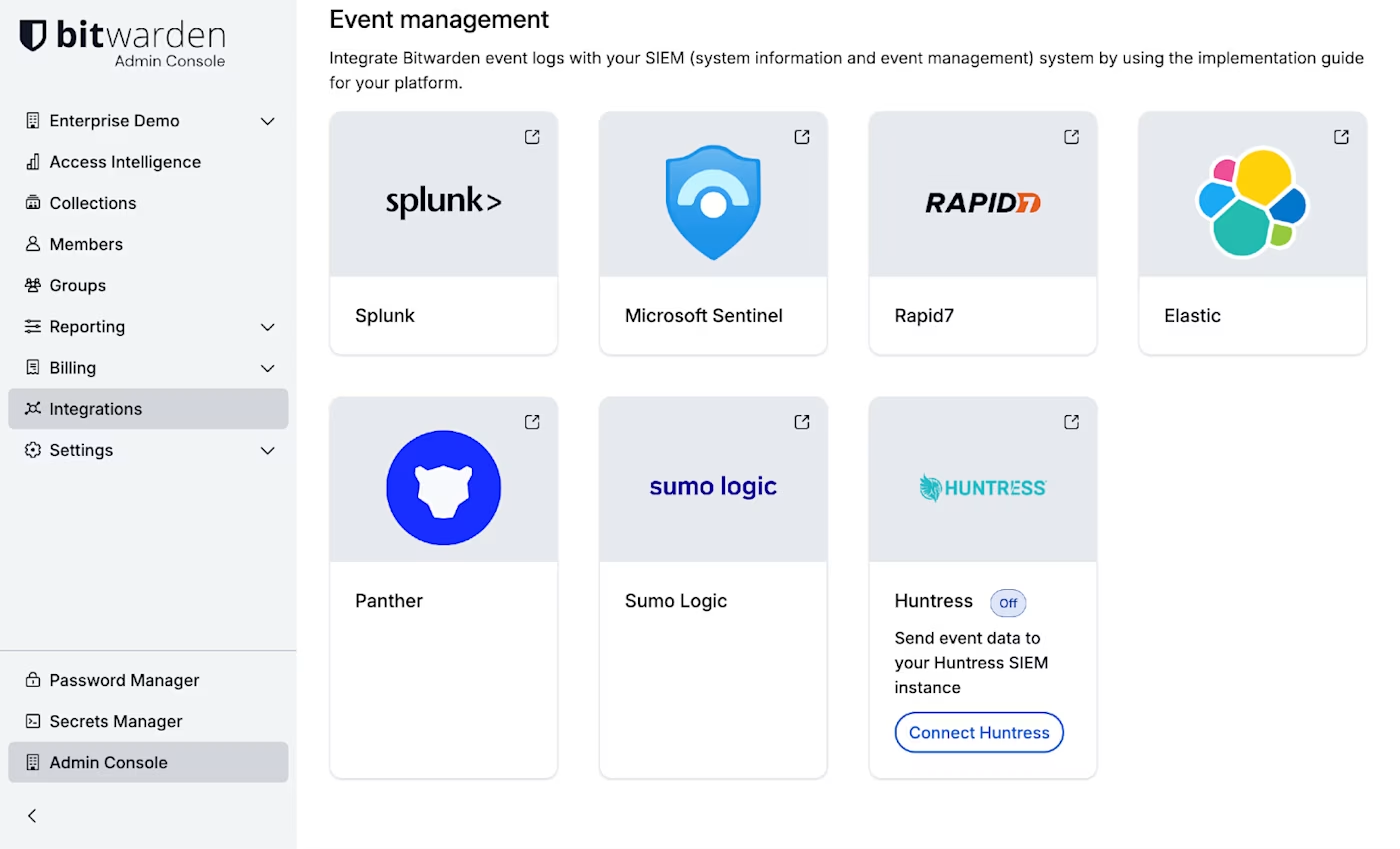
6、在 Bitwarden 中，打开管理控制台，然后导航至**集成**页面的**事件管理**选项卡。

7、向下滚动到 Huntress 卡片，然后选择**连接 Huntress** 按钮：

<div align="left" data-with-frame="true"><figure><img src="https://bitwarden.com/assets/1eVEp2giglyZSo8X4tBQ0E/59730bd09ab12bfee9d9a607a971eca0/huntress.png?w=1400&#x26;fm=avif" alt=""><figcaption><p>集成页面</p></figcaption></figure></div>

8、将 Huntress 中的 **HTTP Event Collector URL** 和 **HTTP Event Collector Token** 复制并粘贴到 Bitwarden 中的**连接 Huntress** 面板。

9、选择**保存** 。
{% endtab %}

{% tab title="自托管" %}
如果您的 Bitwarden 组织位于自托管 Bitwarden 服务器上：

1. 选择 **I have a Self-Hosted Domain for Bitwarden**，然后选择 **Next**。
2. 从 **Organization** 下拉菜单中，选择一个包含托管 SIEM 的 Huntress 组织。
3. 提供一个 **Name**，用于识别集成，（可选地）提供一个 **Description**。
4. 输入您的自托管服务器上 API 的**基础 URL**。
5. 输入您的 Bitwarden 组织的[客户端 ID 和客户端密钥](/docs/admin-console/bitwarden-public-api.md#authentication)，这些将用于身份验证。
6. 选择**保存** 。
   {% endtab %}
   {% endtabs %}


---

# Agent Instructions: Querying This Documentation

If you need additional information that is not directly available in this page, you can query the documentation dynamically by asking a question.

Perform an HTTP GET request on the current page URL with the `ask` query parameter:

```
GET https://help.ppgg.in/docs/admin-console/oversight-visibility/siem-integrations/huntress-siem.md?ask=<question>
```

The question should be specific, self-contained, and written in natural language.
The response will contain a direct answer to the question and relevant excerpts and sources from the documentation.

Use this mechanism when the answer is not explicitly present in the current page, you need clarification or additional context, or you want to retrieve related documentation sections.