> For the complete documentation index, see [llms.txt](https://help.ppgg.in/llms.txt). Markdown versions of documentation pages are available by appending `.md` to page URLs; this page is available as [Markdown](https://help.ppgg.in/docs/password-manager/autofill/more-autofill-options/auto-fill-custom-fields.md).
# 自动填充自定义字段
{% hint style="info" %}
对应的[官方文档地址](https://bitwarden.com/help/article/auto-fill-custom-fields/)
{% endhint %}
Bitwarden 不止于[自动填充用户名和密码](/docs/password-manager/autofill/autofill-from/autofill-from-browser-extensions.md)!Bitwarden 浏览器扩展还可以自动填充[自定义字段](/docs/password-manager/your-vault/vault-items/custom-fields.md),以简化安全问题、PIN 码等的填充。
此外,如果您的浏览器扩展在自动填充特定站点的用户名和密码时遇到问题,使用[链接型自定义字段](#shi-yong-lian-jie-de-zi-ding-yi-zi-duan)可以强制自动填充。
{% hint style="success" icon="lightbulb" %}
要使自动填充正常工作,正确命名自定义字段很重要。[了解更多](/docs/password-manager/your-vault/vault-items/custom-fields.md#custom-field-names)。
{% endhint %}
要自动填充自定义字段:
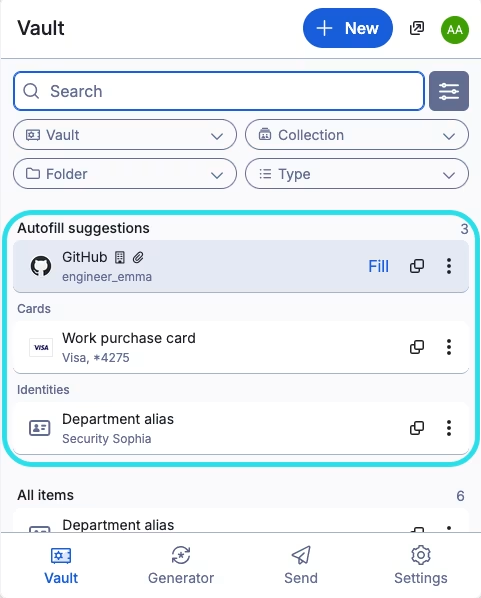
1、打开浏览器扩展,导航到**密码库**视图。此视图会自动检测已打开的标签页中显示的网页(例如 `myverizon.com`),并浮现所有具有相应 URI 的登录。
2、如果某个项目出现在**自动填充建议**中,点击包含自定义字段的项目的任意位置即可自动填充:
点击项目以自动填充
浏览器扩展将查找与[自定义字段名称](/docs/password-manager/your-vault/vault-items/custom-fields.md#custom-field-names)匹配的任何字段,并自动填充该字段的值。
## 使用链接型自定义字段
链接型自定义字段可用于解决浏览器扩展无法自动填充特定站点的用户名和密码时的问题。要创建和自动填充链接型自定义字段:
1、在项目**编辑**面板的**自定义字段**部分,从字段类型下拉菜单中选择**链接型**。
2、在**名称**输入框中,[为自定义字段指定一个名称](/docs/password-manager/your-vault/vault-items/custom-fields.md#custom-field-names),使其与用户名或密码的 HTML 表单元素 `id`、`name`、`aria-label` 或 `placeholder` 相对应。
{% hint style="success" icon="lightbulb" %}
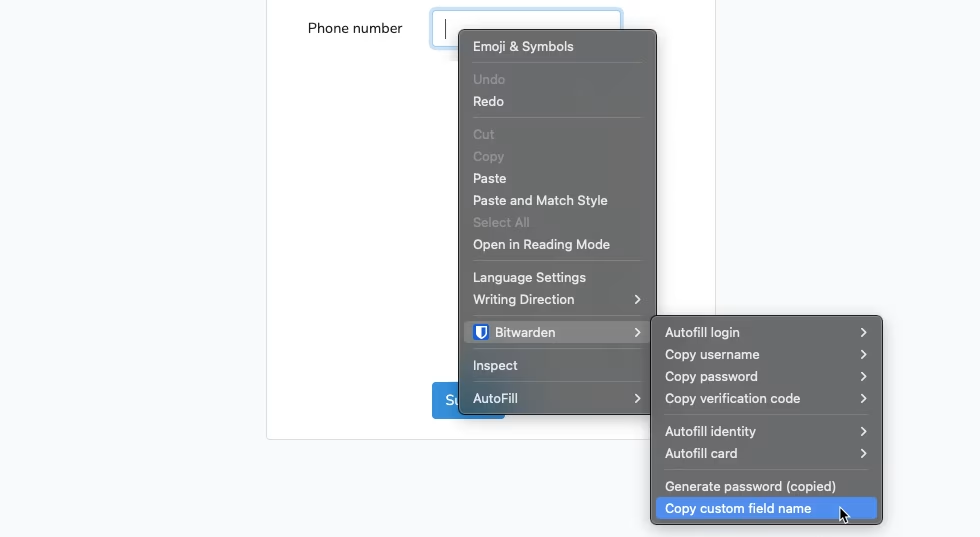
您可以通过右键点击表单元素然后使用**复制自定义字段名称**上下文菜单选项来获取其正确的值:
{% endhint %}
3、选择**添加**。
4、根据您在自动填充时遇到问题的凭据类型,为字段值选择**用户名**或**密码**。在许多情况下,您需要为每个凭据类型创建一个链接型自定义字段。
5、**保存**对密码库项目的更改。
现在您已经创建了一个或多个链接型自定义字段,您可以使用[前面部分中描述的方法](#auto-fill-custom-fields)自动填充了。当您操作时,您的浏览器扩展将自动填充用户名、密码或两者到为字段名称指定的 HTML 表单元素中。
## 特殊自动填充场景
### HTML
自定义字段通常被填充到 HTML `
 {% endhint %}
3、选择**添加**。
4、根据您在自动填充时遇到问题的凭据类型,为字段值选择**用户名**或**密码**。在许多情况下,您需要为每个凭据类型创建一个链接型自定义字段。
5、**保存**对密码库项目的更改。
现在您已经创建了一个或多个链接型自定义字段,您可以使用[前面部分中描述的方法](#auto-fill-custom-fields)自动填充了。当您操作时,您的浏览器扩展将自动填充用户名、密码或两者到为字段名称指定的 HTML 表单元素中。
## 特殊自动填充场景
### HTML
自定义字段通常被填充到 HTML `
{% endhint %}
3、选择**添加**。
4、根据您在自动填充时遇到问题的凭据类型,为字段值选择**用户名**或**密码**。在许多情况下,您需要为每个凭据类型创建一个链接型自定义字段。
5、**保存**对密码库项目的更改。
现在您已经创建了一个或多个链接型自定义字段,您可以使用[前面部分中描述的方法](#auto-fill-custom-fields)自动填充了。当您操作时,您的浏览器扩展将自动填充用户名、密码或两者到为字段名称指定的 HTML 表单元素中。
## 特殊自动填充场景
### HTML
自定义字段通常被填充到 HTML `