> For the complete documentation index, see [llms.txt](https://help.ppgg.in/llms.txt). Markdown versions of documentation pages are available by appending `.md` to page URLs; this page is available as [Markdown](https://help.ppgg.in/docs/password-manager/bitwarden-send/about-send.md).
# 关于 Send
{% hint style="success" %}
对应的[官方文档地址](https://bitwarden.com/help/article/about-send/)
{% endhint %}
Bitwarden Send 是一种加密的文件和文本共享工具,可通过安全、临时的链接将敏感的文本或文件直接传输给任何人。Send 可用于传输多达 1000 个加密字符的文本或多达 500 MB(移动设备上为 100 MB)的文件,并可以通过文本、电子邮件或任何您喜欢的通信渠道[与任何人分享](/docs/password-manager/bitwarden-send/receive-a-send.md)。
{% hint style="info" %}
如果您所在的组织已在[管理 Send 策略](/docs/admin-console/oversight-visibility/enterprise-policies.md#manage-send)下关闭了 Send 功能,您对 Send 的访问将受到限制:
* 您无法创建新的 Send,也无法编辑现有的 Send。
* 您可以在所有 Bitwarden 客户端(网页 App 除外)的 **Send** 页面查看和删除 Send。
* 您无法通过 Bitwarden 网页 App 访问 Send 页面。
使用管理 Send 策略,组织所有者和管理员还可以控制创建新 Send 时哪些字段不可用。
{% endhint %}
## 访问 Send
可以从任何 Bitwarden App 的 **Send** 视图创建、编辑、管理和删除 Send。从主导航访问 Send 视图:
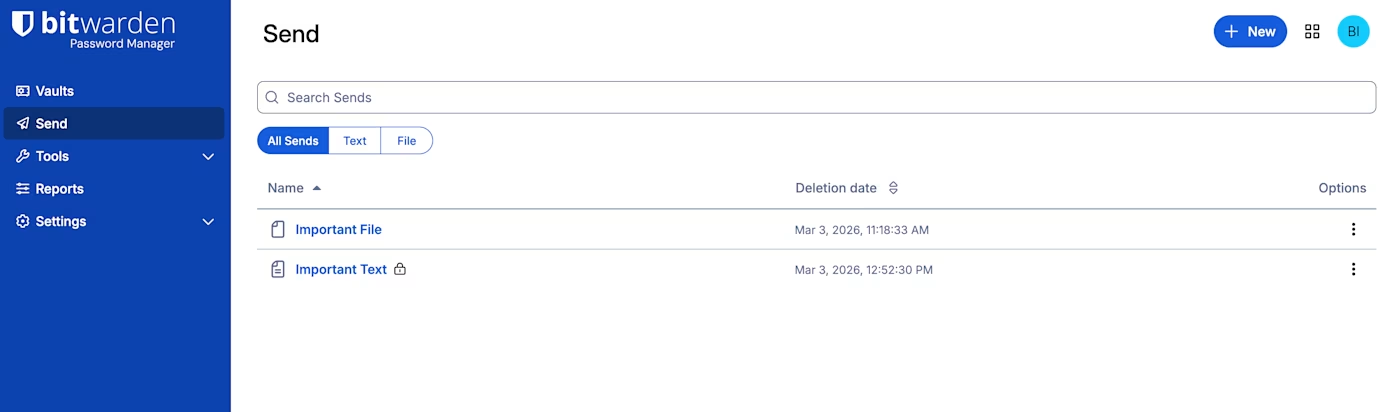
网页 App 中的 Send
| 图标 | 含义 |
|---|
| :lock-keyhole: | 此 Send 受密码保护。 |
| :circle-exclamation: | 此 Send 已被手动禁用。 |
| :clock: | 此 Send 已达到指定的有效期。 |
| :circle-exclamation: | 此 Send 已达到指定的最大访问次数。 |
| :trash-can: | 此 Send 已达到指定的删除日期,正等待删除。 |
## 使用 Send
使用 Bitwarden Send 是一个三步过程:
1、[创建 Send](/docs/password-manager/bitwarden-send/create-a-send.md) 并选择所需的[生命周期选项](/docs/password-manager/bitwarden-send/send-lifespan.md)和[隐私选项](/docs/password-manager/bitwarden-send/send-privacy.md)以满足您的分享需求。
2、通过您喜欢的任何通信渠道分享 Send 链接。
3、[接收者打开 Send 链接](/docs/password-manager/bitwarden-send/receive-a-send.md)以访问其内容。
## Send 安全性
端到端加密
数据在创建时会被[加密](/docs/password-manager/bitwarden-send/send-encryption.md),只有当接收者打开 Send 链接时才会[解密](/docs/password-manager/bitwarden-send/send-encryption.md#send-decryption)。与传统的密码库项目一样,Send 的内容**被加密**存储在 Bitwarden 系统中。生成的每一个 Send 链接不包含任何与 Send 内容相关的数据,因此可以安全地通过中间通信服务进行分享,而不会泄露信息。
动态的短暂
Send 是为短暂分享而设计的,所以您[创建的每一个 Send](/docs/password-manager/bitwarden-send/create-a-send.md) 都有一个可指定的[生命周期](/docs/password-manager/bitwarden-send/send-lifespan.md)(最长 31 天),生命周期可以使用预先设置的选项或自定义的时间戳来进行选择。当达到删除日期时,该 Send 及其内容将被完全清除。使用额外的选项,如[到期日期](/docs/password-manager/bitwarden-send/send-lifespan.md#expiration-date)和[最大访问次数](/docs/password-manager/bitwarden-send/send-lifespan.md#maximum-access-count),依据您的意愿确保终止接收者的访问。
灵活的隐私
您可以使用多种灵活的隐私选项来保护您的 Send 的内容:
* 通过[配置密码](/docs/password-manager/bitwarden-send/send-privacy.md#send-passwords)设置访问权限
* 对指定的接收者[电子邮箱验证](/docs/password-manager/bitwarden-send/send-privacy.md#email-verified-recipients)访问权限
* [对接收者隐藏您的电子邮箱地址](/docs/password-manager/bitwarden-send/send-privacy.md#hide-email)
对于文本 Send,您还可以选择要求用户[切换可见性](/docs/password-manager/bitwarden-send/send-privacy.md#hide-text),以防止暴露给无意的旁人。
{% hint style="info" %}
个人密码库项目的附件和所有 Send 均使用高级版订阅或组织授予的个人存储空间。组织拥有的项目的附件使用共享的组织存储空间。了解如何[添加存储空间](/docs/password-manager/your-vault/vault-items/file-attachments.md#add-storage-space)。
{% endhint %}
## 下一步
现在您已经了解了 Bitwarden Send 的基础知识,我们建议:
* [创建您的第一个 Send](/docs/password-manager/bitwarden-send/create-a-send.md)
* [升级到高级版以使用文件 Send](/docs/plans-and-pricing/password-manager/about-bitwarden-plans.md#premium-individual)
* 更多有关 Send 的更深入概述,请参阅 [Bitwarden Send - How it works](https://bitwarden.com/blog/bitwarden-send-how-it-works/)。