# Send 隐私

{% hint style="success" %}
对应的[官方文档地址](https://bitwarden.com/help/article/send-privacy/)
{% endhint %}

通过选择性的配置[访问密码](/docs/password-manager/bitwarden-send/send-privacy.md#send-passwords)来保护您的 Send 内容，以防止无意的接收者看到其包含的信息，和/或[对接收者隐藏您的电子邮箱](/docs/password-manager/bitwarden-send/send-privacy.md#hide-email)。对于文本 Send，您还可以选择要求接收者[切换可见性](/docs/password-manager/bitwarden-send/send-privacy.md#hide-text)，以防止暴露给无意的旁人。

**密码**、**隐藏电子邮箱**和**隐藏文本**选项可以在达到 Send [删除日期](/docs/password-manager/bitwarden-send/send-lifespan.md#deletion-behavior)之前的任何时候，从创建新 Send 视图或**编辑 Send** 视图进行配置。

## 验证接收者的电子邮箱 <a href="#email-verified-recipients" id="email-verified-recipients"></a>

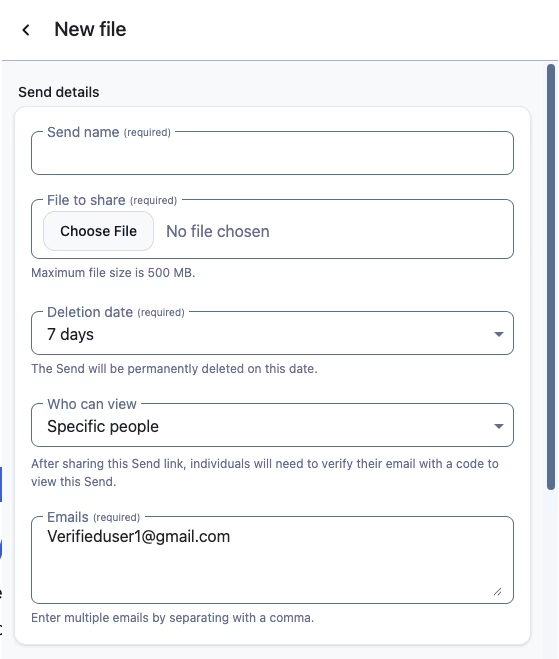
付费 Bitwarden 方案的用户（高级版、家庭版、团队版、企业版）可以要求验证电子邮箱后才能访问 Send。创建 Send 时，指定一个或多个接收者电子邮箱地址。接收者访问 Send 链接后，必须输入其电子邮箱地址。如果它与您指定的地址匹配，验证码将通过电子邮件发送给接收者。要创建电子邮箱验证的 Send：

1、在**谁可以查看**菜单中选择**指定人员**选项。然后，将目标接收者添加到**电子邮箱**字段。完成 [Send 设置](/docs/password-manager/bitwarden-send/about-send.md#using-send)，然后将 Send 链接分享给目标接收者。

<div align="left" data-with-frame="true"><figure><img src="https://bitwarden.com/assets/9isz2fm2soiJJOau1sq7b/1b9cdff84b482c8698ef6e0a20ebf826/Send_access_list.png?w=450&#x26;fm=avif" alt=""><figcaption><p>验证用户的 Send</p></figcaption></figure></div>

2、接收者访问 Send 链接后，将被要求输入他们的电子邮箱地址。验证码将发送到该用户的电子邮箱地址。输入验证码即可查看 Send 内容。

<div align="left" data-with-frame="true"><figure><img src="https://bitwarden.com/assets/7qM22jPeoKCnGE6GS03wz7/4f959a8b1b7b9f13674bdda975af9a5d/2026-02-24_17-04-46.png?w=493&#x26;fm=avif" alt=""><figcaption><p>输入 Send 验证码</p></figcaption></figure></div>

## Send 密码 <a href="#send-passwords" id="send-passwords"></a>

对于任何 Send，您可以配置一个密码，接收者必须输入该密码才能访问其内容。使用密码保护 Send 是一种确保 Send 的内容不会暴露给意外的接收者的好方法：

<div align="left" data-with-frame="true"><figure><img src="https://bitwarden.com/assets/7DyqQ9YHNrAIvmlyDrOCmr/fd237c32480dfd1a5d8c8d911e13abff/send-password.png?w=536&#x26;fm=avif" alt=""><figcaption><p>接收受密码保护的 Send</p></figcaption></figure></div>

对 Send 进行密码保护后，您将无法再次查看已配置的密码，但是您可以随时[更改](/docs/password-manager/bitwarden-send/send-privacy.md#change-send-passwords)或[移除](/docs/password-manager/bitwarden-send/send-privacy.md#remove-send-passwords)它：

### 更改 Send 密码 <a href="#change-send-passwords" id="change-send-passwords"></a>

您可以随时在**编辑 Send** 视图中更改 Send 密码。更改 Send 密码不会要求您输入以前的密码。更改 Send 密码时，**密码**字段将更改为**新密码**。

### 移除 Send 密码 <a href="#remove-send-passwords" id="remove-send-passwords"></a>

您可以随时使用 **⟲移除密码**菜单选项移除 Send 密码。移除 Send 密码不会要求您输入以前的密码：

<div align="left" data-with-frame="true"><figure><img src="https://bitwarden.com/assets/GIVACRQbGQyj0fLzLUZOc/b7a14b2ef75eea16f9b9376418cca1e7/remove-password_protection.png?w=1400&#x26;fm=avif" alt=""><figcaption><p>移除密码保护</p></figcaption></figure></div>

## 隐藏电子邮箱 <a href="#hide-email" id="hide-email"></a>

默认情况下，Send 将对接收者显示发送者的电子邮箱地址。要在创建 Send 时移除您的电子邮箱地址：

1. 选择**选项**。
2. 勾选**对接收者隐藏我的电子邮箱地址**。

接收者可以通过将 **Send 链接**与其发送者交叉对比，来验证预期 Send 对象的可信度。隐藏了电子邮箱的 Send 对象将向接收者发出警告，鼓励他们这样做：

<div align="left" data-with-frame="true"><figure><img src="https://bitwarden.com/assets/47RPmr6xOowzjJbG6JxVG3/42ba660b4316b57c4857ed7f7fcd58e3/Hidden_email_send.png?w=516&#x26;fm=avif" alt=""><figcaption><p>隐藏了电子邮箱的文本 Send</p></figcaption></figure></div>

{% hint style="success" %}
对于企业组织，可以使用[企业策略](/docs/admin-console/oversight-visibility/enterprise-policies.md#send-options)设置此选项的可用性。
{% endhint %}

## 隐藏文本 <a href="#hide-text" id="hide-text"></a>

对于文本 Send，切换到**当访问 Send 时，默认隐藏文本**选项，以要求接收者 **👁‍🗨切换可见性**才能查看其内容。隐藏文本是一个很好的方法，它可以确保内容不会暴露给无意的旁人：

<div align="left" data-with-frame="true"><figure><img src="https://bitwarden.com/assets/4KcdIWqSnADnv1TMtsrSIr/f9ab606faf3e7395f25b02ed8a11fc14/hidden_text.png?w=484&#x26;fm=avif" alt=""><figcaption><p>接收隐藏了文本的 Send</p></figcaption></figure></div>


---

# Agent Instructions: Querying This Documentation

If you need additional information that is not directly available in this page, you can query the documentation dynamically by asking a question.

Perform an HTTP GET request on the current page URL with the `ask` query parameter:

```
GET https://help.ppgg.in/docs/password-manager/bitwarden-send/send-privacy.md?ask=<question>
```

The question should be specific, self-contained, and written in natural language.
The response will contain a direct answer to the question and relevant excerpts and sources from the documentation.

Use this mechanism when the answer is not explicitly present in the current page, you need clarification or additional context, or you want to retrieve related documentation sections.