# 从 LastPass 导入

{% hint style="success" %}
对应的[官方文档地址](https://bitwarden.com/help/import-from-lastpass/)
{% endhint %}

使用这篇文章帮助您从 LastPass 导出数据并导入到 Bitwarden。

## 从 LastPass 导出 <a href="#export-from-lastpass" id="export-from-lastpass"></a>

您可以从 LastPass 的网页密码库或从 LastPass 浏览器扩展[导出数据](https://support.lastpass.com/help/export-your-passwords-and-secure-notes-lp040004)：

{% hint style="success" %}
您可以跳过此步骤并立即开始使用[直接导入选项](#import-to-bitwarden)导入到 Bitwarden，仅适用于 Bitwarden 浏览器扩展和桌面 App。
{% endhint %}

{% tabs %}
{% tab title="LastPass 网页密码库" %}
要从 LastPass 网页密码库导出您的数据：

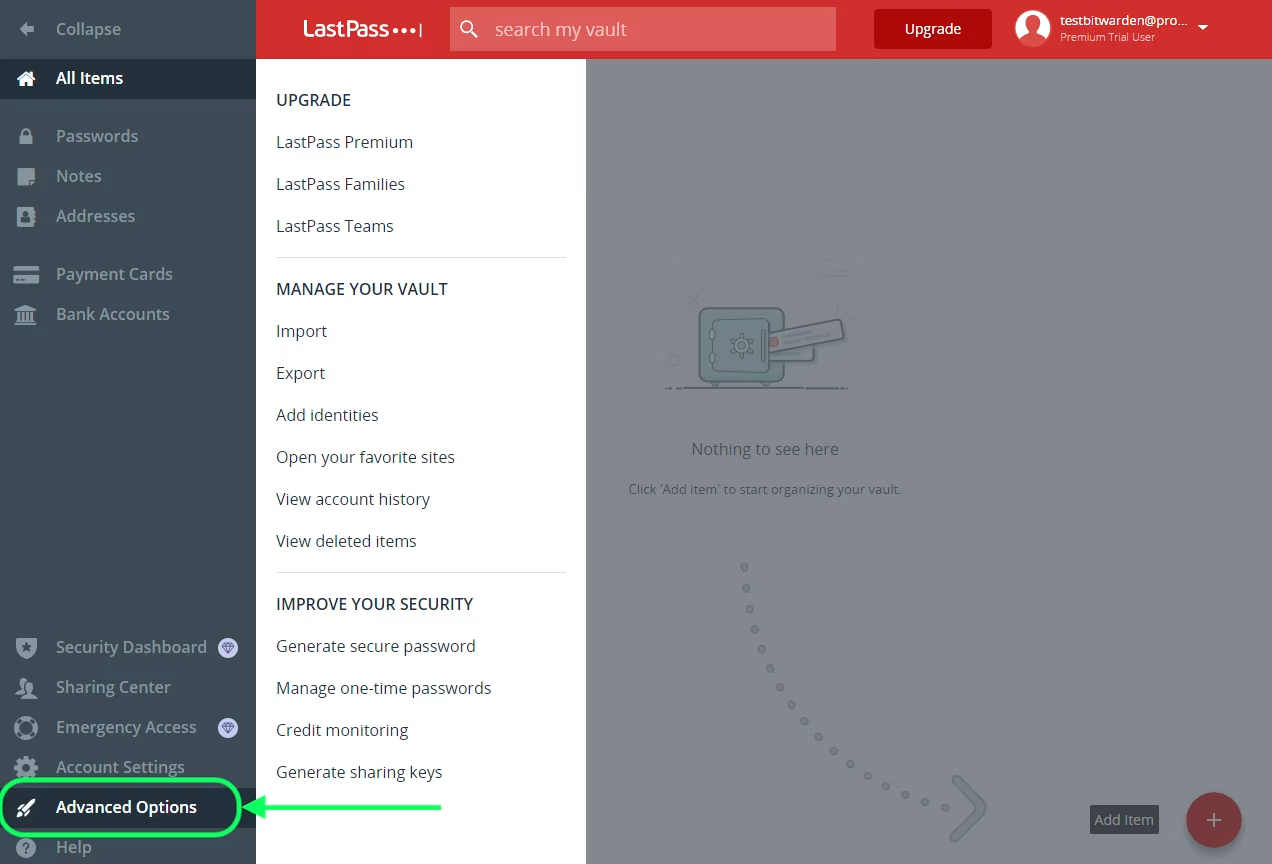
1、从左侧边栏选择 **🚀Advanced Options** 选项。

{% embed url="<https://images.ctfassets.net/7rncvj1f8mw7/5uCdlKvfGTjYIEJvKtpbQw/14cd0e6bfb36a53b1f1d6f88d3808a90/lastpassadvancedoptions.png?fm=webp&h=864&q=50&w=1272>" %}
从网页密码库导出
{% endembed %}

2、从管理您的密码库部分，选择 **Export** 选项。此时，LastPass 将向您发送一封电子邮件以确认导出。

3、在您的收件箱中，确认此导出操作，返回到您的 LastPass 网页密码库，并再次选择 **Export** 选项以完成导出。

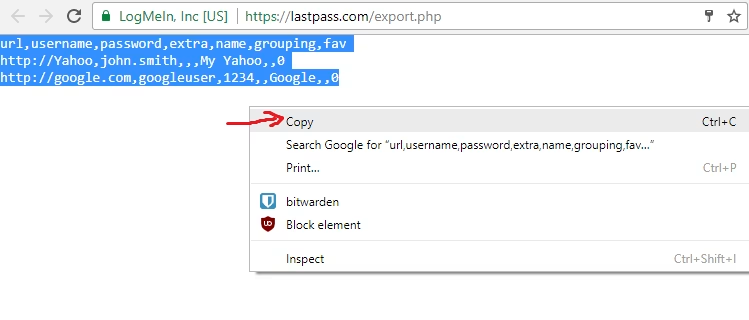
根据您的浏览器，您的密码库数据将自动保存为 `.csv` 文件或以 `.csv` 格式显示在屏幕上：

{% embed url="<https://images.ctfassets.net/7rncvj1f8mw7/6TIRhpByBC4coLrP58zG8a/fb2da8df01a2e0f56e87f45612182e86/lastpass-copy.png?fm=webp&h=320&q=50&w=749>" %}
LastPass 导出
{% endembed %}

4、如果您的密码库数据显示在屏幕上，全选显示的数据，将其复制并粘帖到一个新的 `export.csv` 文件中。

{% hint style="danger" %}
一些用户报告了一个 bug：密码中的特殊字符（`&`、`<`、`>` 等）在导出时，被更改成了 HTML 编码的值（例如 `&amp;`）。

如果您在导出的数据中发现了这个 bug，请使用文本编辑器查找并替换所有被更改的值，然后再导入到 Bitwarden 中。
{% endhint %}
{% endtab %}

{% tab title="LastPass 浏览器扩展" %}
要从 LastPass 浏览器扩展导出您的数据：

1、在浏览器扩展中，导航到 **Account** → **Fix a problem yourself** → **Export vault items** → **Export data for use anywhere**。

{% hint style="info" %}
如果您使用旧版本的 LastPass 浏览器扩展，则可能需要导航至 **Account Options** → **Advanced** → **Export** → **LastPass CSV File**。
{% endhint %}

2、输入您的主密码以验证导出尝试。

根据您的浏览器，您的密码库数据将自动保存为 `.csv` 文件或以 `.csv` 格式显示在屏幕上：

{% embed url="<https://bitwarden.com/assets/6TIRhpByBC4coLrP58zG8a/fb2da8df01a2e0f56e87f45612182e86/lastpass-copy.png?w=749&fm=avif>" %}
LastPass 导出
{% endembed %}

3、如果您的密码库数据显示在屏幕上，全选显示的文本数据，然后将其复制并粘帖到一个新的 `export.csv` 文件中。
{% endtab %}
{% endtabs %}

## 导入到 Bitwarden <a href="#import-to-bitwarden" id="import-to-bitwarden"></a>

可以从 LastPass 直接导入，也可以使用从 LastPass [导出的文件](#export-from-lastpass)导入。如果您是使用 LastPass SSO 的团队成员，在您使用**直接导入**选项导入个人数据之前，LastPass 管理员将需要完成一个简短的设置过程。无论哪种方式，数据在发送到服务器存储之前都会在本地进行[加密](https://help.ppgg.in/docs/security/encryption/encryption-protocols)。

{% hint style="info" %}
虽然某些项目类型无法导入，但您仍可将其添加到密码库：

* 将[文件附件](https://help.ppgg.in/docs/password-manager/your-vault/vault-items/file-attachments)单独上传到新的密码库。
* 在新的密码库中重新创建 [Send](https://help.ppgg.in/docs/password-manager/bitwarden-send/about-send)。
  {% endhint %}

{% tabs %}
{% tab title="直接导入" %}
{% hint style="success" %}
如果您是使用 LastPass SSO 的团队成员，LastPass 管理员需要先完成一个简单的设置过程，然后您才能使用**直接导入**选项（[了解更多](#direct-import-with-sso)）。
{% endhint %}

可以使用 Password Manager 浏览器扩展和桌面 App 从您的 LastPass 账户直接导入个人密码库数据，而无需您上传文件。要进行直接导入：

1、登录到 Password Manager 浏览器扩展或桌面 App。

2、在浏览器扩展中，选择**设置**选项卡，然后选择密码库然后选择**导入项目**选项。或者，在桌面 App 中，选择**文件** > **导入数据**。

3、从下拉菜单中完成以下字段：

* **密码库**或**导入目的地**：选择导入目的地，例如您的个人密码库或您拥有访问权限的组织密码库。
* **文件夹**或**集合**：选择您希望将导入的内容移动到的特定文件夹或您拥有访问权限的组织集合。
* [**文件格式**](https://help.ppgg.in/docs/password-manager/import-and-export-faqs#q-what-file-formats-does-bitwarden-support-for-import)：选择 LastPass。
* 在 LastPass 说明框中，选择**直接从 LastPass 导入**选项。
* 输入您的 **LastPass 电子邮箱地址**。如果您代表企业进行导入，我们建议您使用 LastPass [管理员](https://support.lastpass.com/s/document-item?language=en_US\&bundleId=lastpass\&topicId=LastPass/uac_admin_roles.html&_LANG=enus)凭据。使用超级管理员凭据可能会导致导入失败。

4、选择**导入数据**按钮以触发导入。

5、将提示您输入 LastPass 主密码，或者如果您的 LastPass 账户使用 SSO，登录到您的 IdP。无论哪种情况，请按照提示登录到您的 LastPass 账户。

{% hint style="success" %}
如果您的 LastPass 账户激活了多重身份验证，系统将提示您输入来自身份验证器 App 的一次性通行代码。如果您使用 Duo 方式的 MFA，则仅支持应用内审批以满足您的 MFA 要求。
{% endhint %}

[文件附件](https://help.ppgg.in/docs/password-manager/your-vault/vault-items/file-attachments)、回收站等附加项目需要手动上传到您的密码库。
{% endtab %}

{% tab title="文件导入" %}
从大多数 Password Manager App 导出的文件可以导入到 Bitwarden（了解如何[从 LastPass 导出文件](#export-from-lastpass)）。在本节中，我们将重点介绍使用网页 App 进行导入：

1、通过 <https://vault.bitwarden.com>，<https://vault.bitwarden.eu> 或自托管的 `https://your.bitwarden.domain.com` 登录到网页密码库。

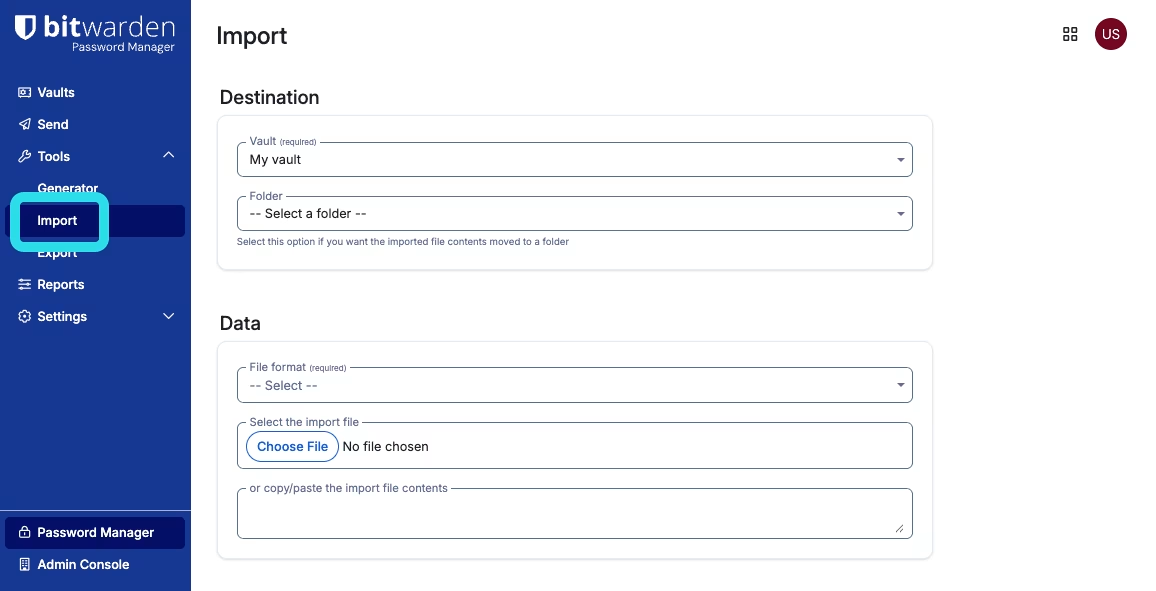
2、从导航选择**工具** → **导入**：

{% embed url="<https://bitwarden.com/assets/1NbyPb9dN545ZqKGRZYB3x/e6b8f3f31aa82bb05cef12c5a5c4c193/2025-12-17_11-25-08.png?w=1156&fm=avif>" %}
导入项目
{% endembed %}

3、从下拉菜单中完成以下字段：

* **导入目的地**：选择导入目的地，例如您的个人密码库或您拥有访问权限的组织密码库。
* **文件夹**或**集合**：选择您希望将导入的内容移动到的特定文件夹或您拥有访问权限的组织集合。
* [**文件格式**](https://help.ppgg.in/docs/password-manager/import-and-export-faqs#q-what-file-formats-does-bitwarden-support-for-import)：选择导入文件的格式。

4、选择**选择文件**然后添加一个文件用于导入，或将文件内容**复制/粘贴**到输入框中。

{% hint style="danger" %}
导入时不会检查要导入的文件中的项目是否已存在于您的密码库中，因此多次导入文件或导入具有已存在于密码库中的项目的文件**将创建重复项目**。
{% endhint %}

5、选择**导入数据**按钮以开始导入。如果您要导入受密码保护的 .`json` 文件，请在出现的**确认密码库导入**窗口中输入密码。

6、成功导入后，从您的计算机中将导入源文件删除。这将在您的计算机受到威胁时为您提供保护。

[文件附件](https://help.ppgg.in/docs/password-manager/your-vault/vault-items/file-attachments)、回收站等附加项目需要手动上传到您的密码库。
{% endtab %}

{% tab title="CLI" %}
要通过 CLI 将数据导入您的密码库，请使用以下命令：

```bash
bw import <format> <path>
```

`bw import` 命令需要格式（使用 `bw import --formats` 获取格式列表）和路径，例如：

```bash
bw import lastpasscsv /Users/myaccount/Documents/mydata.csv
```

成功导入后，从您的计算机中将导入源文件删除。这将在您的计算机受到威胁时为您提供保护。
{% endtab %}
{% endtabs %}

## 使用 SSO 直接导入 <a href="#direct-import-with-sso" id="direct-import-with-sso"></a>

{% hint style="danger" %}
以下 IdP 不支持使用 SSO 的 LastPass 账户的直接导入：

* Google Workspace
* ADFS
  {% endhint %}

如果您是使用 SSO 的 LastPass 团队管理员，则您需要先完成以下操作，然后您的团队才能使用**直接导入**选项：

* 在 IdP 的 LastPass 应用程序中添加 `bitwarden://sso-callback-lp` 和 `bitwarden://import-callback-lp` 作为允许的回调 URL。

如果您的用户使用 Password Manager 浏览器扩展：

* 在您的 IdP 的 LastPass 应用程序中添加 `[protocol]://[identifier]/sso-connector.html?lastpass=1` 或 `https://your.server.com/sso-connector.html?lp=1` 作为允许的回调 URL。
* 在您的 IdP 的 LastPass 应用程序中添加 `chrome-extension://nngceckbapebfimnlniiiahkandclblb`，`ms-browser-extension://jbkfoedolllekgbhcbcoahefnbanhhlh` 和/或 `moz-extension://23462205-0e62-4cc8-80c4-910cf54b82c2` 作为允许的回调 URL。

## 导入错误故障排除 <a href="#troubleshoot-import-errors" id="troubleshoot-import-errors"></a>

如果出现「导入错误」消息，则表明没有数据添加到您的密码库中。[修复导入文件问题](https://help.ppgg.in/docs/password-manager/import-data#troubleshoot-import-errors)然后重试。

### 组织最多只能拥有俩个集合 <a href="#organization-can-only-have-a-maximum-of-two-collections" id="organization-can-only-have-a-maximum-of-two-collections"></a>

免费 Bitwarden 组织最多可以拥有两个集合来组织项目。导入数据时，Bitwarden 会将 LastPass  `grouping` 值视为集合。如果您的 LastPass 导出包含 3 个或更多 `grouping` 值，并且您是免费 Bitwarden 组织的一部分，您将收到 「This organization can only have a maximum of two collections（该组织最多只能拥有两个集合）」的导入错误。

当 Lastpass 导出包含 3 个或更多 `grouping` 值时，就会发生该错误。`grouping` 字段中的值被 Bitwarden 解释为[集合](https://help.ppgg.in/docs/admin-console/manage-shared-items/collections/about-collections)，但[免费组织](https://help.ppgg.in/docs/plans-and-pricing/password-manager/about-bitwarden-plans)限制为仅两个集合。例如，下面的 `.csv` 将导致该错误：

```
url,username,password,totp,extra,name,grouping,fav
https://www.facebook.com/login.php,username,password,,,Facebook,Social,0
https://twitter.com/login,username,password,,,Twitter,Social,0
https://asana.com/,login,password,,,Asana,Productivity Tools,0
https://github.com/login,username,password,,,Github,Productivity Tools,0
https://www.paypal.com/login,username,password,,,Paypal,Finance,0
https://www.bankofamerica.com/,username,password,,,Bankofamerica,Finance,0
```

要解决这个问题，请删除每个项目的 `grouping` 列和 `grouping` 基准，包括后面的逗号，例如，编辑：

```
https://github.com/login,username,password,,,Github,Productivity Tools,0
```

将其减少为：

```
https://github.com/login,username,password,,,Github,0
```