# Apple Watch 上的 Bitwarden

{% hint style="success" %}
对应的[官方文档地址](https://bitwarden.com/help/apple-watch-totp/)
{% endhint %}

我们的 Password Manager 的[集成验证器功能](/docs/password-manager/your-vault/security-tools/totp.md)现在可以在 Apple Watch 上使用。Bitwarden 高级版成员或通过付费组织获得高级成员资格的用户，现在将有一个额外的选项用于访问基于时间的一次性密码 (TOTP) 代码。Apple Watch Bitwarden 将显示存储有种子的密码库项目的 TOTP 代码，以便在登录受 TOTP 保护的账户时更轻松地访问。

{% hint style="info" %}
TOTP 验证码的生成要求 Bitwarden 高级版或付费组织（家庭版、团队版或企业版）的个人高级版成员资格。[此处](/docs/plans-and-pricing/password-manager/about-bitwarden-plans.md#compare-personal-plans)详细了解每种方案的详细信息。

~~不再向 Families 2019 方案的用户提供个人高级版成员资格。~~[~~此处~~](/docs/plans-and-pricing/updates-to-bitwarden-plans-2019-2020.md)~~了解此方案的变更情况。~~
{% endhint %}

## 设置 <a href="#setup" id="setup"></a>

1、确保您的 iOS 移动设备已安装了 Bitwarden App。

2、检查你的 Apple Watch，Bitwarden 应该会自动安装在您的手表上。如果没有在您的 Apple Watch 上看到 Bitwarden ，请在 Apple Watch 上手动安装 Bitwarden。

<div align="left" data-with-frame="true"><figure><img src="https://bitwarden.com/assets/6pWZMbYpUERAe7wPVKBANZ/eb3046159b774c207510b762947e144d/Screen_Shot_2022-12-02_at_3.53.40_PM__2_.png?w=341&#x26;fm=avif" alt=""><figcaption><p>Apple Watch Bitwarden App</p></figcaption></figure></div>

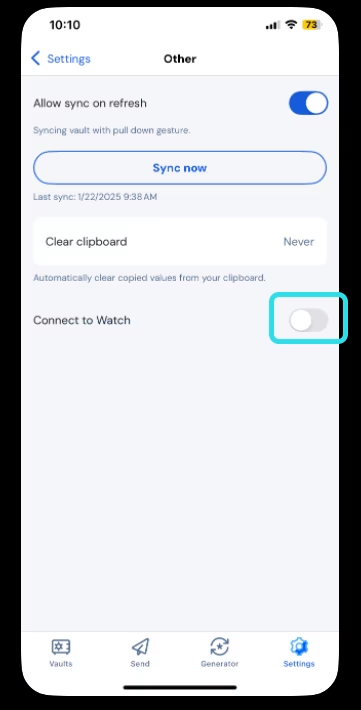
3、在 iPhone 移动 App 上访问您的 Bitwarden 账户，然后选择 **⚙️设置**选项卡。

4、选择**其他**选项，然后打开**连接到 Watch**。选择后，在弹出窗口中确认该设置已**打开**。

<div align="left" data-with-frame="true"><figure><img src="https://bitwarden.com/assets/349i1GulSBErWTuDSFOgkW/25a10a9b2a8584fb074c205236311fc8/2025-01-22_10-10-42.png?w=361&#x26;fm=avif" alt=""><figcaption><p>连接到 Apple Watch</p></figcaption></figure></div>

5、启动后，手表将开始与 Bitwarden 同步。

当您注销账户或切换到其他账户时，Apple Watch 将擦除当前数据。在您的 iOS 移动设备上重新登录 Bitwarden 账户时，将再次进行同步。

{% hint style="info" %}
在移动 App 中关闭 Bitwarden Apple Watch 连接将删除 Apple Watch 上 Bitwarden App 的所有数据并禁止与其通信。
{% endhint %}

## 启用 TOTP <a href="#enabling-totp" id="enabling-totp"></a>

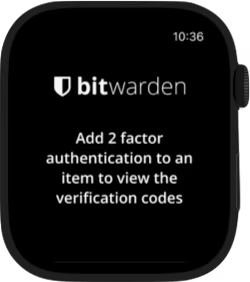
如果您还不熟悉为密码库项目启用 TOTP 代码，请参阅[此处](/docs/password-manager/your-vault/security-tools/totp.md#generate-totp-codes)。如果没有任何项目设置了 TOTP，Apple Watch 将显示此界面：

<div align="left" data-with-frame="true"><figure><img src="https://bitwarden.com/assets/28ELSN09aicT7i20KcFekH/6a062e0391357ae18abcf60cf819db06/2fa.png?w=250&#x26;fm=avif" alt=""><figcaption><p>Apple Watch 添加 2FA 界面</p></figcaption></figure></div>

## 使用 Apple Watch 访问 TOTP 代码 <a href="#sing-the-apple-watch-to-access-totp-codes" id="sing-the-apple-watch-to-access-totp-codes"></a>

1、如果已启用手表 PIN 码，请输入手表 PIN 码解锁 Apple Watch。

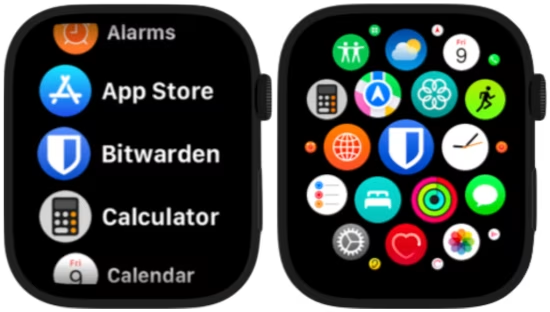
2、在 Apple Watch 上选择 Bitwarden。

<div align="left" data-with-frame="true"><figure><img src="https://bitwarden.com/assets/7twiT5CXV1jsizjiVTocGM/abdcfe9af5da2b1712e18a0fed59f338/Screen_Shot_2022-12-12_at_5.06.28_PM.png?w=550&#x26;fm=avif" alt=""><figcaption><p>Apple Watch App 选择界面</p></figcaption></figure></div>

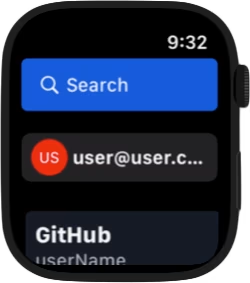
3、密码库将与您 iOS 移动设备上的活动 Bitwarden 账户同步。可以在密码库页面的顶部看到当前的账户。

<div align="left" data-with-frame="true"><figure><img src="https://bitwarden.com/assets/6JGjNWcUfjrUkLjxgRnjPD/0a9be44d510816b1edf4ec76b44b8778/vault_view.png?w=250&#x26;fm=avif" alt=""><figcaption><p>Apple Watch 密码库界面</p></figcaption></figure></div>

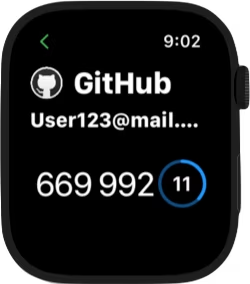
4、选择您想要访问的密码库项目。TOTP 代码和计时器将显示在 Apple Watch 屏幕上。

<div align="left" data-with-frame="true"><figure><img src="https://bitwarden.com/assets/4ENEoPkcwuB2dOb0EHDmhR/efaf2e9278212af2297e5155895865ac/totp_bevel_copy.png?w=250&#x26;fm=avif" alt=""><figcaption><p>Apple Watch TOTP 界面</p></figcaption></figure></div>

## Apple Watch 上的 Bitwarden 的安全性 <a href="#bitwarden-on-the-apple-watch-security" id="bitwarden-on-the-apple-watch-security"></a>

Bitwarden 的零知识加密与 Apple 的 WatchConnectivity 和安全隔离区 (Secure Enclave) 协同工作，可确保 iPhone 和 Apple Watch 之间的零知识和安全通信。可以采取几个步骤来提高您的账户和设备的安全性：

* 设置安全密码，防止在 Apple Watch 上对 Bitwarden 进行不必要的访问。只有 Apple Watch 解锁后，才可以查看设备上的信息。
* 在 Apple Watch 上启用手腕检测，以便设备从用户手腕上取下后自动锁定。

{% hint style="danger" %}
如果启用了「使用 iPhone 解锁」设置，如果设备在附近，解锁连接的 iPhone 时，将自动解锁您的 Apple Watch。这可能会暴露 Apple Watch 上的 Bitwarden 信息。
{% endhint %}

请参阅 [Apple 的 watchOS 安全文档](https://support.apple.com/zh-cn/guide/security/secc7d85209d/web)以了解更多信息。


---

# Agent Instructions: Querying This Documentation

If you need additional information that is not directly available in this page, you can query the documentation dynamically by asking a question.

Perform an HTTP GET request on the current page URL with the `ask` query parameter:

```
GET https://help.ppgg.in/docs/password-manager/more/more-platforms/apple-watch-totp.md?ask=<question>
```

The question should be specific, self-contained, and written in natural language.
The response will contain a direct answer to the question and relevant excerpts and sources from the documentation.

Use this mechanism when the answer is not explicitly present in the current page, you need clarification or additional context, or you want to retrieve related documentation sections.