# 更改 App 外观

{% hint style="success" %}
对应的[官方文档地址](https://bitwarden.com/help/article/change-theme/)
{% endhint %}

Bitwarden 网页密码库、浏览器扩展、桌面 App 和移动 App 都包含有时尚的主题。浏览器扩展还包含一些其他外观选项：

{% tabs %}
{% tab title="网页 App" %}
要更改网页 App 的主题：

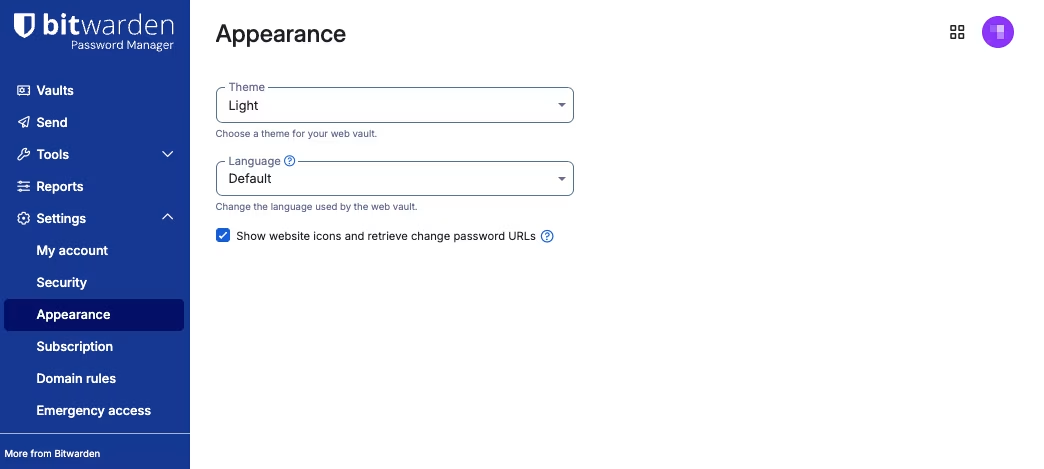
1、导航至**设置** → **外观**：

<div data-with-frame="true"><figure><img src="https://bitwarden.com/assets/7vKmhsOfJqieQbYRxALV75/0ed7782f100100ab3d86567e6b1b0a9d/2025-12-31_10-27-36.png?w=1044&#x26;fm=avif" alt=""><figcaption><p>网页 App 外观</p></figcaption></figure></div>

2、从**主题**下拉菜单中，选择您喜欢的主题然后选择**保存**！
{% endtab %}

{% tab title="浏览器扩展" %}
要更改浏览器扩展的主题：

1、打开浏览器扩展的 **⚙️设置**选项卡。

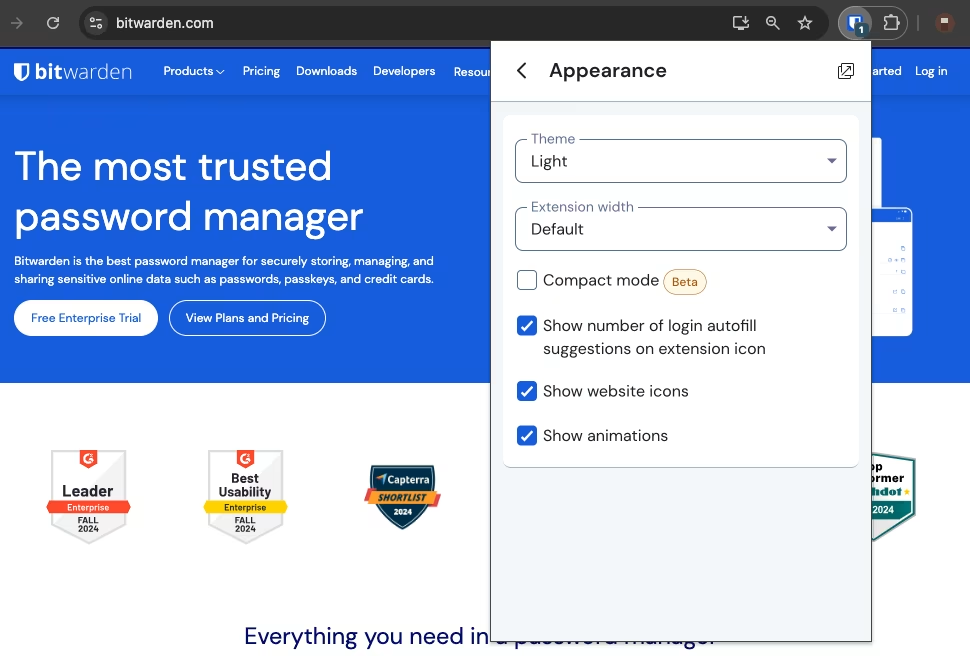
2、选择**外观**。

<div data-with-frame="true"><figure><img src="https://bitwarden.com/assets/6IZpsItvhtnImItOfXJ9HW/5502397e3024f97c473eaf05fc7cb9cd/2024-12-03_10-51-17.png?w=970&#x26;fm=avif" alt=""><figcaption><p>浏览器扩展选择主题</p></figcaption></figure></div>

3、使用**主题**下拉菜单选择您喜欢的主题。

4、使用**扩展宽度**选项以扩大浏览器扩展的尺寸。

5、使用**紧凑模式**以提高浏览器扩展中显示的信息密度。
{% endtab %}

{% tab title="桌面端" %}
要更改桌面 App 的主题：

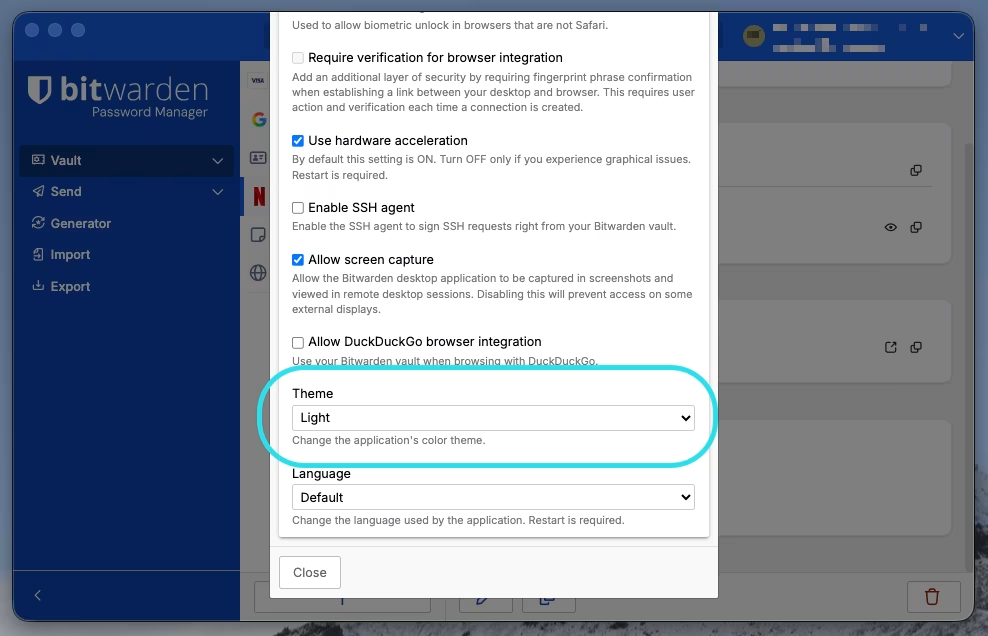
1、打开桌面 App 的**偏好设置**面板（Windows 上为**文件** → **设置**；macOS 上为 **Bitwarden** → **偏好设置**）。&#x20;

2、滚动到 **App 设置**部分，然后使用**主题**下拉菜单选择您喜欢的主题！

<div data-with-frame="true"><figure><img src="https://bitwarden.com/assets/7dOzSglXr4rlM97zKoqptq/5c07e025316518564fd77207944fd546/2026-01-28_11-16-18.png?w=988&#x26;fm=avif" alt=""><figcaption><p>桌面端更改主题</p></figcaption></figure></div>

{% hint style="success" %}
桌面 App 中的主题是为所有已登录账户全局设置的。[了解更多](/docs/account/log-in-and-unlock/more-log-in-options/account-switching.md)。
{% endhint %}
{% endtab %}

{% tab title="移动端" %}
要更改移动 App 的主题：

1、打开移动 App 的 **⚙️设置**选项卡。&#x20;

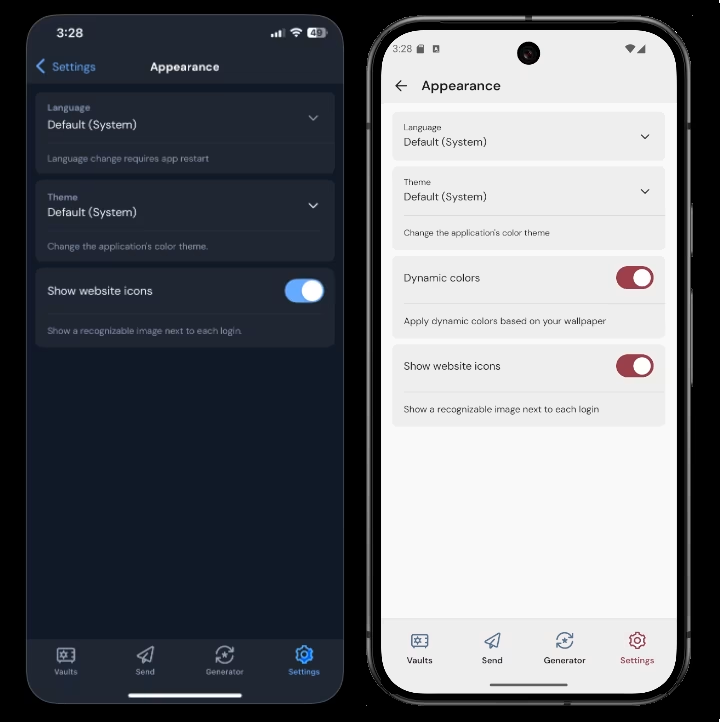
2、点击**外观**。&#x20;

3、点击**主题**选项选择您喜欢的主题！

<div data-with-frame="true"><figure><img src="https://bitwarden.com/assets/ntCXOl03Oi6zmXx5Z9j5C/1329fb58540811d4b195b638b2628aca/2025-05-20_15-28-44.png?w=720&#x26;fm=avif" alt=""><figcaption><p>移动端更改主题</p></figcaption></figure></div>

{% hint style="success" %}
在 Android 上，您还可以使用**动态颜色**选项，使 Bitwarden 的配色方案与您的壁纸相匹配。
{% endhint %}
{% endtab %}
{% endtabs %}


---

# Agent Instructions: Querying This Documentation

If you need additional information that is not directly available in this page, you can query the documentation dynamically by asking a question.

Perform an HTTP GET request on the current page URL with the `ask` query parameter:

```
GET https://help.ppgg.in/docs/password-manager/your-vault/appearance/change-app-appearance.md?ask=<question>
```

The question should be specific, self-contained, and written in natural language.
The response will contain a direct answer to the question and relevant excerpts and sources from the documentation.

Use this mechanism when the answer is not explicitly present in the current page, you need clarification or additional context, or you want to retrieve related documentation sections.