# 密码 & 生成器历史记录

{% hint style="success" %}
对应的[官方文档地址](https://bitwarden.com/help/password-and-generator-history/)
{% endhint %}

Bitwarden 维护两个独立的历史记录：一个用于保存的登录的密码，另一个用于[生成的用户名、密码和密码短语](/docs/password-manager/your-vault/security-tools/generator.md)。如果您生成密码后忘记保存，或者重置密码的操作未完成，这对于您查找之前的密码会很有帮助。

## 密码历史记录 <a href="#password-history" id="password-history"></a>

Bitwarden 会为每个[登录项目](/docs/password-manager/your-vault/vault-items/vault-items.md)存储最近保存的五个密码，包括[已删除](/docs/password-manager/your-vault/vault-items/vault-items.md#vault-trash)但尚未被永久移除的项目。当您编辑[隐藏的自定义字段](/docs/password-manager/your-vault/vault-items/custom-fields.md)时，其先前的值也会保存在密码历史记录中，并计入五个已保存条目之一。注销或切换 Bitwarden 客户端不会影响或清除密码历史记录。

{% hint style="danger" %}
访问密码历史记录会立即以纯文本形式显示旧密码。
{% endhint %}

要查看项目的密码历史记录：

{% tabs %}
{% tab title="网页 App" %}
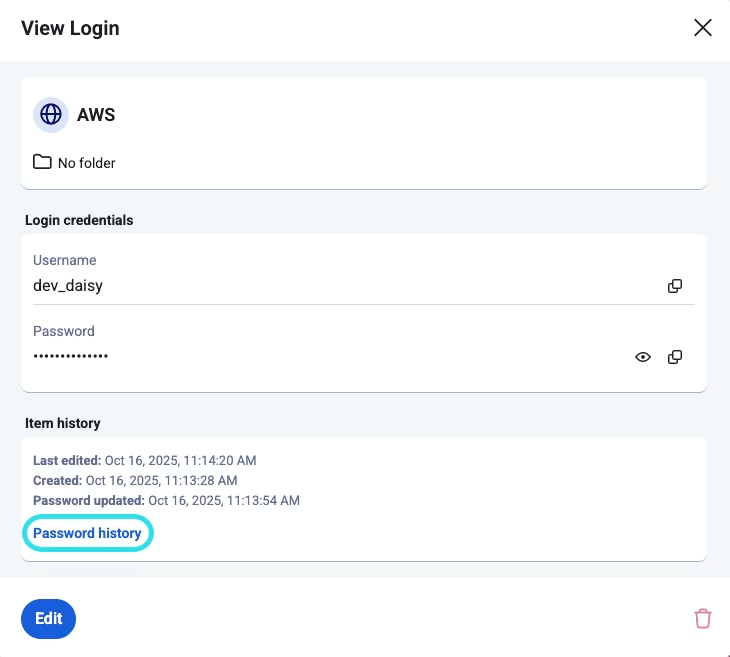
打开项目然后选择**密码历史记录**：

<div data-with-frame="true"><figure><img src="https://bitwarden.com/assets/RT3R5a33WrejA8qnIcmqa/fed083be7acb5fbedfd52e223a086bb5/Password_history_on_web.png?w=730&#x26;fm=avif" alt=""><figcaption><p>网页 App 中的密码历史记录</p></figcaption></figure></div>
{% endtab %}

{% tab title="移动 App" %}
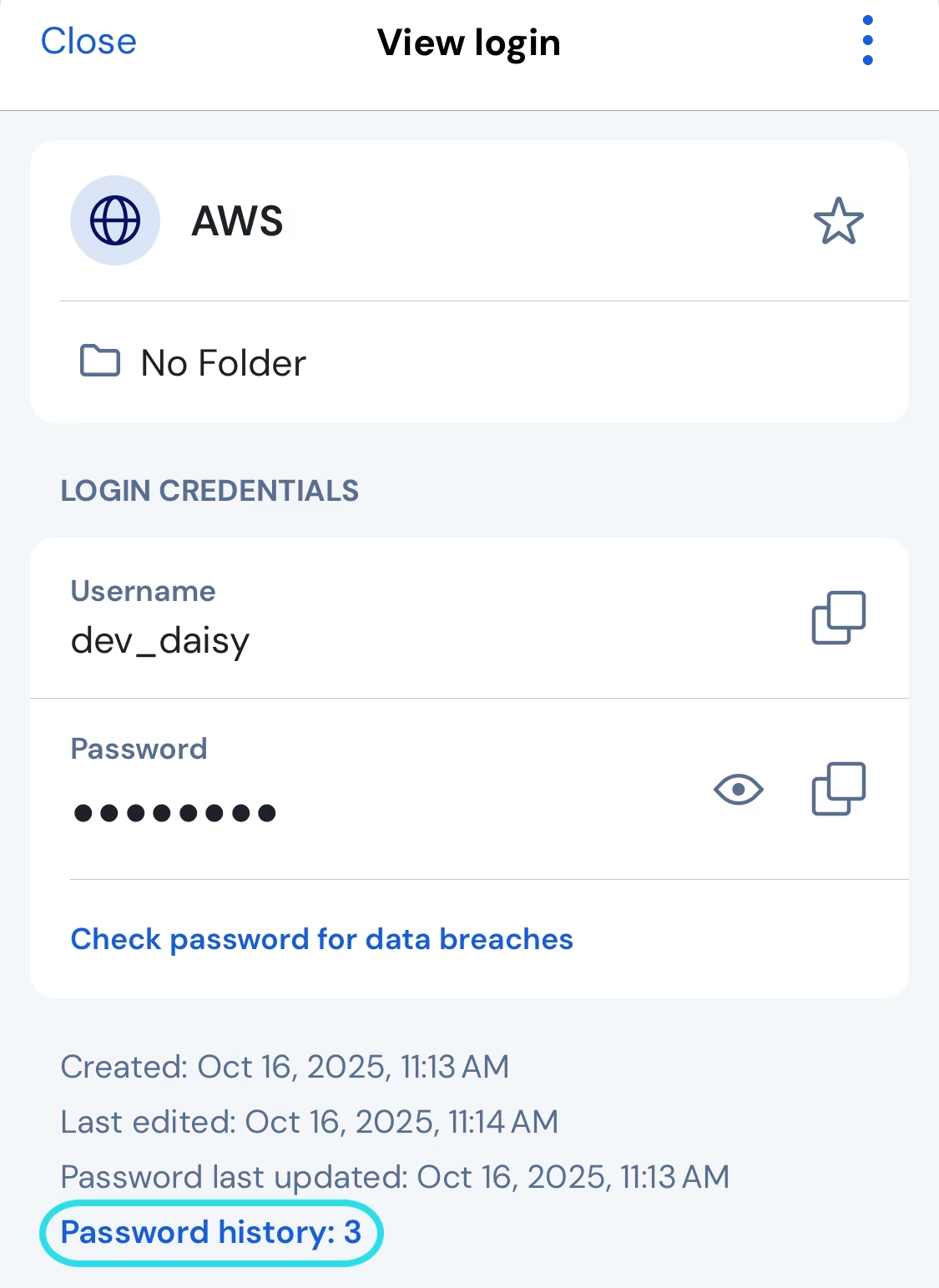
打开项目然后选择窗口底部附近的**密码历史记录**：

<div data-with-frame="true"><figure><img src="https://bitwarden.com/assets/1RJbcOMMkIfVTprx3NZbyQ/82a1eb915b795d439df8fe91917d65af/Password_history_on_mobile.png?w=1125&#x26;fm=avif" alt=""><figcaption><p>移动 App 中的密码历史记录</p></figcaption></figure></div>
{% endtab %}

{% tab title="浏览器扩展" %}
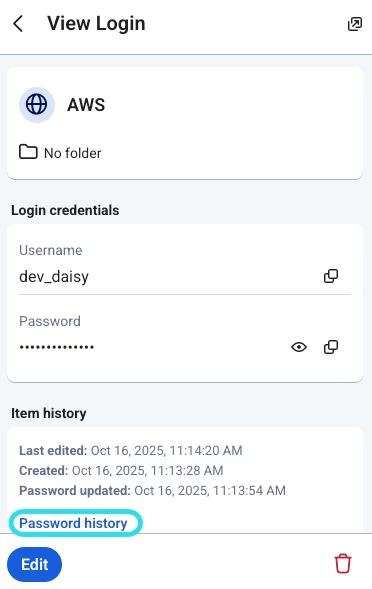
打开项目然后选择**密码历史记录**：

<div align="left" data-with-frame="true"><figure><img src="https://bitwarden.com/assets/2XVetRKi7VLJ7Ctq7scOll/411a752e576a21b533f326b938ca6fa4/Password_history_on_browser.png?w=372&#x26;fm=avif" alt=""><figcaption><p>浏览器扩展中的密码历史记录</p></figcaption></figure></div>
{% endtab %}

{% tab title="桌面 App" %}
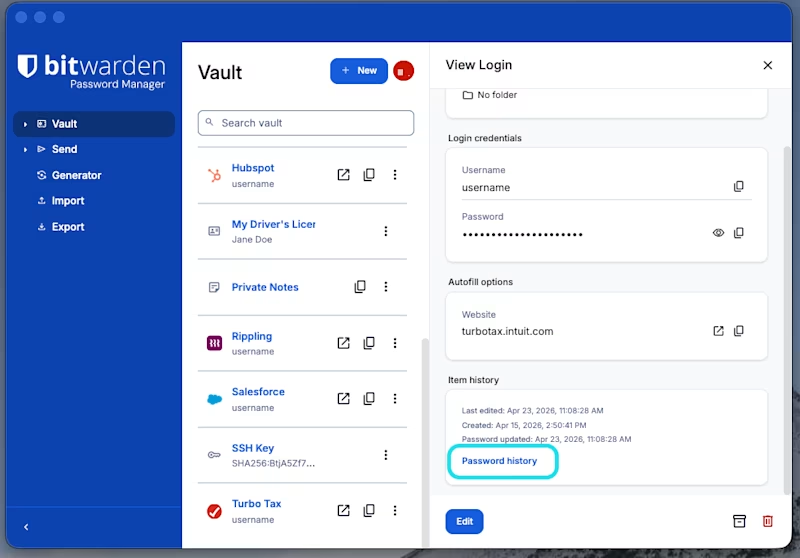
打开项目然后选择窗口底部附近的**密码历史记录**：

<div align="left" data-with-frame="true"><figure><img src="https://bitwarden.com/assets/lvf2rvKuNcJNUYzXOTI99/f739e51e3fdd72e21647b190a9b075c8/Password_history_on_desktop.png?w=416&#x26;fm=avif" alt=""><figcaption><p>桌面 App 中的密码历史记录</p></figcaption></figure></div>
{% endtab %}
{% endtabs %}

## 生成器历史记录 <a href="#generator-history" id="generator-history"></a>

您还可以访问[生成器](/docs/password-manager/your-vault/security-tools/generator.md)的最近历史记录。每一个客户端存储自己生成的用户名、密码和口令；生成器历史记录不会在 Bitwarden 客户端之间同步。注销会擦除该客户端的特定生成器历史记录。

例如，在移动 App 中生成的密码仅出现在移动 App 的生成器历史记录中。它们不会出现在网页 App 的生成器历史记录中，以及注销网页 App 不会移除移动 App 的生成器历史记录。

{% hint style="danger" %}
访问生成器历史记录会立即以纯文本形式显示之前生成的选项。
{% endhint %}

{% tabs %}
{% tab title="网页 App" %}
要访问生成器历史记录：

1. 选择**工具**。
2. 选择**生成器**。
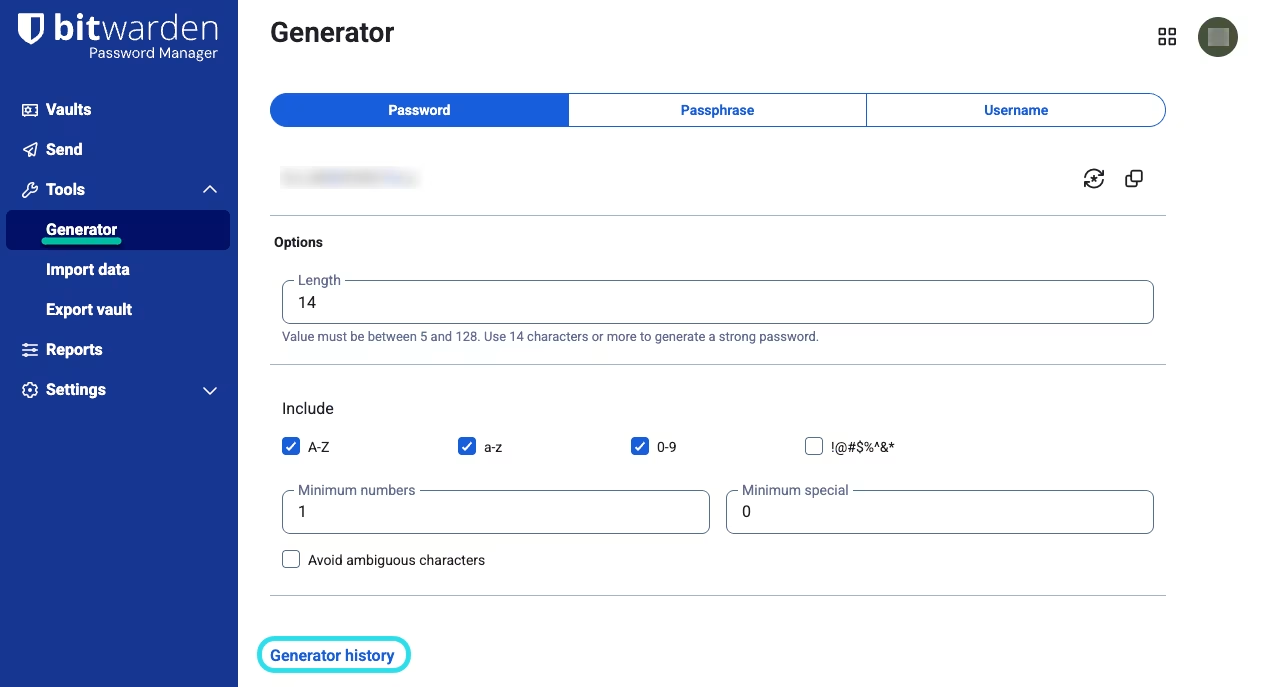
3. 选择**生成器历史记录**：

<div data-with-frame="true"><figure><img src="https://bitwarden.com/assets/W3Cbil4ZzaNUgIoarf6Qm/76248637321f4e4314eb0aa89b1f42af/Generator_history_on_web.png?w=1270&#x26;fm=avif" alt=""><figcaption><p>网页 App 中的生成器历史记录</p></figcaption></figure></div>
{% endtab %}

{% tab title="移动 App" %}
生成的密码和密码短语列在移动 App 的生成器历史记录中。目前不包括生成的用户名。

要访问生成器历史记录：

1. 点击 **⟳生成器图标**。
2. 点击 **≡菜单**图标。
3. 点击**密码历史记录**。
   {% endtab %}

{% tab title="浏览器扩展" %}
要访问生成器历史记录：

1. 选择**生成器**。
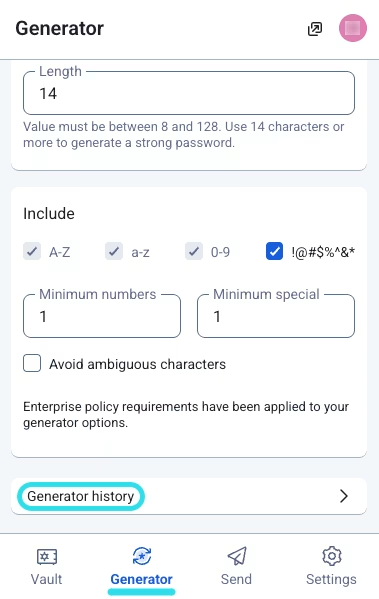
2. 向下滚动然后选择**生成器历史记录**：

<div align="left" data-with-frame="true"><figure><img src="https://bitwarden.com/assets/10EgyHZiwC9p2gkuOdhbkN/52083c2ccc2cbd1abd2bd5afb8cbb74e/Generator_history_on_browser.png?w=379&#x26;fm=avif" alt=""><figcaption><p>浏览器扩展中的生成器历史记录</p></figcaption></figure></div>
{% endtab %}

{% tab title="桌面 App" %}
要访问生成器历史记录，请从菜单栏转到**查看** → **生成器历史记录**。
{% endtab %}
{% endtabs %}

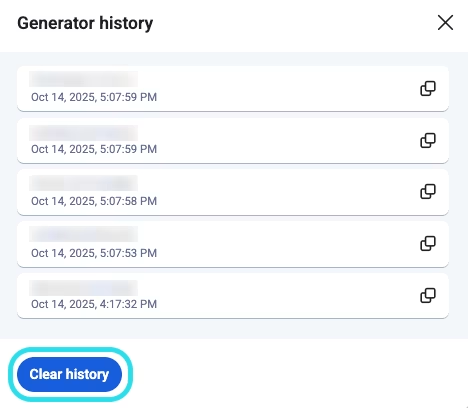
要删除客户端的生成器历史记录，请选择列表下方的**清除历史记录**：

<div align="left" data-with-frame="true"><figure><img src="https://bitwarden.com/assets/1BFNT1klLnRNy3o8NLXGmB/0b21df796fbdc3e26d5ff2a046b82b15/Clear_generator_history.png?w=468&#x26;fm=avif" alt=""><figcaption><p>清除生成器历史记录</p></figcaption></figure></div>


---

# Agent Instructions: Querying This Documentation

If you need additional information that is not directly available in this page, you can query the documentation dynamically by asking a question.

Perform an HTTP GET request on the current page URL with the `ask` query parameter:

```
GET https://help.ppgg.in/docs/password-manager/your-vault/security-tools/password-and-generator-history.md?ask=<question>
```

The question should be specific, self-contained, and written in natural language.
The response will contain a direct answer to the question and relevant excerpts and sources from the documentation.

Use this mechanism when the answer is not explicitly present in the current page, you need clarification or additional context, or you want to retrieve related documentation sections.