# \*Phishing Blocker

{% hint style="success" %}
对应的[官方文档地址](https://bitwarden.com/help/phishing-blocked/)
{% endhint %}

Bitwarden Phishing Blocker 用于检测已知的网络钓鱼网站，并将用户重定向到安全的通知页面，用于确保凭据不会被误输入或被泄露。Phishing Blocker 使用定期更新的开源的 [Phishing.Database](https://github.com/Phishing-Database/Phishing.Database) 来识别网络钓鱼网站。

Phishing Blocker 适用于 `2026.1.1` 及更高版本的浏览器客户端上的 Bitwarden 个人高级版和家庭版方案。

{% hint style="info" %}
目前，Phishing Blocker 不适用于 Bitwarden Safari 浏览器扩展。
{% endhint %}

## Phishing Blocker  <a href="#phishing-blocker" id="phishing-blocker"></a>

Phishing Blocker 通过浏览器扩展程序运行。当 Phishing Blocker 识别出已知的网络钓鱼网站时：

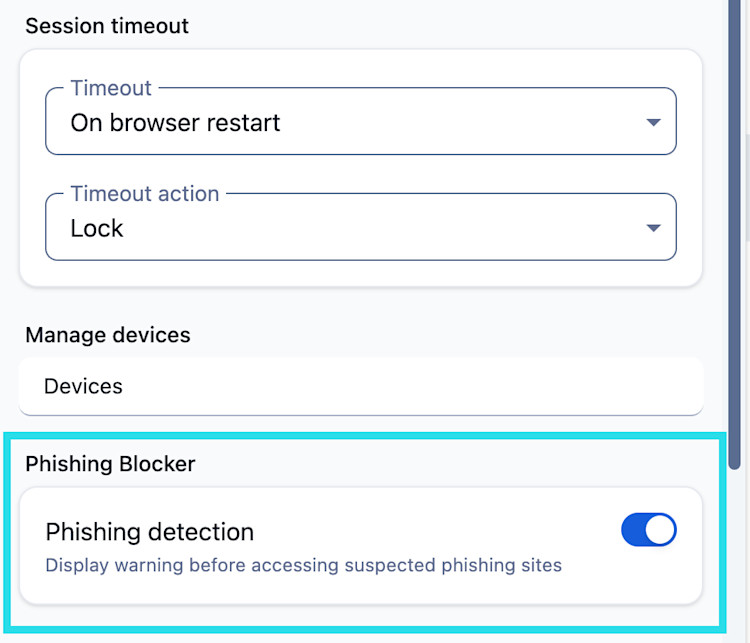
1、Bitwarden 不会加载已知的网络钓鱼网站，而是会将用户重定向到一个警告页面，提示该网站已被拦截。

<div align="left" data-with-frame="true"><figure><img src="https://bitwarden.com/assets/7IDSIId3ZA7nRT1T8gdX1T/3382ba87ffa5a38d8fa68b03d4ea0dcc/Phiishing-blocker-cropped.png?w=542&#x26;fm=jpg" alt="钓鱼拦截器"><figcaption></figcaption></figure></div>

2、选择合适的选项：

* **关闭标签页**：选择此选项将关闭 Bitwarden 已拦截的恶意标签页。
* **继续**：选择此选项将允许您继续访问该网站并关闭 Bitwarden Phishing Blocker。

{% hint style="danger" %}
选择**继续**将访问之前被识别为存在网络钓鱼活动的网站。此操作可能会导致您的凭据泄露。建议谨慎选择此选项。
{% endhint %}

## 切换 Phishing Blocker <a href="#toggle-phishing-blocker" id="toggle-phishing-blocker"></a>

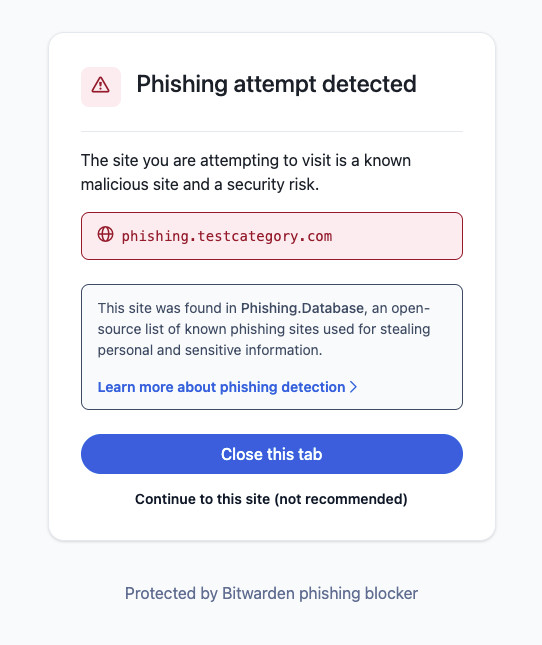
默认情况下，个人高级版用户和家庭版用户将启用 Phishing Blocker。您可以在浏览器扩展中通过依次点击**设置** → **账户安全**然后选择开关来**打开**或**关闭**此功能：

<div align="left" data-with-frame="true"><figure><img src="https://bitwarden.com/assets/4jeEBHYQeUpsZNOoKKUeW1/d19fe64cfed2edba32983f45c5434490/phishing_setting.png?w=750&#x26;fm=jpg" alt="切换钓鱼拦截器"><figcaption><p>切换 Phishing Blocker</p></figcaption></figure></div>

## 工作原理 <a href="#how-it-works" id="how-it-works"></a>

Bitwarden Phishing Blocker 使用 Phishing.Database 来引用已知的网络钓鱼网站。这个开源工具由用户每日更新，用于识别有害的 URL。

{% hint style="info" %}
所有网站检查均由 Bitwarden 浏览器扩展在本地执行。任何数据都不会与 Bitwarden 或第三方共享。
{% endhint %}

1. Bitwarden 浏览器扩展直接从 Phishing.Database 获取列表。
2. Bitwarden API 使用 SHA-256 校验和来识别列表的更改并获取更新后的列表。
3. 使用浏览器扩展，Bitwarden 会在页面加载时将 URL 与网络钓鱼列表进行比对。
4. 如果网站与网络钓鱼数据库中的已知威胁匹配，Bitwarden 会将您带到拦截界面，并提供离开网站或继续的选项。


---

# Agent Instructions: Querying This Documentation

If you need additional information that is not directly available in this page, you can query the documentation dynamically by asking a question.

Perform an HTTP GET request on the current page URL with the `ask` query parameter:

```
GET https://help.ppgg.in/docs/password-manager/your-vault/security-tools/phishing-blocked.md?ask=<question>
```

The question should be specific, self-contained, and written in natural language.
The response will contain a direct answer to the question and relevant excerpts and sources from the documentation.

Use this mechanism when the answer is not explicitly present in the current page, you need clarification or additional context, or you want to retrieve related documentation sections.