# 集成的身份验证器

{% hint style="success" %}
对应的[官方文档地址](https://bitwarden.com/help/integrated-authenticator/)
{% endhint %}

Password Manager 内置身份验证器，可直接在您的密码库中生成用于[两步登录](https://help.ppgg.in/docs/account/two-step-login/setup-two-step-login/two-step-login-methods)的验证码，无需打开单独的 App 然后手动输入验证码。它使用 SHA-1 生成 6 位数的[基于时间的一次性密码](https://en.wikipedia.org/wiki/Time-based_One-time_Password_algorithm) (TOTP)，每 30 秒轮换一次。

{% hint style="info" %}
在 Password Manager 集成的身份验证器中密钥存储适用于所有账户。但 TOTP 验证码的生成适用于高级版或付费组织（家庭版、团队版或企业版）成员资格。

> **\[译者注]**：
>
> 上面这句话的意思是所有账户都可以将支持双重验证 (2FA) 的网站或服务加入验证器密钥 (TOTP) 字段，但以后要生成并使用自动动生成的 TOTP 验证码，则需要高级版或付费组织账户。
>
> Bitwarden 的 TOTP 相当于 [Authy](https://authy.com/) 或 [Google Authenticator](https://support.google.com/accounts/answer/1066447?hl=en) 等专用验证器 App。对于支持两步验证的网站或服务，您可以使用单独的验证器 App 生成验证码，也可以使用 Bitwarden 的 TOTP 生成验证码。
> {% endhint %}

Bitwarden 提供两种身份验证器：Password Manager 集成的身份验证器和 [Bitwarden Authenticator](https://help.ppgg.in/docs/bitwarden-authenticator/bitwarden-authenticator) App。了解更多有关[何时使用不同的身份验证器](https://help.ppgg.in/bitwarden-authenticator/bitwarden-authenticator#bitwarden-authenticator-he-password-manager-ji-cheng-shen-fen-yan-zheng-qi-you-shen-me-qu-bie)的信息 。

## 生成 TOTP 代码 <a href="#generate-totp-codes" id="generate-totp-codes"></a>

在 Bitwarden Password Manager 中，有三种方法可以为密码库的登录项目设置 TOTP 生成：

* 从 Bitwarden 移动 App 或浏览器扩展[扫描二维码](#scan-a-qr-code)
* 从任一个 Bitwarden App [手动输入安全密钥](#manually-add-a-secret)
* 使用 Bitwarden Authenticator App [同步代码](https://help.ppgg.in/docs/bitwarden-authenticator/totp-sync)，使 TOTP 也出现在 Password Manager 中。

设置完成后，集成身份验证将持续每 30 秒轮换生成 6 位数的 TOTP，您可以将其作为两步登录连接网站或 App 辅助步骤。您可以随时使用**编辑项目**界面上的 📷相机图标来更新 TOTP 种子。

### 扫描二维码 <a href="#scan-a-qr-code" id="scan-a-qr-code"></a>

要使用二维码为登录项目设置集成的身份验证：

{% tabs %}
{% tab title="移动端" %}
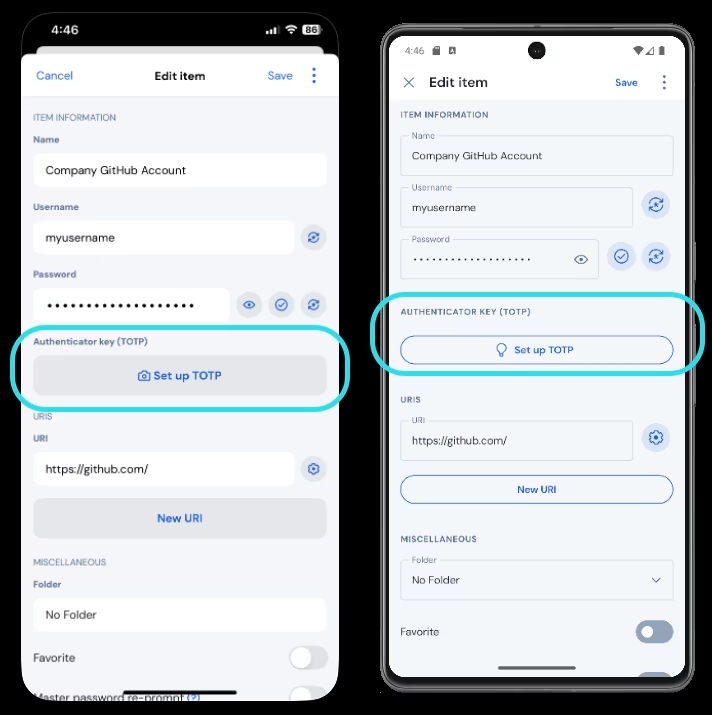
1、**编辑**要为其生成 TOTP 的密码库项目。

2、点击 **📷设置 TOTP**。

{% embed url="<https://res.cloudinary.com/bw-com/image/upload/f_auto/v1/ctf/7rncvj1f8mw7/1cjF7IObqGhZL2ETA6XhTU/10641831c6fb690b85c3c99f39f1b1b1/2025-01-21_16-46-53.png?_a=DAJCwlWIZAAB>" %}
在移动 App 上设置 TOTP
{% endembed %}

3、扫描二维码。

4、点击**保存**以开始生成 TOTP。
{% endtab %}

{% tab title="浏览器扩展" %}
1、**编辑**要为其生成 TOTP 的密码库项目。

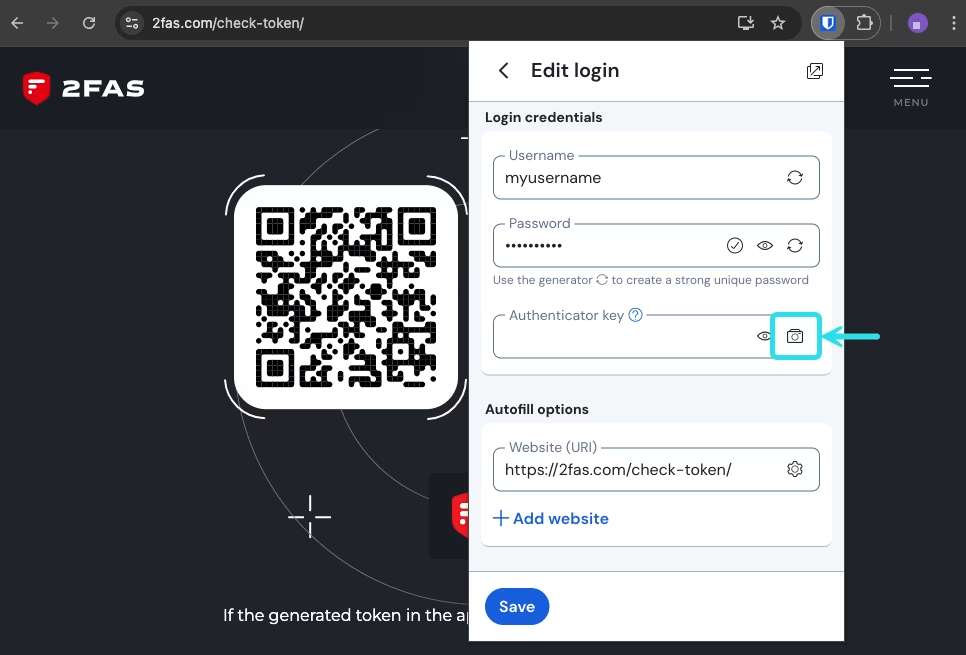
2、选择 **📷TOTP**。它将从当前网页扫描验证器二维码。完整的二维码必须在屏幕上可见。

{% embed url="<https://res.cloudinary.com/bw-com/image/upload/f_auto/v1/ctf/7rncvj1f8mw7/7vTPBRNX8Q1xxOZsqFxWBQ/3a91391f5c233743b8f6be509086f895/2024-10-29_11-04-36.png?_a=DAJCwlWIZAAB>" %}
浏览器 TOTP 扫描
{% endembed %}

3、代码输入后，点击**保存**以开始生成 TOTP。
{% endtab %}
{% endtabs %}

### 手动添加密钥 <a href="#manually-add-a-secret" id="manually-add-a-secret"></a>

要手动添加安全密钥到登录项目：

1. **编辑**要为其生成 TOTP 的密码库项目。
2. 选择**验证器密钥**字段（在移动 App 中，您也可以从**编辑**视图中选择 **📷设置验证器密钥** → **手动输入密钥**）。
3. 将安全密钥粘贴到**验证器密钥**字段中。
4. **保存**项目。

## 使用生成的代码 <a href="#use-generated-codes" id="use-generated-codes"></a>

{% hint style="success" %}
TOTP 依赖于基于时间的代码生成。如果您的设备时间与服务器时间不一致，生成的验证码将无法使用。如果您遇到 TOTP 验证码问题，请将您的设备的时区和时间设置为[**自动**](#troubleshooting)。
{% endhint %}

Bitwarden 浏览器扩展和 iOS（版本 18.0+）会自动填充您的 TOTP 代码，除非[**页面加载时自动填充**](https://help.ppgg.in/docs/autofill/autofill-from/autofill-from-browser-extensions#on-page-load)选项处于活动状态。在这种情况下，浏览器扩展还会将 TOTP 代码复制到剪贴板，方便您粘贴到表单中。

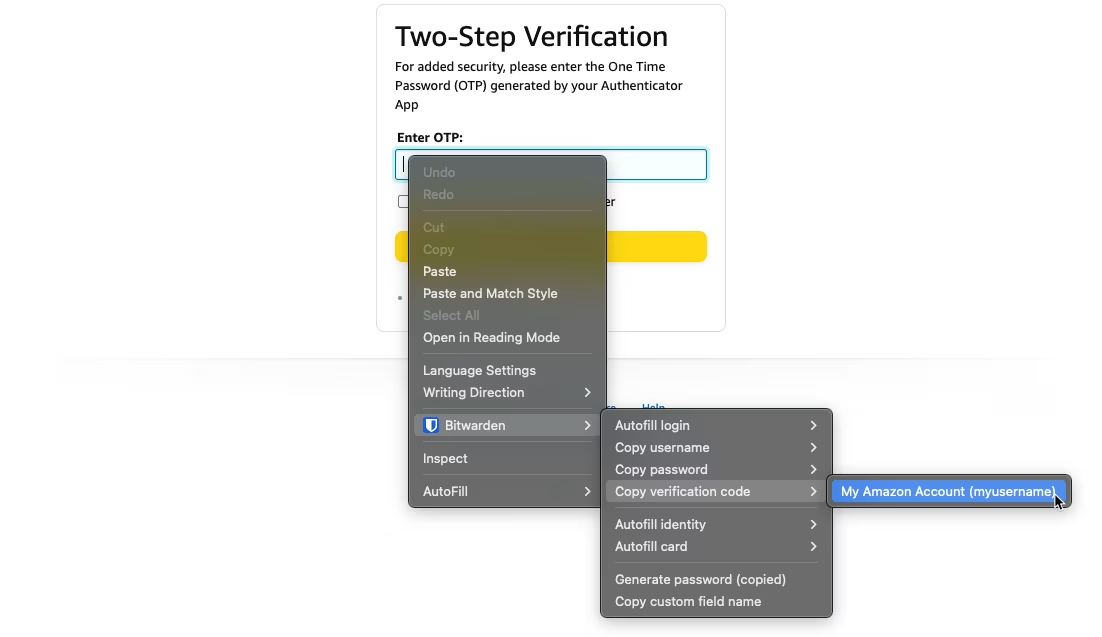
在浏览器扩展上，您还可以从上下文菜单复制 TOTP 代码：

{% embed url="<https://res.cloudinary.com/bw-com/image/upload/f_auto/v1/ctf/7rncvj1f8mw7/5YmvBLK63g2xMnUewNVjOg/a63aec8b36ac65d6d91acf666fc8406f/2024-10-29_11-11-51.png?_a=DAJCwlWIZAAB>" %}
浏览器扩展上下文菜单
{% endembed %}

{% hint style="success" %}
当您使用浏览器扩展中的自动填充时，默认情况下会启用自动复制 TOTP 功能。要关闭此功能，请转到**设置** → **自动填充**，然后取消选中**自动复制 TOTP**。您还可以使用旁边的**清除剪贴板**下拉菜单来指定何时清除已复制的值。
{% endhint %}

### 查看和复制 TOTP 代码 <a href="#view-and-copy-totp-codes" id="view-and-copy-totp-codes"></a>

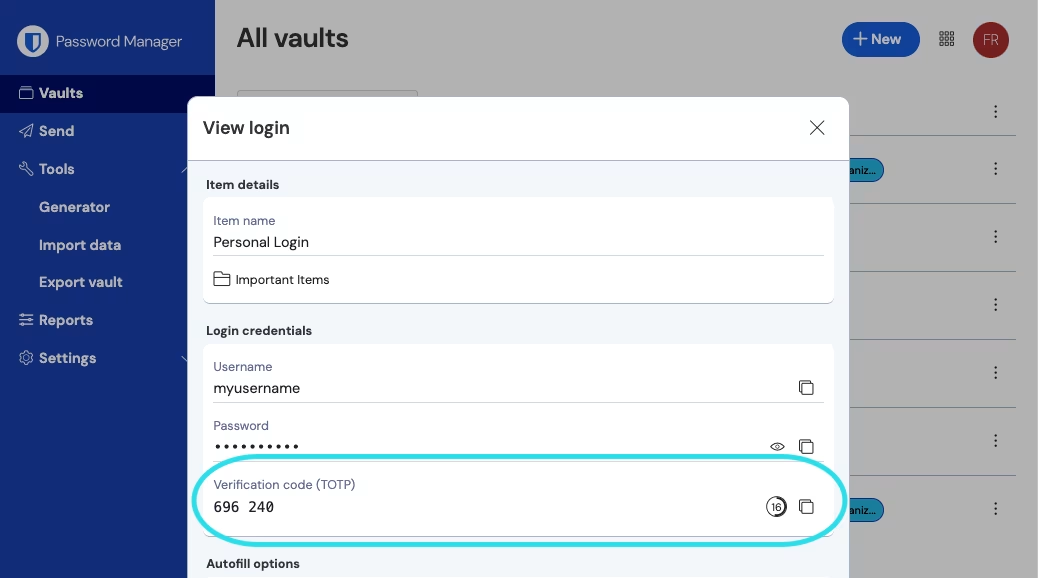
所有 Bitwarden App 都会在密码库项目中显示轮换的 TOTP 代码，其可以像用户名或密码一样将其复制和粘贴：

{% embed url="<https://res.cloudinary.com/bw-com/image/upload/f_auto/v1/ctf/7rncvj1f8mw7/41IqtUVMLh7MLxwwNU2ZpD/b9fc56ddc82ab78130305c0751aac0ca/2024-12-02_14-55-24.png?_a=DAJCwlWIZAAB>" %}
复制 TOTP 代码
{% endembed %}

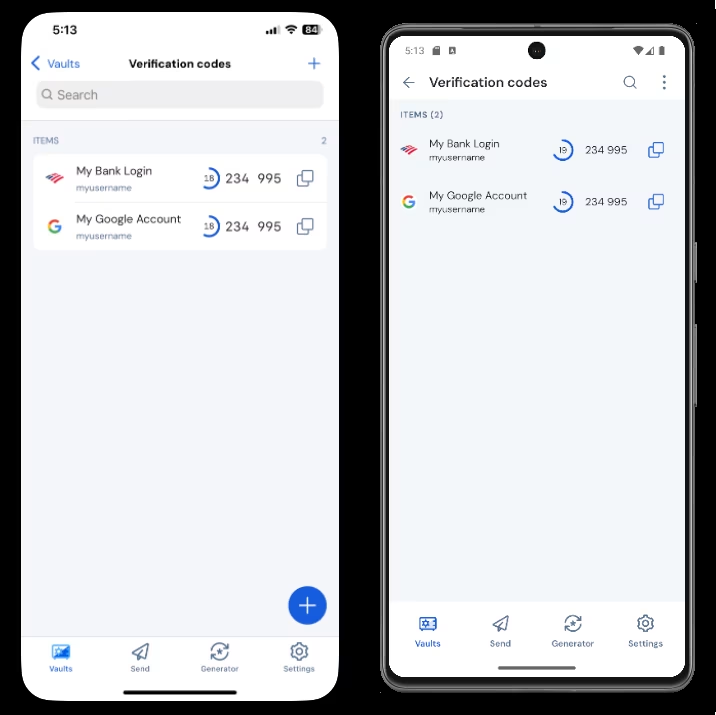
首次打开 Bitwarden App 时，选择**验证码**以显示您的密码库中所有活动的 TOTP：

{% embed url="<https://res.cloudinary.com/bw-com/image/upload/f_auto/v1/ctf/7rncvj1f8mw7/3MRb58qhCFvVHVjPaxMk6R/227fae64af8e1a13e6c86a74412929eb/2025-01-21_17-13-12.png?_a=DAJCwlWIZAAB>" %}
移动端的验证码
{% endembed %}

{% hint style="success" %}
只要您登录了您的 Bitwarden 密码库，即使您的设备离线，也能查看生成的代码。
{% endhint %}

### 故障排除 <a href="#troubleshooting" id="troubleshooting"></a>

TOTP 代码是根据您设备的系统时钟生成的。如果您生成的代码无效不起作用，最可能的原因是您的设备时钟与 Bitwarden 服务器的时钟不同步。要重新同步设备上的时钟：

{% tabs %}
{% tab title="Windows" %}
导航到**开始** → **设置** → **时间和语言** → **日期和时间**，关闭**自动设置时间**选项然后重新打开。

如果这不起作用，请使用以下 PowerShell 命令设置您的时区，务必将时区名称替换为[此列表](https://learn.microsoft.com/zh-cn/windows-hardware/manufacture/desktop/default-time-zones?view=windows-11#time-zones)中正确的时区名称，然后重新启动计算机：

```bash
Set-TimeZone -Id "Central Standard Time"
```

```bash
Restart-Computer
```

{% endtab %}

{% tab title="macOS" %}
导航至**系统设置** → **常规** → **日期和时间**，关闭然后重新打开**自动设置时间和日期**以及**使用当前位置自动设置时区**选项。
{% endtab %}

{% tab title="Android" %}
导航至**设置** → **系统** → **日期和时间**，关闭然后重新打开**自动设置时间**选项。
{% endtab %}

{% tab title="iOS" %}
导航至**设置** → **常规** → **日期和时间**，关闭然后重新打开**自动设置**选项。
{% endtab %}
{% endtabs %}

## 支持的更多参数 <a href="#support-for-more-parameters" id="support-for-more-parameters"></a>

默认情况下，Bitwarden 使用 SHA-1 生成 6 位数的 TOTP，并且每 30 秒轮换一次，但有些网站或服务的 TOTP 代码可能会要求不同的参数。参数可以在 Bitwarden 中通过手动编辑您的密码库项目的 `otpauth://totp/` URI 来自定义。

| 参数          | 描述              | 值                                              | 示例                 |
| ----------- | --------------- | ---------------------------------------------- | ------------------ |
| `algorithm` | 用于生成 TOTP 的加密算法 | <p>-sha1<br>-sha256<br>-sha512<br>-otpauth</p> | `algorithm=sha256` |
| `digits`    | 生成的 TOTP 的位数    | 1-10                                           | `digits=8`         |
| `period`    | 轮换 TOTP 的间隔秒数   | 必须 > 0                                         | `period=60`        |

示例：

```
otpauth://totp/Test:me?secret=JBSWY3DPEHPK3PXP&algorithm=sha256&digits=8&period=60
```

了解更多有关使用 [otpauth:// URI](https://github.com/google/google-authenticator/wiki/Key-Uri-Format) 的信息。

## 在 iOS 上设置为默认 <a href="#set-a-default-on-ios" id="set-a-default-on-ios"></a>

运行 iOS 16+ 的 iOS 用户可以将任何应用程序设置为直接从相机 App 扫描代码时存储验证码的默认应用程序，包括 [Bitwarden Authenticator](https://help.ppgg.in/docs/bitwarden-authenticator/bitwarden-authenticator) 和 Password Manager [集成身份验证](https://help.ppgg.in/docs/password-manager/your-vault/security-tools/totp)。要进行此设置：

1. 在您的设备上打开 iOS **设置** App。
2. 点击**通用**。
3. 点击**自动填充和密码**。
4. 在**验证码**部分，从**设置验证码**下拉菜单中选择一个 App。

## Azure 和 Office 365 <a href="#azure-and-office-365" id="azure-and-office-365"></a>

默认情况下，Microsoft Azure 和 Office 365 账户需要使用 Microsoft Authenticator 用于 TOTP。如果您想使用 Bitwarden Authenticator 为您的 Microsoft Azure 或 Office 365 账户生成 TOTP，您需要完成以下步骤：

1、在 Microsoft 中，导航至您的账户设置页面。根据您的账户是个人账户还是企业账户，这可能是 `account.microsoft.com` 或 `myaccount.microsoft.com`。

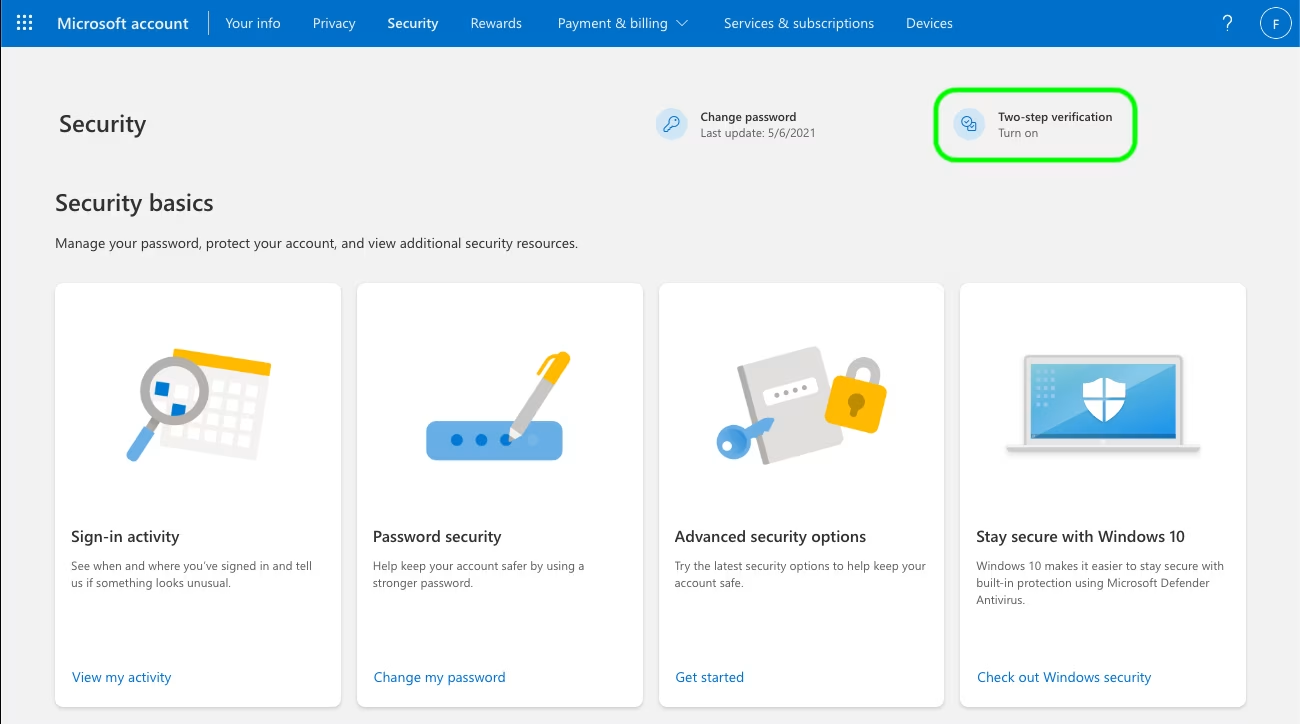
2、根据您的账户是个人账户还是企业账户，打开您的**安全仪表板**或选择**安全信息**。如果您正在浏览**安全仪表板**，您还需要从该界面中选择**两步验证**。

{% embed url="<https://bitwarden.com/assets/4x8LX6bcktyPDnQhPvSLOz/7903ba57aeb75b15e83562841136a16b/Screen_Shot_2023-02-23_at_10.24.27_AM.png?w=1200&fm=avif>" %}
启用 2FA
{% endembed %}

3、选择两步验证的**启用**按钮或**添加登录方式**按钮，然后从下拉列表中选择 Authenticator App。

4、在设置过程中，您会看到一个验证方法的下拉菜单。选择**验证器 App** 或 **An App**。

5、继续，直到您看到蓝色的不同的身份验证器 App 超链接。看到超链接时选择它。

6、继续，直到您看到二维码，此时您可以按照[此处](#scan-a-qr-code)的说明进行操作。

## Steam 令牌 TOTP

> **\[译者注]**：[Steam](https://store.steampowered.com/) 游戏平台（蒸汽平台）是美国电子游戏商[威尔乌](https://www.valvesoftware.com/) (Valve) 于 2003 年 9 月 12 日推出的数字发行平台。Steam 被认为是全世界的电脑游戏界最大的数字发行平台。有关 Steam Guard（Steam 令牌）的详细信息，请参阅 [Steam 令牌](https://help.steampowered.com/zh-cn/faqs/view/06B0-26E6-2CF8-254C)。

您可以为您的 Steam 账户的 2FA 使用 Bitwarden 集成的验证器。定位密钥后，将其输入到**验证器密钥**字段中，格式如下：`steam://your_secret_key_here`。

{% hint style="danger" %}
要使用这个功能，您需要使用第三方工具手动提取你的 Steam 账户的密钥。有一些工具（如 [SteamTimeIdler](https://github.com/SteamTimeIdler/stidler/wiki/Getting-your-'shared_secret'-code-for-use-with-Auto-Restarter-on-Mobile-Authentication#getting-shared-secret-from-ios-windows) 和 [Steam Desktop Authenticator](https://github.com/Jessecar96/SteamDesktopAuthenticator) 等）可以帮助您完成这个操作，但此类**提取工具并未取得 Bitwarden 或 Steam 的官方支持**。使用这些工具需自行承担风险。
{% endhint %}

为 Steam 生成的代码是 5 位数的字母数字组合型，而不是传统的 6 位数字型 TOTP。