# 文件附件

{% hint style="success" %}
对应的[官方文档地址](https://bitwarden.com/help/article/attachments/)
{% endhint %}

{% hint style="info" %}
文件附件功能适用于高级用户和付费[组织](/docs/admin-console/organizations-overview.md)成员。这些升级方案包含每位用户 5GB 的文件附件加密存储空间。也可按 1 GB 的增量购买[更多存储空间](#add-storage-space)。
{% endhint %}

可通过任何 Bitwarden App 将文件附加到任何密码库项目，包括[共享](/docs/password-manager/organization-members/sharing.md)的密码库项目。不超过 500 MB（从移动 App 上传，则不超过 100 MB）的任何文件都可以附加到项目中。每个账户最多可以上传 5 GB 的总附件（除非添加更多存储空间）。附件在本地进行加密和解密，这意味着未加密的附件数据不会通过互联网传输或由服务器存储。

{% hint style="info" %}
个人密码库项目和所有 Send 的附件使用高级订阅或组织授予的个人存储空间。组织拥有的项目上的附件使用共享的组织存储空间。了解如何[添加存储空间](#add-storage-space)。
{% endhint %}

{% hint style="warning" %}
**关于 2021 年 05 月 11 日之后创建的附件的说明：**

由于附件升级，通过最新的客户端上传的附件无法在某些旧版本的客户端上打开。如果您发现你无法访问最近创建的附件，请将您的客户端升级到最新版本。（**提示**：云端网页密码库总是为最新版本。）

**冻结的或旧版的客户端**，包括 Safari 13（或更早）macOS 桌面 App 和 App 扩展，将不支持访问这些附件。
{% endhint %}

## 上传文件 <a href="#upload-a-file" id="upload-a-file"></a>

要附加文件到密码库项目：

{% tabs %}
{% tab title="网页 App" %}
要从网页 App 附加文件：

1. 打开项目然后选择**编辑**。
2. 滚动到**编辑**视图的底部，然后选择**附件**。
3. 选择**选择文件**，然后浏览您的文件。
4. 选择**上传**。
5. 选择**保存**。

保存后，**附件**部分将列出附加到此项目的所有文件。
{% endtab %}

{% tab title="浏览器扩展" %}
要从浏览器扩展附加文件：

1. 打开项目然后选择**编辑**。
2. 滚动到**编辑**视图的底部，然后选择**附件**。将弹出扩展。
3. 选择**选择文件**，然后浏览您的文件。
4. 选择**上传**。
5. 选择**保存**。

保存后，**附件**部分将列出附加到此项目的所有文件。
{% endtab %}

{% tab title="移动端" %}
要从移动 App 附加文件：

1. 打开项目，然后选择  **≡菜单**图标。
2. 选择**附件**。
3. 选择**选择文件**，然后浏览您的文件。
4. 选择**保存**（在 Android 中）或选择 **✔︎保存**图标（在 iOS 中）。

保存后，**附件**部分将列出附加到此项目的所有文件。
{% endtab %}

{% tab title="桌面端" %}
要从桌面 App 附加文件：

1. 打开项目然后选择**编辑**。
2. 滚动到**编辑**视图的底部，然后选择**附件**。
3. 选择**选择文件**，然后浏览您的文件。
4. 选择**上传**。
5. 选择**保存**。

保存后，**附件**部分将列出附加到此项目的所有文件。
{% endtab %}

{% tab title="CLI" %}
使用 `bw create attachment` 以附加文件到现有的密码库项目，示例：

```bash
bw create attachment --file /path/to/myfile.ext --itemid <itemid>
```

更多信息，请参阅 Bitwarden [CLI 文档](/docs/password-manager/developer-tools/cli/password-manager-cli.md)。
{% endtab %}
{% endtabs %}

## 查看附件 <a href="#view-an-attachment" id="view-an-attachment"></a>

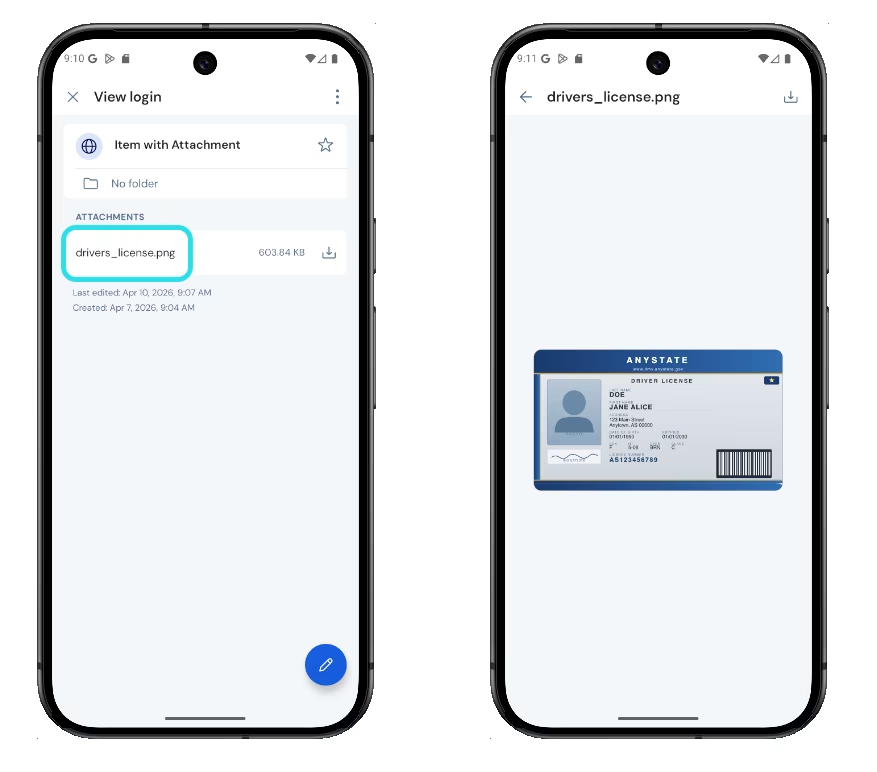
在 **Android** 设备上，通过点击**查看项目**界面上的附件，图像文件（ `.jpeg` 、 `.png` 、 `.gif` 、 `.WebP` 、 `.heic` ）可以直接在 Bitwarden 中预览，而无需将其下载到您的设备：

<div align="left" data-with-frame="true"><figure><img src="https://bitwarden.com/assets/8CANFNTEL2gsoDy0zvQPG/65b328d7d01be571b66596c51f78d07d/2026-04-10_09-10-55.png?w=877&#x26;fm=avif" alt=""><figcaption><p>查看附件</p></figcaption></figure></div>

## 下载文件 <a href="#download-a-file" id="download-a-file"></a>

要在大多数 Bitwarden App 中下载附件，请打开项目。在**附件**部分中，选择文件旁边的 **⬇️下载**图标。

对于 CLI，使用 `bw get attachment` 来下载文件，例如：

```bash
bw get attachment photo.png --itemid 99ee88d2-6046-4ea7-92c2-acac464b1412 --output /Users/myaccount/Pictures/
```

更多信息，请参阅 Bitwarden [CLI 文档](/docs/password-manager/developer-tools/cli/password-manager-cli.md)。

## 导出所有附件 <a href="#export-all-attachments" id="export-all-attachments"></a>

要创建包含附件的导出：

{% tabs %}
{% tab title="网页 App" %}
要从网页 App 导出您的附件：

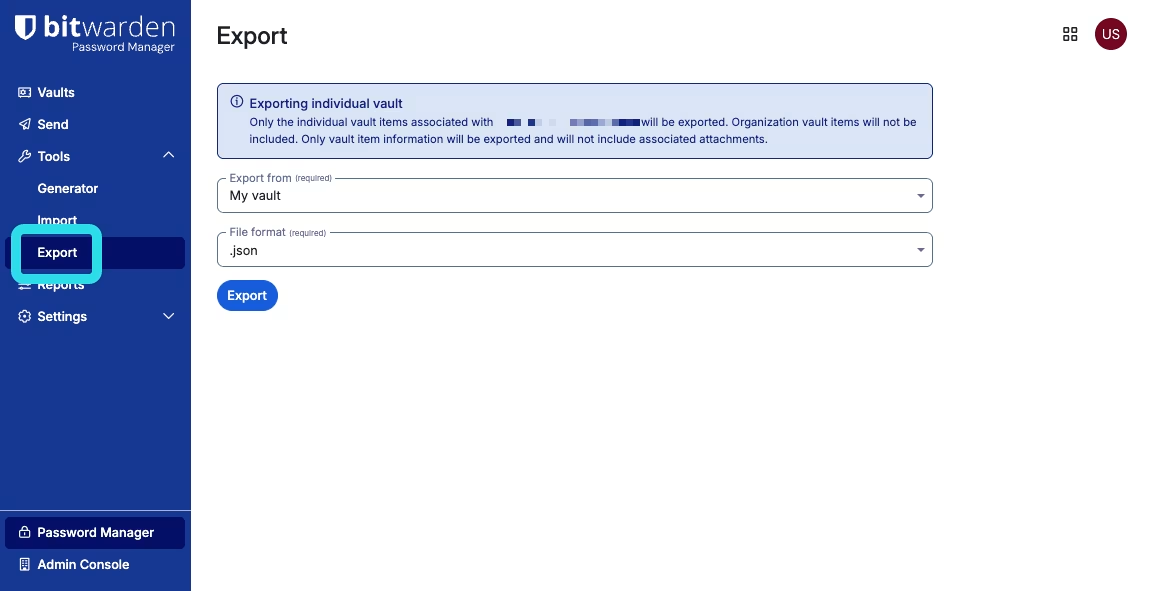
1、从导航中选择**工具** → **导出**：

<div align="left" data-with-frame="true"><figure><img src="https://bitwarden.com/assets/5PUGzasNsQnABG9gtso4o3/4e4880193ff45c22f0474c129e68e4e3/2025-12-17_11-43-59.png?w=1156&#x26;fm=avif" alt=""><figcaption><p>导出项目</p></figcaption></figure></div>

2、从**文件格式**下拉菜单中，选择 `.zip (with attachments)`。目前，只能从个人密码库中导出附件。

3、选择**导出**。您需要使用主密码或电子邮件验证码确认您的权限以执行此操作。。

导出文件将被发送到您的「下载」文件夹或网络浏览器设置为下载文件的位置。
{% endtab %}

{% tab title="浏览器扩展" %}
要从浏览器扩展导出您的附件：

1、打开**设置**选项卡。

2、选择**密码库选项**，然后选择**导出密码库**。

3、从**文件格式**下拉菜单中选择 `.zip (with attachments)`。目前，只能从个人密码库中导出附件。

4、选择**导出密码库**按钮以完成。您需要使用主密码或电子邮件验证码确认您的权限。

导出文件将被发送到您的「下载」文件夹或网络浏览器设置为下载文件的位置。
{% endtab %}

{% tab title="桌面 App" %}
要从桌面 App 导出您的附件：

1、从菜单栏中，导航到**文件** → **导出密码库**。

2、从**文件格式**下拉菜单中选择 `.zip (with attachments)`。目前，只能从个人密码库中导出附件。

3、选择**导出密码库**按钮以完成。您需要使用主密码或电子邮件验证码确认您的权限。

导出文件将被发送到您的「下载」文件夹或网络浏览器设置为下载文件的位置。
{% endtab %}

{% tab title="CLI" %}
要从 CLI 导出您的附件，使用如下命令：

```bash
bw export --format zip
```

{% endtab %}
{% endtabs %}

## 删除文件 <a href="#delete-a-file" id="delete-a-file"></a>

要删除文件附件：

{% tabs %}
{% tab title="网页 App" %}
要从网页 App 删除附件：

1. 打开项目然后选择**编辑**。
2. 滚动到**编辑**视图的底部，然后选择**附件**。
3. 选择附件旁边的 **🗑️删除**图标。
4. 选择**是**以确认。
5. 选额**保存**。
   {% endtab %}

{% tab title="浏览器扩展" %}
要从浏览器扩展删除附件：

1. 打开项目然后选择**编辑**。
2. 滚动到**编辑**视图的底部，然后选择**附件**。将弹出扩展。
3. 选择附件旁边的 **🗑️删除**图标。
4. 选择**是**以确认。
5. 选择 **<返回**图标。
6. 选额**保存**。
   {% endtab %}

{% tab title="移动端" %}
要从移动 App 删除附件：

1. 打开项目，然后选择  **≡菜单**图标。
2. 选择**附件**。
3. 选择附件旁边的 **🗑️删除**图标。
4. 基于您的移动设备：

* 在 Android 上，选择**删除**以确认，然后**保存**。
* 在 iOS 上，选择**是**以确认，然后 **✔︎保存**图标。
  {% endtab %}

{% tab title="桌面端" %}
要从桌面 App 删除附件：

1. 打开项目然后选择**编辑**。
2. 滚动到**编辑**视图的底部，然后选择**附件**。
3. 选择附件旁边的 **🗑️删除**图标。
4. 选择**是**以确认。
5. 选额**保存**。
   {% endtab %}

{% tab title="CLI" %}
使用 `bw delete attachment` 来删除文件附件，示例：

```shellscript
bw delete attachment 7063feab-4b10-472e-b64c-785e2b870b92
```

更多信息，请参阅 Bitwarden [CLI 文档](/docs/password-manager/developer-tools/cli/password-manager-cli.md)。
{% endtab %}
{% endtabs %}

## 添加存储空间 <a href="#add-storage-space" id="add-storage-space"></a>

付费用户和付费[组织](/docs/admin-console/organizations-overview.md)的成员拥有 5 GB 加密存储空间用于存储文件附件。个人和组织可以通过完成以下步骤购买额外的存储空间：

{% hint style="info" %}
添加存储空间将调整您的计费总金额并立即通过您的付款方式收取费用。首次扣款将按照当前计费周期的剩余时间内按比例计算。
{% endhint %}

{% tabs %}
{% tab title="个人" %}
要为您的个人密码库添加存储空间：

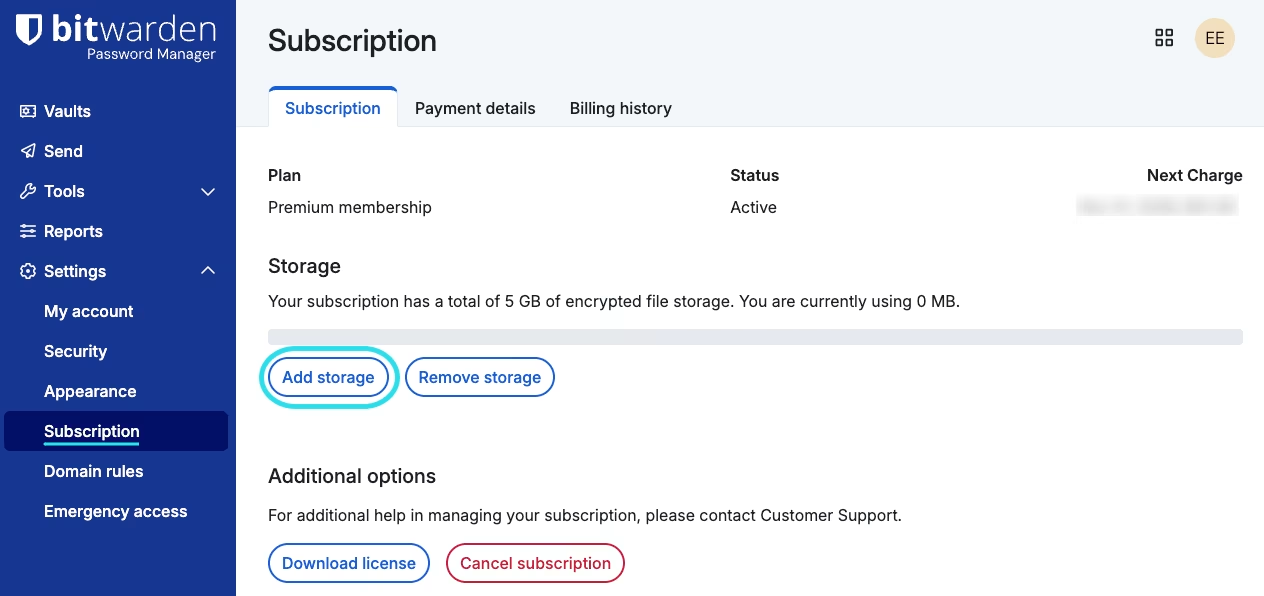
1、在 Bitwarden 网页 App 中，导航到**设置** → **订阅**。

2、在「存储」部分，选择**添加存储空间**按钮：

<div align="left" data-with-frame="true"><figure><img src="https://bitwarden.com/assets/113yhHwt2fIgkjWjmPgCa4/f3df4d33206d35873c92266a546a9ed6/Add_storage_to_individual_vault.png?w=1264&#x26;fm=avif" alt=""><figcaption><p>为个人密码库添加存储空间</p></figcaption></figure></div>

3、使用计数器，选择**要添加的存储空间 (GB)** 的数量，然后选择**提交**。
{% endtab %}

{% tab title="组织" %}
要为您的组织密码库添加存储空间：

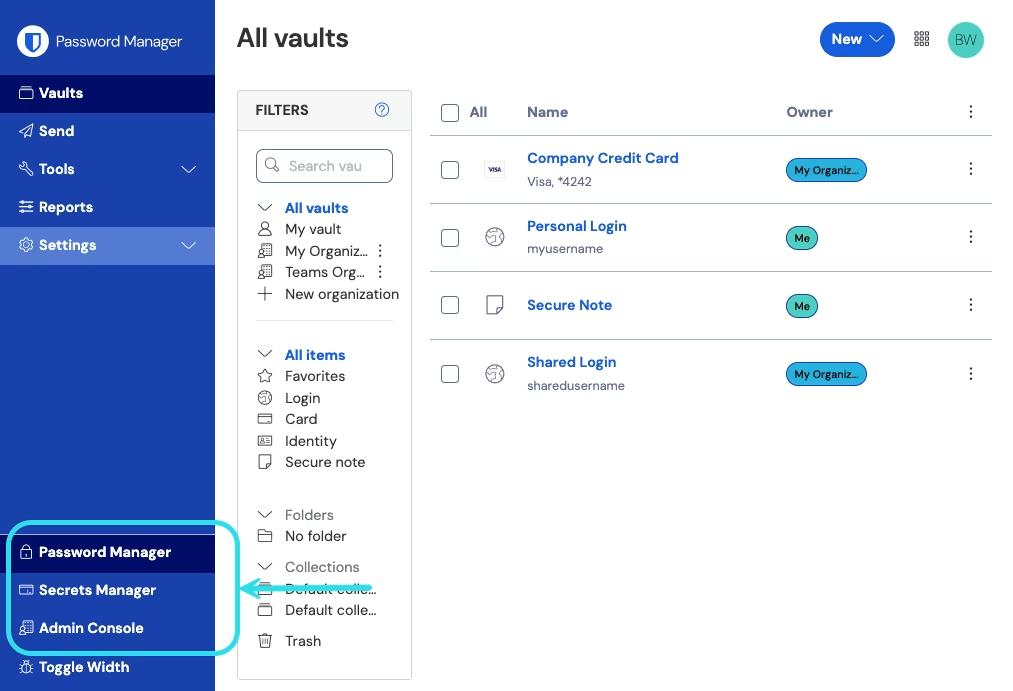
1、打开 Bitwarden 网页 App，使用产品切换器打开管理控制台：

<div align="left" data-with-frame="true"><figure><img src="https://bitwarden.com/assets/2uxBDdQa6lu0IgIEfcwMPP/e3de3361749b6496155e25edcfdcf08b/2024-12-02_11-19-56.png?w=1013&#x26;fm=avif" alt=""><figcaption><p>产品切换器</p></figcaption></figure></div>

2、从导航选择**计费** → **订阅**。

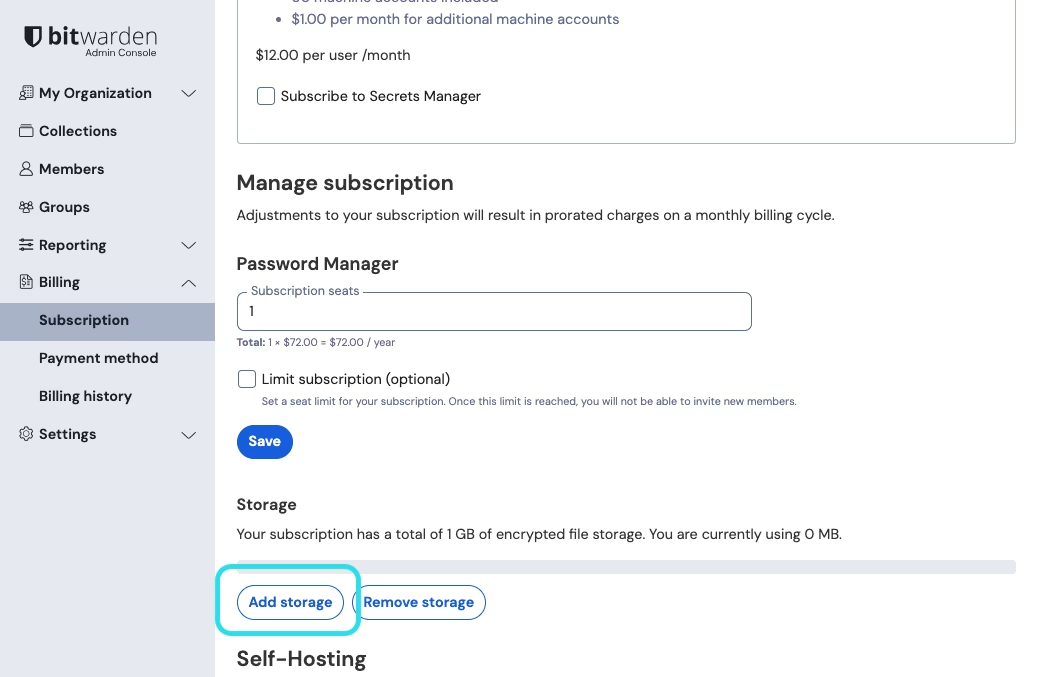
3、在「管理订阅」部分，选择**添加存储空间**按钮：

<div align="left" data-with-frame="true"><figure><img src="https://bitwarden.com/assets/6tMMQEzEKXIRSa9fIUXuoh/3d9f81b717d3cee9681f1feda97d1b91/2024-12-02_15-28-55.png?w=1038&#x26;fm=avif" alt=""><figcaption><p>为组织密码库添加存储空间</p></figcaption></figure></div>

4、使用计数器，选择**要添加的存储空间 (GB)** 的数量，然后选择**提交**。
{% endtab %}

{% tab title="自托管" %}
虽然在使用自托管服务时，附件存储仍与付费用户或组织成员绑定，但**存储空间的大小**仅受包含附件目录的卷的可用空间的限制，上限为 10 TB（10,240 GB）。用户和管理员**无需**更改任何值来提高该限制。
{% endtab %}
{% endtabs %}

## 修复旧附件 <a href="#fixing-old-attachments" id="fixing-old-attachments"></a>

在 2018 年 12月 之前，文件附件使用另外一种方式加密其数据。从那以后，我们已经转向一种更新更好的加密文件附件的方式。使用旧加密方式的所有附件在密码库清单中都将标识一个 **⚠**&#x8B66;告图标。您应该将这些旧附件升级为新的加密方式，以便其他与账户相关的功能可以正常运行：

1. 打开包含旧附件的密码库项目，然后选择**编辑**。
2. 滚动到「编辑」表单底部然后选择**附件**。
3. 点击旧附件旁边的**修复**按钮。此过程将下载附件、使用新的加密方法对其进行重新加密、将附件重新上传回您的密码库、然后删除该附件的旧版本。

附件成功升级后，**⚠**&#x8B66;告图标和修复按钮会消失。


---

# Agent Instructions: Querying This Documentation

If you need additional information that is not directly available in this page, you can query the documentation dynamically by asking a question.

Perform an HTTP GET request on the current page URL with the `ask` query parameter:

```
GET https://help.ppgg.in/docs/password-manager/your-vault/vault-items/file-attachments.md?ask=<question>
```

The question should be specific, self-contained, and written in natural language.
The response will contain a direct answer to the question and relevant excerpts and sources from the documentation.

Use this mechanism when the answer is not explicitly present in the current page, you need clarification or additional context, or you want to retrieve related documentation sections.