# 管理组织中的订阅席位

{% hint style="success" %}
对应的[官方文档地址](https://bitwarden.com/help/manage-subscription-seats-in-your-organization/)
{% endhint %}

用户席位是 Bitwarden 组织中单个用户的计费许可。当用户受邀加入您的组织时，他们将占用一个用户席位，并根据您的特定方案获得 Bitwarden 功能的访问权限。用户席位的总数决定了有多少用户可以加入您的组织。因此，用户席位并非永久绑定于特定成员。

{% hint style="info" %}
本文仅讨论邀请用户和管理您的订阅席位数量的可用方法之一：

* 所有组织都可以[手动邀请用户](/docs/admin-console/manage-members/user-management.md)和更新[席位数量](/docs/plans-and-pricing/manage-subscription-seats-in-your-organization.md)。
* 团队版和企业版组织可以使用 [SCIM](/docs/admin-console/manage-members/scim/about-scim.md)。
* 团队版和企业版组织可以使用 [Directory Connector](/docs/admin-console/manage-members/directory-connector/about-directory-connector.md)。
* 企业版组织可以[使用 JIT](/docs/admin-console/login-with-sso/jit-provisioning.md)。
  {% endhint %}

## 用户席位计费 <a href="#user-seat-billing" id="user-seat-billing"></a>

只有[组织所有者](/docs/admin-console/manage-members/member-roles.md#default-roles)或[提供商服务用户](/docs/provider-portal/provider-users.md#provider-user-types)才能添加或移除席位，因为这直接影响组织的计费订阅。

要查看您的团队已包含多少个用户席位，请打开管理控制台，然后前往**计费** → **订阅**。您组织的席位总数列在**订阅席位**中：

<div align="left" data-with-frame="true"><figure><img src="https://bitwarden.com/assets/6IiAvwCX2KbCTUAbAnY4yV/81614bb5a44c64cdc387ba9cee5663eb/Set_Subscription_seats.png?w=1400&#x26;fm=avif" alt=""><figcaption><p>设置订阅席位</p></figcaption></figure></div>

如果用户席位数量高于您组织的[活跃用户](/docs/admin-console/manage-members/user-management.md#manage-existing-members)总数，则意味着存在未分配的用户席位。未分配的用户席位仍会计费，因此您可能需要邀请更多人员或从您的订阅中[移除多余的用户席位](#manually-add-or-remove-seats)。

{% hint style="info" %}
从您的组织中[移除用户](/docs/admin-console/manage-members/revoke-remove/permanently-remove-access.md)不会自动减少您组织的计费订阅席位。您仍需手动减少席位数量。
{% endhint %}

### 新增用户席位计费 <a href="#billing-for-new-user-seats" id="billing-for-new-user-seats"></a>

当新用户被[邀请](/docs/admin-console/manage-members/user-management.md#invite)时，Bitwarden 云端[团队版和企业版组织](/docs/admin-console/organizations-overview.md#types-of-organizations)将**自动增加**计费的用户席位数量。您可以设置[席位限制](#set-a-seat-limit)，以防止席位数量超过指定的数量，或根据需要[手动添加席位](#manually-add-or-remove-seats)。

如果您在计费周期中途添加席位，仅需支付剩余时间的费用。若您使用的是**按月的方案**，该按比例计算的金额将计入下一次定期的续费账单。

对于**按年的订阅**，在周期中途新增的席位将按比例计费。按比例计算的费用会在与您续费日期相同的当月日期，从存档的付款方式中扣除。在您的下一个年度续费日期，所有席位将合并为全年费用一次性计费。

例如，如果您的方案在 07 月 15 日续费，而您在 05 月 01 日添加了一个席位，则将在 05 月 15 日收取当前周期剩余时间（05 月 01 日至 07 月 14 日）的按比例的费用。当您的年度续费在 07 月 15 日进行时，所有席位将合并为一笔单笔的年度费用。

### 已移除用户席位的信用额度 <a href="#credit-for-removed-user-seats" id="credit-for-removed-user-seats"></a>

无论您如何添加席位，都必须从您的订阅中[手动移除](#manually-add-or-remove-seats)不再需要的用户席位。移除席位将导致您的下一次费用进行调整，以便您获得已付费席位未使用时间的信用额度。

### 自托管计费 <a href="#self-hosted-billing" id="self-hosted-billing"></a>

自托管组织拥有的席位数量始终与其[对应的云端组织](/docs/self-hosting/plan-for-deployment/self-host-an-organization.md#step-3-start-your-organization)保持一致。这意味着自托管组织**不会**自动扩展用户。相反，您必须使用云端管理控制台来管理您的席位数量。

要快速反映在云端管理控制台中对席位数量所做的更改，您可以设置[计费同步](/docs/self-hosting/licensing-on-premise.md#zi-dong-tong-bu)。这将无需[重新上传许可证](/docs/self-hosting/licensing-on-premise.md#shou-dong-geng-xin)。

## 手动添加或移除席位 <a href="#manually-add-or-remove-seats" id="manually-add-or-remove-seats"></a>

要为您的组织手动添加或移除席位：

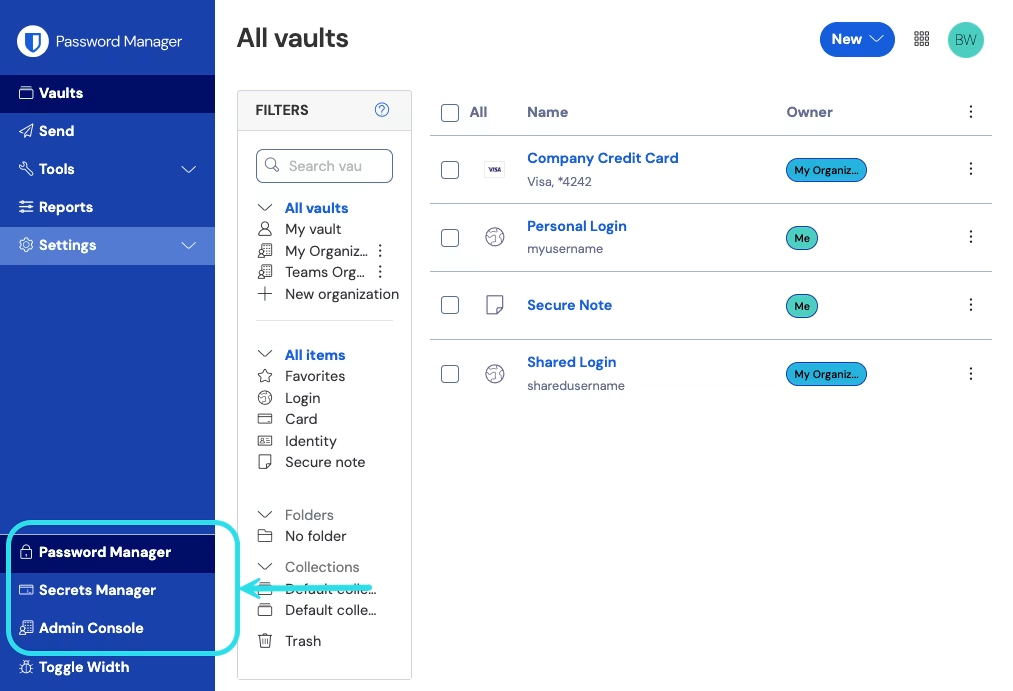
1、登录到 Bitwarden 网页 App，然后使用产品切换器打开管理控制台：

<div align="left" data-with-frame="true"><figure><img src="https://bitwarden.com/assets/2uxBDdQa6lu0IgIEfcwMPP/e3de3361749b6496155e25edcfdcf08b/2024-12-02_11-19-56.png?w=1013&#x26;fm=avif" alt=""><figcaption><p>产品切换器</p></figcaption></figure></div>

2、前往**计费** → **订阅**。

3、在**订阅席位**中输入您所需的用户席位总数：

<div align="left" data-with-frame="true"><figure><img src="https://bitwarden.com/assets/6IiAvwCX2KbCTUAbAnY4yV/81614bb5a44c64cdc387ba9cee5663eb/Set_Subscription_seats.png?w=1400&#x26;fm=avif" alt=""><figcaption><p>设置订阅席位</p></figcaption></figure></div>

4、选择**保存**。

{% hint style="info" %}
如果勾选了**限制订阅**，则**订阅席位**中的数量必须等于或低于您的席位限制。如需您需要添加更多用户席位，请提高**席位限制**。
{% endhint %}

## 设置席位限制 <a href="#set-a-seat-limit" id="set-a-seat-limit"></a>

您可以选择通过设置可添加您的组织的用户席位的上限来控制订阅成本。达到指定的限制后，除非提高该限制，否则将无法邀请新的用户。

要为您的组织可自动扩展到的席位数量设置限制：

1、登录到 Bitwarden 网页 App，然后使用产品切换器打开管理控制台：

<div align="left" data-with-frame="true"><figure><img src="https://bitwarden.com/assets/2uxBDdQa6lu0IgIEfcwMPP/e3de3361749b6496155e25edcfdcf08b/2024-12-02_11-19-56.png?w=1013&#x26;fm=avif" alt=""><figcaption><p>产品切换器</p></figcaption></figure></div>

2、前往**计费** → **订阅**。

3、检查**限制订阅（可选）**。

4、在**席位限制（可选）**&#x4E2D;输入您所需的最大用户席位数量：

<div align="left" data-with-frame="true"><figure><img src="https://bitwarden.com/assets/5DBnJW1y9welOF6hrDKrrh/06cade0656921a06d5bc43d3b9d26a62/Set_Seat_limit.png?w=1400&#x26;fm=avif" alt=""><figcaption><p>设置席位限制</p></figcaption></figure></div>

5、选择**保存**。


---

# Agent Instructions: Querying This Documentation

If you need additional information that is not directly available in this page, you can query the documentation dynamically by asking a question.

Perform an HTTP GET request on the current page URL with the `ask` query parameter:

```
GET https://help.ppgg.in/docs/plans-and-pricing/manage-subscription-seats-in-your-organization.md?ask=<question>
```

The question should be specific, self-contained, and written in natural language.
The response will contain a direct answer to the question and relevant excerpts and sources from the documentation.

Use this mechanism when the answer is not explicitly present in the current page, you need clarification or additional context, or you want to retrieve related documentation sections.