# 建立客户组织

{% hint style="success" %}
对应的[官方文档地址](https://bitwarden.com/help/article/client-org-setup/)
{% endhint %}

本文将引导您完成[客户组织的创建](/docs/provider-portal/start-a-client-organization.md#create-a-client-organization)，并概述了开始管理客户组织的典型[设置步骤](/docs/provider-portal/start-a-client-organization.md#initial-setup-procedure)。

## 创建客户组织 <a href="#create-a-client-organization" id="create-a-client-organization"></a>

要创建客户组织，您必须是[提供商管理员](/docs/provider-portal/provider-users.md#provider-user-types)：

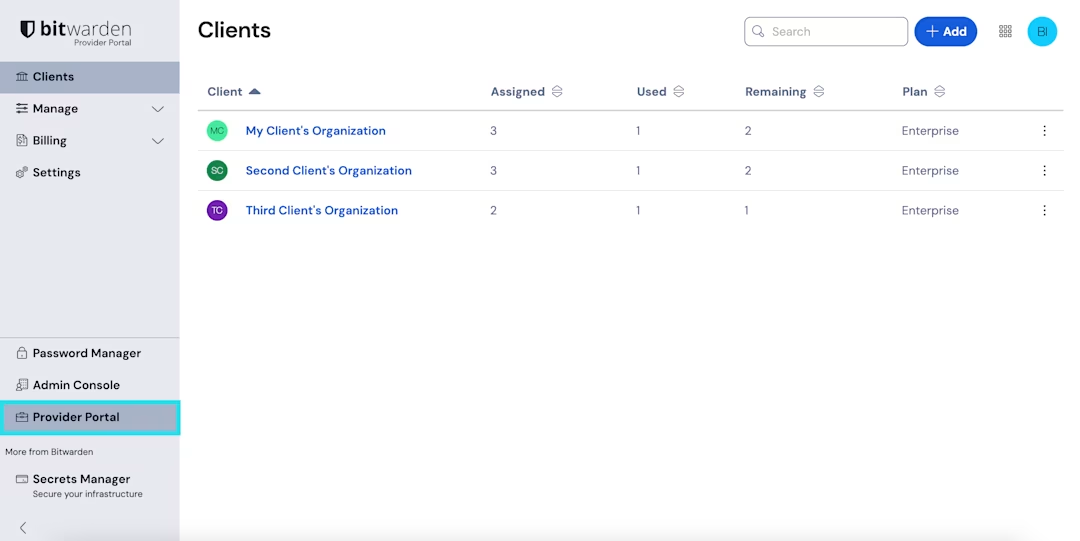
1、使用产品切换器打开**提供商门户**：

<div align="left" data-with-frame="true"><figure><img src="https://bitwarden.com/assets/4xn04Sj9u8n73TPxZUWi5f/dac0d56f47a05e2d8b28754e997a1391/2025-02-25_15-16-00.png?w=1080&#x26;fm=avif" alt=""><figcaption><p>产品切换器 - 提供商门户</p></figcaption></figure></div>

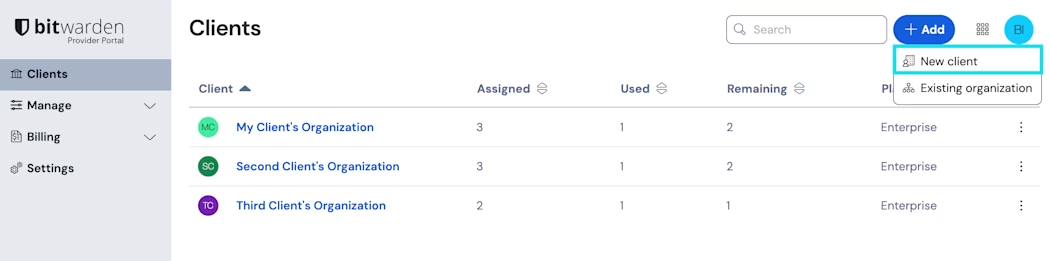
2、导航到提供商门户的**客户**选项卡，然后选择 ✚**添加** → **新增客户**：

<div align="left" data-with-frame="true"><figure><img src="https://bitwarden.com/assets/5WjBETB0YFm7TS1zpIHeSC/a22563b9172036b1c90bfb61d9ab310b/new_client_org_1.png?w=1050&#x26;fm=avif" alt=""><figcaption><p>新增客户组织</p></figcaption></figure></div>

3、在新建客户组织界面上：

* 选择创建**团队版**组织还是**企业版**组织。
* 输入**组织名称**、**客户所有者电子邮箱**和**席位数量**。

未分配的席位（即您已付费但未使用的席位）的数量将显示在此界面。如果超过此数量，则会显示已购买的附加席位数量。[了解更多](/docs/provider-portal/provider-billing.md)。

{% hint style="info" %}
邀请将自动发送到**客户所有者的电子邮箱**，以作为[所有者](/docs/admin-console/manage-members/member-roles.md)加入组织。
{% endhint %}

4、对组织满意后，选择**添加组织**。

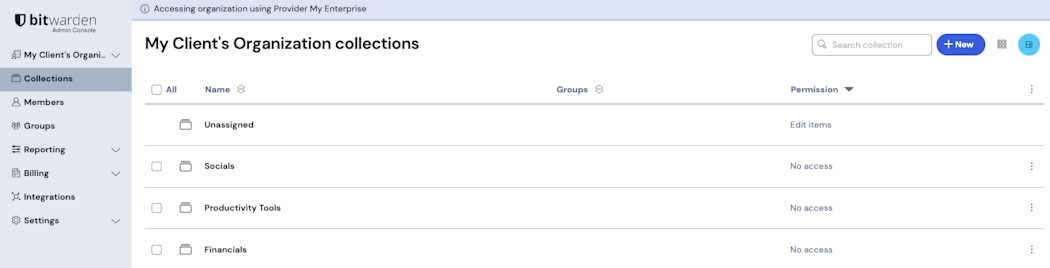
创建后，从提供商门户导航到客户组织时，会将您带到组织密码库，您可以从中完成[初始化设置](/docs/provider-portal/start-a-client-organization.md#initial-setup-procedure)并参与[持续管理](/docs/provider-portal/ongoing-administration.md)：

<div align="left" data-with-frame="true"><figure><img src="https://bitwarden.com/assets/5fXREt9aHmnVgLLRPBs8yg/dbecd580231e8ea2f4eec2be224a1e64/2025-02-25_15-20-08.png?w=1050&#x26;fm=avif" alt=""><figcaption><p>客户组织密码库</p></figcaption></figure></div>

## 初始化设置步骤 <a href="#initial-setup-procedure" id="initial-setup-procedure"></a>

使用您新创建的客户组织，开始为您的客户构建完美的解决方案。根据客户的需求，每个客户组织的确切设置会有所不同，但通常包括：

1、**创建集合**。一个好的第一步是[创建一组集合](/docs/admin-console/manage-shared-items/collections/about-collections.md#create-a-collection)，它为您在下一步中添加到密码库的项目提供组织结构。

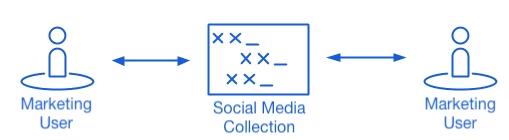
常见的集合模式包括**按部门的集合**（例如，客户营销团队中的用户被分配到**营销**集合）或**按功能的集合**（例如，自客户营销团队的用户被分配到**社交媒体**集合）：

<div align="left" data-with-frame="true"><figure><img src="https://bitwarden.com/assets/6kJ7wMESirqmkfZ8KlfK09/9210ef5cf3cd2442b429760edb98001f/collections-graphic-1.png?w=509&#x26;fm=avif" alt=""><figcaption><p>集合</p></figcaption></figure></div>

2、**导入数据**。确定了存储密码库项目的结构后，您就可以开始[向组织导入数据](/docs/admin-console/manage-shared-items/import-organization-items/import-to-organization.md)了。

{% hint style="info" %}
请注意，作为提供商用户，您将无法直接查看、创建或管理个人项目。
{% endhint %}

3、**配置企业策略**。在开始用户管理部分的设置之前，[配置企业策略](/docs/admin-console/oversight-visibility/enterprise-policies.md)以便为诸如[主密码复杂性](/docs/admin-console/oversight-visibility/enterprise-policies.md#master-password)、[两步登录的使用](/docs/admin-console/oversight-visibility/enterprise-policies.md#two-step-login)和[管理员密码重置](/docs/admin-console/oversight-visibility/enterprise-policies.md#master-password-reset)等设置使用规则。

{% hint style="info" %}
企业策略**仅适用于企业组织**。
{% endhint %}

4、**设置 SSO 登录**。如果您的客户使用单点登录 (SSO) 为其他应用程序进行身份验证，请[将 Bitwarden 与他们的 IdP 连接](/docs/admin-console/login-with-sso/about-sso.md)，以允许使用最终用户的 SSO 凭据与 Bitwarden 进行身份验证。

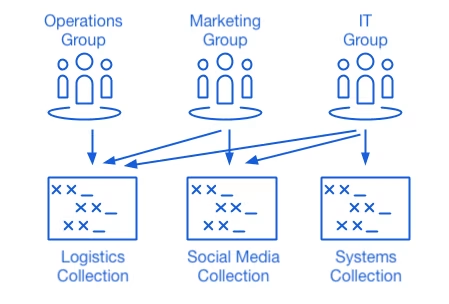
5、**创建用户群组**。对于团队版和企业版组织，创建一组群组以实现可扩展的权限分配。当您开始添加用户时，将他们添加到群组，以让每个用户自动继承群组的配置权限（例如可以访问哪些集合）。

一种常见的群组 - 集合模式是创建**按部门的群组**和**按功能的集合**，例如：

<div align="left" data-with-frame="true"><figure><img src="https://bitwarden.com/assets/6qodHGqBPABEFv3XJxaOUe/780cd4624a5d0a5fe315677968003e2d/collections-graphic-2.png?w=449&#x26;fm=avif" alt=""><figcaption><p>集合</p></figcaption></figure></div>

6、**开始邀请用户**。现在，您的客户已具备安全且可扩展的凭据共享基础设施，您可以开始邀请用户加入组织了。为确保组织的安全，Bitwarden 采用了 3 步流程来入职新用户，**邀请** → **接受** → **确认**。

{% hint style="success" %}
如果您的客户使用目录服务（活动目录、LDAP、Okta 等），请使用 [SCIM](/docs/admin-console/manage-members/scim/about-scim.md) 或 [Directory Connector](/docs/admin-console/manage-members/directory-connector/about-directory-connector.md) 从源目录自动同步组织用户并自动发出邀请。
{% endhint %}


---

# Agent Instructions: Querying This Documentation

If you need additional information that is not directly available in this page, you can query the documentation dynamically by asking a question.

Perform an HTTP GET request on the current page URL with the `ask` query parameter:

```
GET https://help.ppgg.in/docs/provider-portal/start-a-client-organization.md?ask=<question>
```

The question should be specific, self-contained, and written in natural language.
The response will contain a direct answer to the question and relevant excerpts and sources from the documentation.

Use this mechanism when the answer is not explicitly present in the current page, you need clarification or additional context, or you want to retrieve related documentation sections.