> For the complete documentation index, see [llms.txt](https://help.ppgg.in/llms.txt). Markdown versions of documentation pages are available by appending `.md` to page URLs; this page is available as [Markdown](https://help.ppgg.in/docs/secrets-manager/get-started/manage-your-organization.md).

# 管理您的组织

{% hint style="success" %}
对应的[方文档地址](https://bitwarden.com/help/manage-your-sercrets-org/)
{% endhint %}

{% hint style="info" %}
如需了解完整的 Bitwarden 入职概述，请查看[本指南](/docs/admin-console/manage-members/onboarding-and-succession.md)以获取更多信息。
{% endhint %}

作为一个使用 Secrets Manager 的组织，您将使用许多最初由 Password Manager 使用的工具。本文将介绍这些常用工具，并在适当的地方提供相关文档链接。

{% hint style="info" %}
如果您是 Bitwarden 组织的新手，我们建议您查看我们关于[组织管理员入门](/courses/password-manager/business/enterprise-plan/enterprise-admin.md)的文章。
{% endhint %}

## 企业策略 <a href="#enterprise-policies" id="enterprise-policies"></a>

策略允许企业版组织为其成员实施安全规则，例如强制使用两步登录。虽然一些策略主要适用于 Password Manager，但有一些策略也广泛适用于 Secrets Manager 的用户：

* [要求两步登录](/docs/admin-console/oversight-visibility/enterprise-policies.md#require-two-step-login)
* [主密码要求](/docs/admin-console/oversight-visibility/enterprise-policies.md#master-password-requirements)
* [主密码重置](/docs/admin-console/oversight-visibility/enterprise-policies.md#master-password-reset)
* [单一组织](/docs/admin-console/oversight-visibility/enterprise-policies.md#single-organization)
* [要求单点登录验证](/docs/admin-console/oversight-visibility/enterprise-policies.md#require-single-sign-on-authentication)
* [密码库超时](/docs/admin-console/oversight-visibility/enterprise-policies.md#vault-timeout)

{% hint style="success" %}
如果您是 Bitwarden 的新手，我们建议您在入职用户之前先设置策略。
{% endhint %}

## 用户管理 <a href="#user-management" id="user-management"></a>

Secrets Manager 的组织用户管理与使用 Password Manager 的组织用户管理是相似的，除了一些 Secrets Manager 特定的元素（[授予组织成员对 Secrets Manager 的访问权限](#access-to-secrets-manager)、[成员角色](#member-roles)差异，以及指定[用户席位和机器账户](/docs/secrets-manager/get-started/secrets-manager-quick-start.md#user-seats-and-service-account-scaling)）。

### 入职 <a href="#onboarding" id="onboarding"></a>

有几种不同的方式可以让用户加入您的 Bitwarden 组织。这里重点介绍一些常用的方法：

#### 手动 <a href="#manual" id="manual"></a>

Bitwarden 网页密码库提供了一个简单直观的界面，用于邀请新用户加入您的组织。此方法最适合小型组织或不使用 Azure AD 或 Okta 等目录服务的组织。[了解如何开始](/docs/admin-console/manage-members/user-management.md#invite)。

#### SCIM

Bitwarden 服务器提供一个 SCIM 端点，该端点具有一个有效的 SCIM API 密钥，将接受来自您的身份提供商的请求，以进行用户和群组配置和取消配置。此方法最适合使用了支持 SCIM 的目录服务或 IdP 的大型组织。[了解如何开始](/docs/admin-console/manage-members/scim/about-scim.md)。

#### Directory Connector <a href="#directory-connector" id="directory-connector"></a>

Directory Connector 通过从一系列源目录服务中提取，自动在您的 Bitwarden 组织中配置用户和群组。此方法最适合使用了不支持 SCIM 的目录服务的大型组织。[了解如何开始](/docs/admin-console/manage-members/directory-connector/about-directory-connector.md)。

### 访问 Secrets Manager <a href="#access-to-secrets-manager" id="access-to-secrets-manager"></a>

入职后，为您组织的个人成员授予对 Secrets Manager 的访问权限：

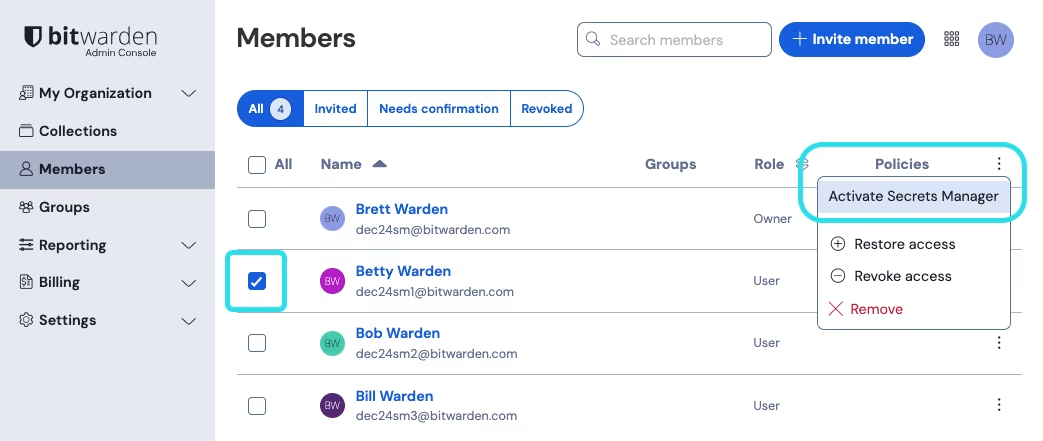
1、打开您组织的**成员**选项卡，然后选中您想要授予 Secrets Manager 访问权限的成员。

2、使用 **≡**&#x83DC;单，选中**激活 Secrets Manager** 以向选定成员授予访问权限：

* 对于自托管组织，也必须在自托管实例中重复此步骤。

<div align="left" data-with-frame="true"><figure><img src="https://bitwarden.com/assets/3IBNL6FdndgPeuXa7m3rlP/fd04ec9951123e5a0ccd5fe4f04fa4de/2024-12-03_11-18-52.png?w=1043&#x26;fm=avif" alt=""><figcaption><p>添加 Secrets Manager 用户</p></figcaption></figure></div>

{% hint style="success" %}
授予成员对 Secrets Manager 的访问权限不会自动授予他们对存储的工程或机密的访问权限。接下来，您需要[为人员或群组分配对工程的访问权限](/docs/secrets-manager/your-secrets/projects.md#add-people-to-a-project)。
{% endhint %}

### 成员角色 <a href="#member-roles" id="member-roles"></a>

下表概述了每个成员角色可以在 Secrets Manager 中执行的操作：

| 成员角色 | 描述                                                                                                                                             |
| ---- | ---------------------------------------------------------------------------------------------------------------------------------------------- |
| 用户   | <p>用户可以创建自己的机密、工程、机器账户和访问令牌。创建后，他们就可以编辑这些对象。</p><p>必须将用户分配给工程或机器账户才能与现有对象交互，并且可以授予<strong>可以读取</strong>或<strong>可以读取、写入</strong>访问权限。</p>      |
| 管理员  | <p>管理员自动拥有对所有机密、项目、机器账户和访问令牌的<strong>可以读取、写入</strong>访问权限。</p><p></p><p>管理员可以为自己分配对 Secrets Manager 的访问权限，并为其他成员分配对 Secrets Manager 的访问权限。</p> |
| 所有者  | <p>所有者自动拥有对所有机密、项目、机器账户和访问令牌的<strong>可以读取、写入</strong>访问权限。</p><p></p><p>所有者可以为自己分配对 Secrets Manager 的访问权限，并为其他成员分配对 Secrets Manager 的访问权限。</p> |

{% hint style="info" %}
自定义角色目前不在 Secrets Manager 的选项范围内，但仍可用于分配具体的 Password Manager 或更广泛的组织功能。
{% endhint %}

### 群组 <a href="#groups" id="groups"></a>

群组将个人成员联系在一起，并提供一种可扩展的方式来访问特定工程的访问权限和权限。添加新成员时，将他们添加到一个群组中，以使他们自动继承该群组配置的权限。[了解更多](/docs/admin-console/manage-members/groups.md)。

在 Admin Console 中创建群组后，就可以从 Secrets Manager 网页 App 中把它们分配给工程了。

## 单点登录 <a href="#single-sign-on" id="single-sign-on"></a>

SSO 登录是 Bitwarden 用于单点登录的解决方案。使用 SSO 登录，企业版组织可以利用其现有的身份提供程序使用 SAML 2.0 或 Open ID Connect (OIDC) 协议对 Bitwarden 用户进行身份验证。[了解如何开始](/docs/admin-console/login-with-sso/about-sso.md)。

## 账户恢复管理 <a href="#https-bitwarden.com-help-manage-your-secrets-org-account-recovery-administration" id="https-bitwarden.com-help-manage-your-secrets-org-account-recovery-administration"></a>

账户恢复允许指定的管理员恢复企业版组织用户账户以及在员工忘记主密码时恢复访问权限。通过启用账户恢复管理策略，可以为组织激活账户恢复功能。[了解如何开始](/docs/admin-console/manage-members/account-recovery/about-account-recovery.md)。

## 事件日志 <a href="#event-logs" id="event-logs"></a>

[事件日志](/docs/admin-console/oversight-visibility/event-logging/event-logs.md)是您的团队版或企业版组织内发生的事件的时间戳记录。Secrets Manager 事件可从组织密码库的**报告** → **事件日志**以及[机器账户事件日志页面](/docs/secrets-manager/your-secrets/machine-accounts.md#service-account-events)获取。

事件日志可以导出并无限期保留。虽然许多事件适用于所有 Bitwarden 产品，有些是特定于 Password Manager 的，但 Secrets Manager 将专门记录以下内容：

* 机密被机器账户访问

## 自托管

企业版组织可以在 Linux 和 Windows 计算机上使用 Docker 自行托管 Bitwarden Secrets Manager。如果您之前没有自行托管过 Bitwarden，请使用[本指南](/docs/self-hosting/plan-for-deployment/self-host-an-organization.md)让自己走上正轨。

如果您已经自行托管一个 Enterprise Bitwarden 组织，并希望在该服务器上访问 Secrets Manager：

1. 在云托管的 Bitwarden 组织中注册一个 Secrets Manager 订阅。
2. 将您的自托管服务器更新到至少 2023.10.0 版本。
3. 从您的云托管组织[获取新的许可证文件](/docs/self-hosting/licensing-on-premise.md#retrieve-organization-license)，然后[将其上传到您的自托管服务器](/docs/self-hosting/licensing-on-premise.md#update-organization-license)。
4. 授予个人用户对自托管实例中的 [Secrets Manager 访问权限](#access-to-secrets-manager)。

{% hint style="info" %}
Bitwarden [统一自托管部署选项](/docs/self-hosting/deploy-and-configure/docker/lite-deployment.md)不支持自托管 Secrets Manager。团队版和企业版组织应使用标准的 [Linux](/docs/self-hosting/deploy-and-configure/docker/linux-standard-deployment.md) 或 [Windows](/docs/self-hosting/deploy-and-configure/docker/windows-standard-deployment.md) 安装。
{% endhint %}


---

# Agent Instructions
This documentation is published with GitBook. GitBook is the documentation platform designed so that both humans and AI agents can read, navigate, and reason over technical content effectively. Learn more at gitbook.com.

## Querying This Documentation
If you need additional information that is not directly available in this page, you can query the documentation dynamically by asking a question.

Perform an HTTP GET request on the current page URL with the `ask` query parameter, and the optional `goal` query parameter:

```
GET https://help.ppgg.in/docs/secrets-manager/get-started/manage-your-organization.md?ask=<question>&goal=<endgoal>
```

`ask` is the immediate question: it should be specific, self-contained, and written in natural language.
`goal` is optional and describes the broader end goal you are ultimately trying to accomplish on behalf of the user. GitBook uses it to tailor the answer towards what is most useful for that goal.

The response will contain a direct answer to the question and relevant excerpts and sources from the documentation.

Use this mechanism when the answer is not explicitly present in the current page, you need clarification or additional context, or you want to retrieve related documentation sections.
