# Jenkins 集成

{% hint style="success" %}
对应的[官方文档地址](https://bitwarden.com/help/jenkins-integration/)
{% endhint %}

Jenkins 是一个开源的自动化服务器，用于自动化构建、测试和部署软件。使用 Bitwarden Secrets Manager CLI 将机密注入 Jenkins CI/CD 流水线。

## 保存访问令牌 <a href="#save-an-access-token" id="save-an-access-token"></a>

要开始使用，请创建一个用于与 Bitwarden Secrets Manager 进行身份验证并获取[机密](/docs/secrets-manager/your-secrets/secrets.md)的令牌。要将[访问令牌](/docs/secrets-manager/your-secrets/access-tokens.md)保存为 Jenkins 凭据：

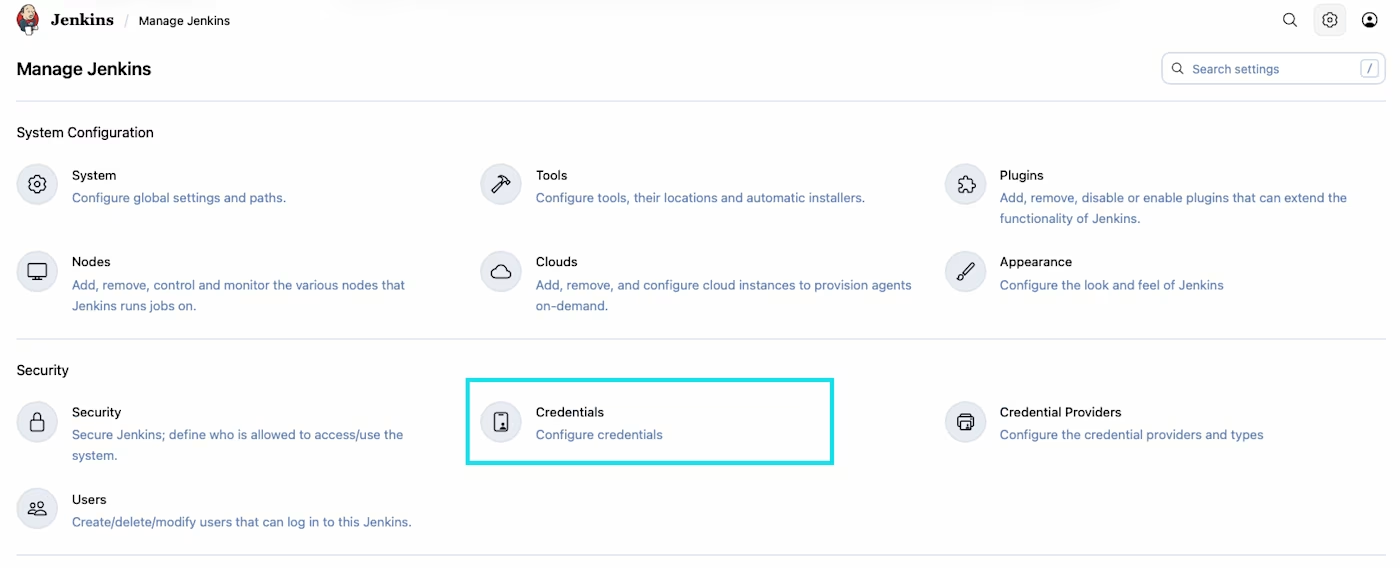
1、在 Jenkins 中，导航至 **Settings  → Credentials** 页面。

<div align="left" data-with-frame="true"><figure><img src="https://bitwarden.com/assets/7BNSdUFjmu3LaVcywyKaOd/be6b83e5d2648bc3a26cabe7febbd90c/Setting_credentials.png?w=1400&#x26;fm=avif" alt=""><figcaption><p>Settings Credentials</p></figcaption></figure></div>

2、选择所需的凭据存储。

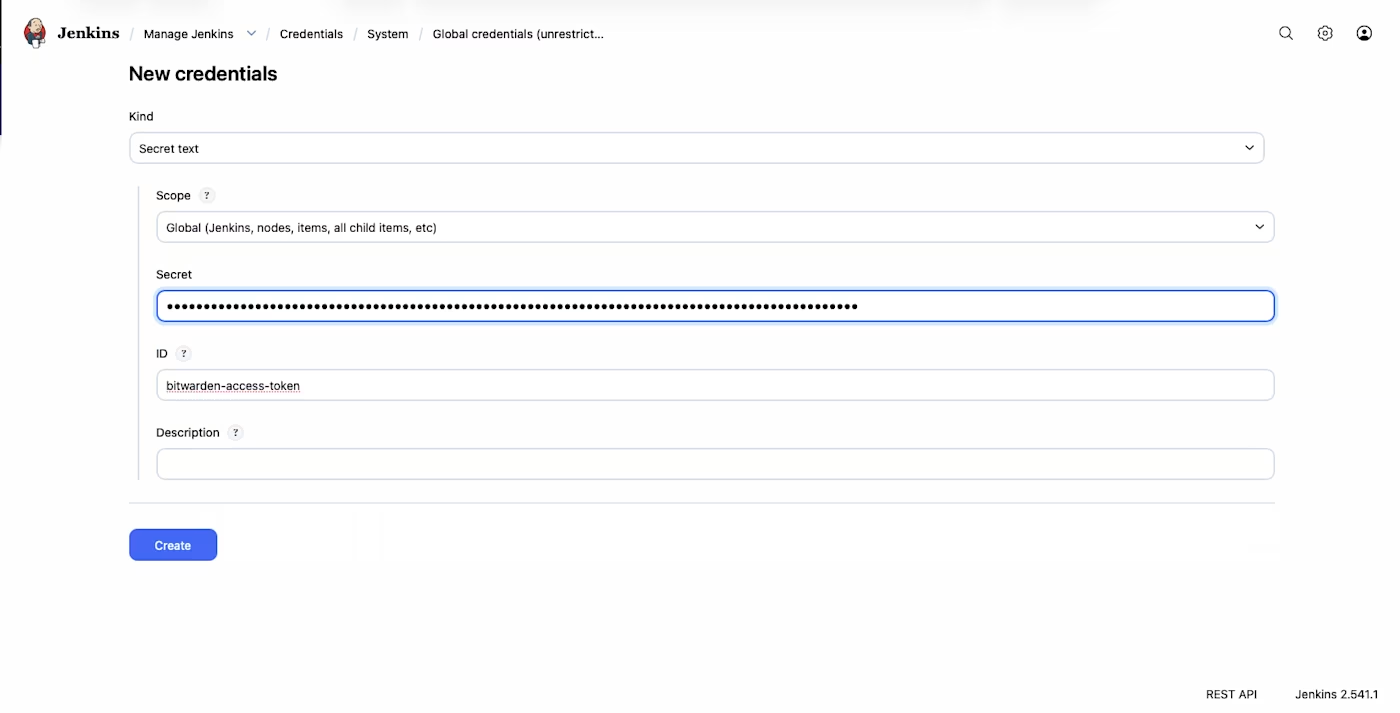
3、选择 **Add Credentials**。

4、点击 **Kind** 下拉菜单，然后选择 **Secret text**。

5、为凭据起一个合适的名称。接下来，我们将准备 `bitwarden-access-token`。

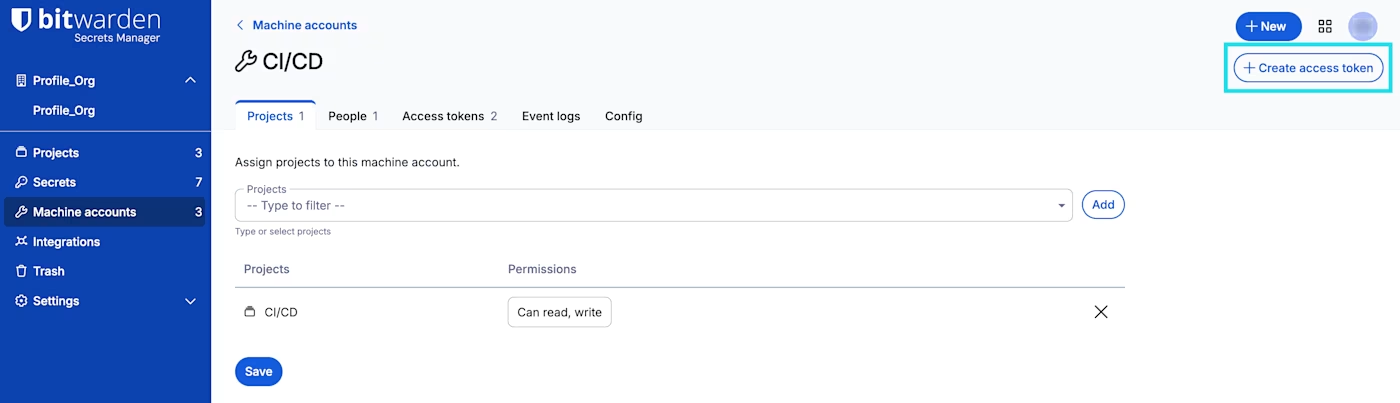
6、在新标签页中，打开 Secrets Manager 网页 App 然后[创建访问令牌](/docs/secrets-manager/your-secrets/access-tokens.md)。

<div align="left" data-with-frame="true"><figure><img src="https://bitwarden.com/assets/0X3dgYBEQpW9EOGWIHiUV/22aef7ea682198c0f42630cf7637bf63/new_access_token.png?w=1400&#x26;fm=avif" alt=""><figcaption><p>创建访问令牌</p></figcaption></figure></div>

7、返回 Jenkins，将新创建的访问令牌粘贴到 **Secret** 字段中。

8、完成后，选择 **Create**。

<div align="left" data-with-frame="true"><figure><img src="https://bitwarden.com/assets/4HjU45wJZMlhuyhTLWEwpB/0bfb7ee75ed53c427927b5c99e45a6e4/2026-02-06_18-10-34.png?w=1400&#x26;fm=avif" alt=""><figcaption><p>Jenkins 凭据</p></figcaption></figure></div>

## 添加到 Jenkins 流水线 <a href="#add-to-your-jenkins-pipeline" id="add-to-your-jenkins-pipeline"></a>

接下来需要创建一个 Jenkins 流水线。以下部分展示了一个示例流水线。

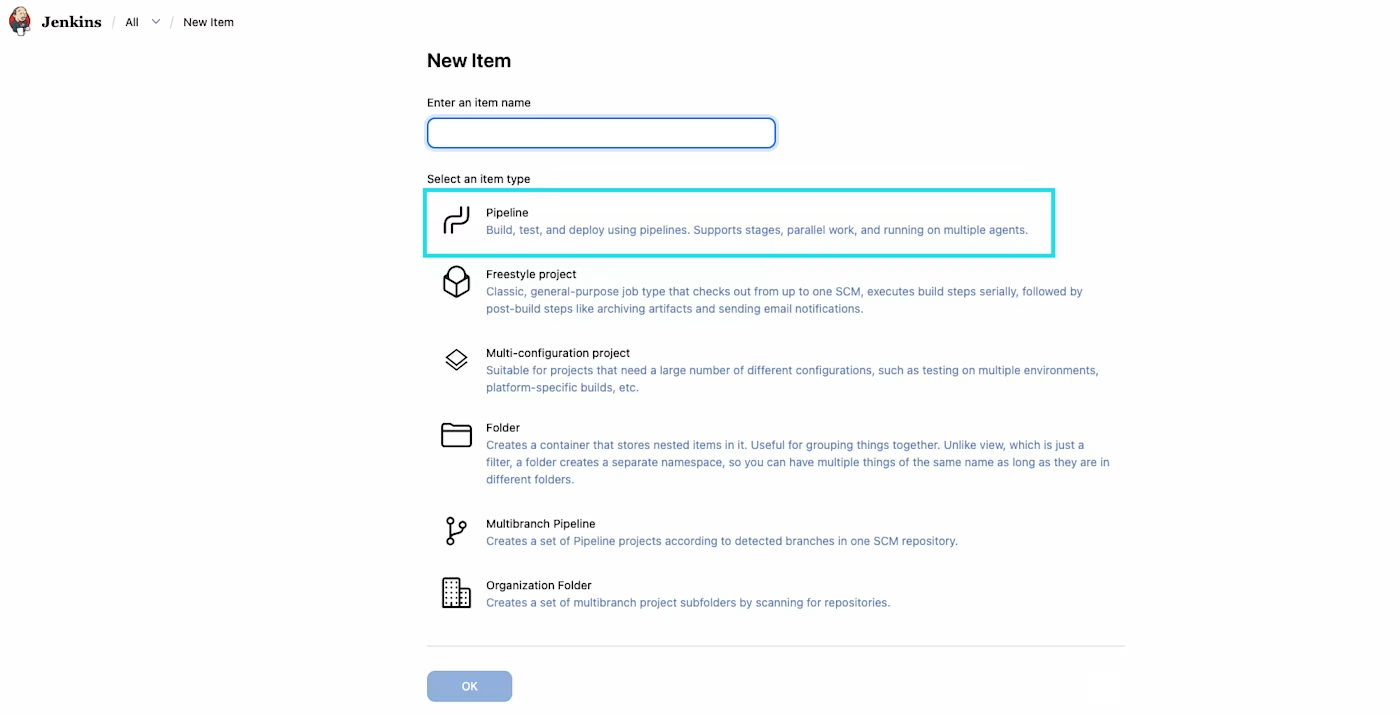
1、通过在左侧导航栏选择 **New Item** 来创建一个新的 Jenkins 流水线。

2、为新建的项目输入一个名称。接下来，选择 **Pipeline** 项目类型，完成后点击 **OK**。

<div align="left" data-with-frame="true"><figure><img src="https://bitwarden.com/assets/6FP4AFLnuLT7pamWPhhF56/034dc91dfb4632155f74f0daf7575074/2026-02-09_17-16-10.png?w=1400&#x26;fm=avif" alt=""><figcaption><p>新增流水线</p></figcaption></figure></div>

3、在接下来的界面中，配置您所需的设置和触发器。在 Pipeline 部分，包含以下内容：

```java
 pipeline {
    agent any

    stages {
        stage('Build Rust Project with Secrets from Bitwarden') {
            steps {
                withCredentials([string(credentialsId: 'bitwarden-access-token',
                                         variable: 'BWS_ACCESS_TOKEN')]) {
                sh '''
                export PATH=$PATH:/usr/local/bin # ensure bws is in PATH
                bws run -- <command needing secrets here>
                '''
                                         }
            }
        }
    }
}
```

{% hint style="info" %}
请将 `<command_needing_secrets_here>` 替换为需要访问 Secrets Manager 的命令。
{% endhint %}

## 运行 CI/CD **流水线** <a href="#run-the-ci-cd-pipeline" id="run-the-ci-cd-pipeline"></a>

在左侧选择 **Build Now → Pipelines**，然后选择页面右上角的 **Run Pipeline**。在此页面上选择 **Run Pipeline** 以运行新创建的流水线。


---

# Agent Instructions: Querying This Documentation

If you need additional information that is not directly available in this page, you can query the documentation dynamically by asking a question.

Perform an HTTP GET request on the current page URL with the `ask` query parameter:

```
GET https://help.ppgg.in/docs/secrets-manager/integrations/jenkins-integration.md?ask=<question>
```

The question should be specific, self-contained, and written in natural language.
The response will contain a direct answer to the question and relevant excerpts and sources from the documentation.

Use this mechanism when the answer is not explicitly present in the current page, you need clarification or additional context, or you want to retrieve related documentation sections.