> For the complete documentation index, see [llms.txt](https://help.ppgg.in/llms.txt). Markdown versions of documentation pages are available by appending `.md` to page URLs; this page is available as [Markdown](https://help.ppgg.in/docs/self-hosting/deploy-and-configure/optional-features/self-hosting-families-sponsorships.md).
# 自托管家庭版赞助
{% hint style="success" %}
对应的[官方文档地址](https://bitwarden.com/help/families-for-enterprise-self-hosted/)
{% endhint %}
[企业版组织](/docs/admin-console/organizations-overview.md#types-of-organizations)成员可获得**免费的家庭版组织**赞助,适用于新的或现有的家庭版组织,可直接从网页密码库兑换。
{% hint style="info" %}
如果您想了解有关如何为非赞助自托管家庭版组织更新许可证的信息,请参阅[此处](/docs/self-hosting/licensing-on-premise.md#update-organization-license)。
{% endhint %}
您需要启用自动计费同步,以允许您的自托管企业组织为云端家庭版组织发放赞助。要设置自动同步:
## 第 1 步:启用云端通信
首先,您需要对服务器进行配置,以允许与我们的云端系统进行通信。
{% hint style="info" %}
此步骤必须由有权限访问您的自托管实例配置文件的人员完成。
{% endhint %}
要启用云端通信,请将 `bwdata/env/global.override.env` 中的以下行设置为 `true`:
```systemd
globalSettings__enableCloudCommunication=true
```
如果您的云端组织是在欧盟服务器上创建的,您还需要设置以下值:
```systemd
globalSettings__baseServiceUri__cloudRegion=EU
globalSettings__installation__identityUri=https://identity.bitwarden.eu
globalSettings__installation__apiUri=https://api.bitwarden.eu
globalSettings__pushRelayBaseUri=https://push.bitwarden.eu
```
{% hint style="info" %}
`globalSettings__baseServiceUri__cloudRegion` 的值必须与获取安装 ID 和密钥时选择的数据区域一致。
{% endhint %}
设置这些值后,运行 `./bitwarden.sh rebuild` 命令以应用您的更改。
{% hint style="info" %}
启用自动同步需要与 Bitwarden 的云端系统进行通信。如果您的环境使用防火墙阻止了出站流量,则需要允许 `https://api.bitwarden.com` 或 `https://api.bitwarden.eu` 和 `https://identity.bitwarden.com` 或 `https://identity.bitwarden.eu`。
{% endhint %}
## 第 2 步:获取计费同步令牌
在服务器层面启用云端通信后,需要将同步令牌从用于计费的云端组织传递到自托管组织。要从云端网页密码库获取同步令牌,您必须是组织的所有者。要获取令牌:
1、打开云端网页 App,使用产品切换器打开 Admin Console:
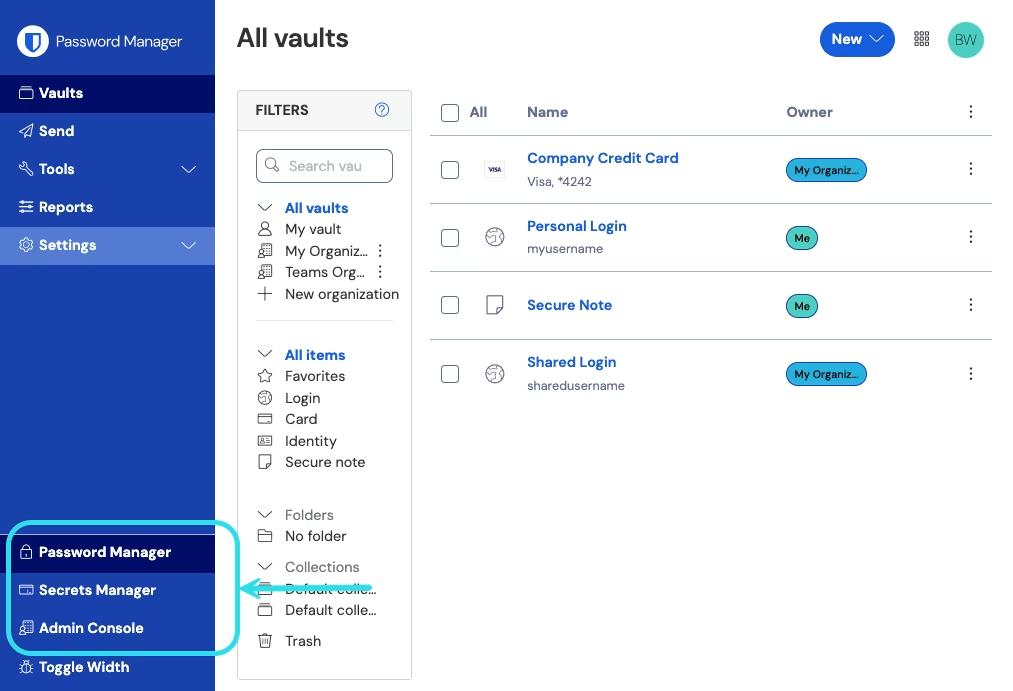
产品切换器