# 组织或高级版许可证

{% hint style="success" %}
对应的[官方文档地址](https://bitwarden.com/help/article/licensing-on-premise/)
{% endhint %}

自托管 Bitwarden 是免费的，但是有些功能必须在您的自托管实例中使用已注册的许可证文件才能解锁。高级版个人订阅账户或组织的所有者可以从 Bitwarden 托管的[网页密码库](https://vault.bitwarden.com/)中获取许可证文件。

使用[个人许可证](#individual-license)与使用[组织许可证](#organization-license)时，步骤有所不同。

{% hint style="info" %}
本文中的步骤假定您已经开始了一个 Bitwarden 付费订阅。如果还没有，请参阅[关于 Bitwarden 方案](/docs/plans-and-pricing/password-manager/about-bitwarden-plans.md)以及[哪种方案适合我？](/docs/plans-and-pricing/what-plan-is-right-for-me.md)。
{% endhint %}

## 个人许可证 <a href="#individual-license" id="individual-license"></a>

使用高级版订阅的个人许可证时，请遵循以下步骤。您需要同时操作访问云端网页密码库和自托管网页密码库，并且您的账户电子邮箱地址必须一致。

### 获取个人许可证 <a href="#retrieve-individual-license" id="retrieve-individual-license"></a>

在自托管服务器上创建账户后，从云端网页 App 获取您的个人许可证：

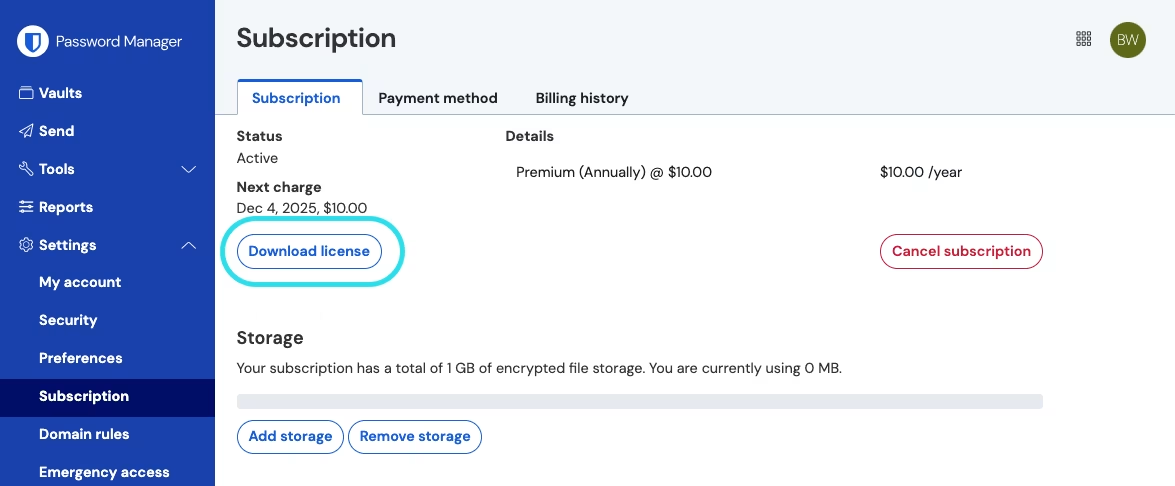
1. 登录，然后从导航中选择**设置** → **订阅**。
2. 选择**下载许可证**按钮：

<div align="left" data-with-frame="true"><figure><img src="https://bitwarden.com/assets/bXoVGOMEI1d8iCVoy5fmI/af545e3c083aeebaf12c751fc38a59ea/2024-12-04_10-02-56.png?w=1175&#x26;fm=avif" alt=""><figcaption><p>下载个人许可证</p></figcaption></figure></div>

### 应用个人许可证 <a href="#apply-individual-license" id="apply-individual-license"></a>

接下来，登录到您的自托管 Bitwarden 服务器以应用已下载的许可证：

1. 如果您还没有验证您的电子邮箱地址，请在继续之前先验证。需要已经[配置了 SMTP 相关的环境变量](/docs/self-hosting/deploy-and-configure/configuration-options/environment-variables.md)。
2. 从导航中选择**设置** → **订阅**。
3. 在「许可证文件」部分中，选择**浏览...**&#x6216;**选择文件**按钮添加您刚才下载的许可证文件。
4. 选择**提交**按钮以应用您的高级许可证。

### 更新个人许可证 <a href="#update-individual-license" id="update-individual-license"></a>

如果出于任何原因您需要更新您的个人许可证文件，例如当它过期时：

1. 按照步骤再次**获取您的许可证**。
2. 按照步骤再次**应用您的许可证**，只有此时您才会看到**更新许可证**按钮，而不是浏览新许可证的按钮。

## 组织许可证 <a href="#organization-license" id="organization-license"></a>

使用家庭或企业组织的组织许可证时，请遵循以下步骤。您必须是[组织所有者](/docs/admin-console/manage-members/member-roles.md)才能检索、申请和更新许可证。

### 获取组织许可证 <a href="#retrieve-organization-license" id="retrieve-organization-license"></a>

在您的自托管服务器上开始一个组织之前，从云端网页 App 获取您的组织许可证：

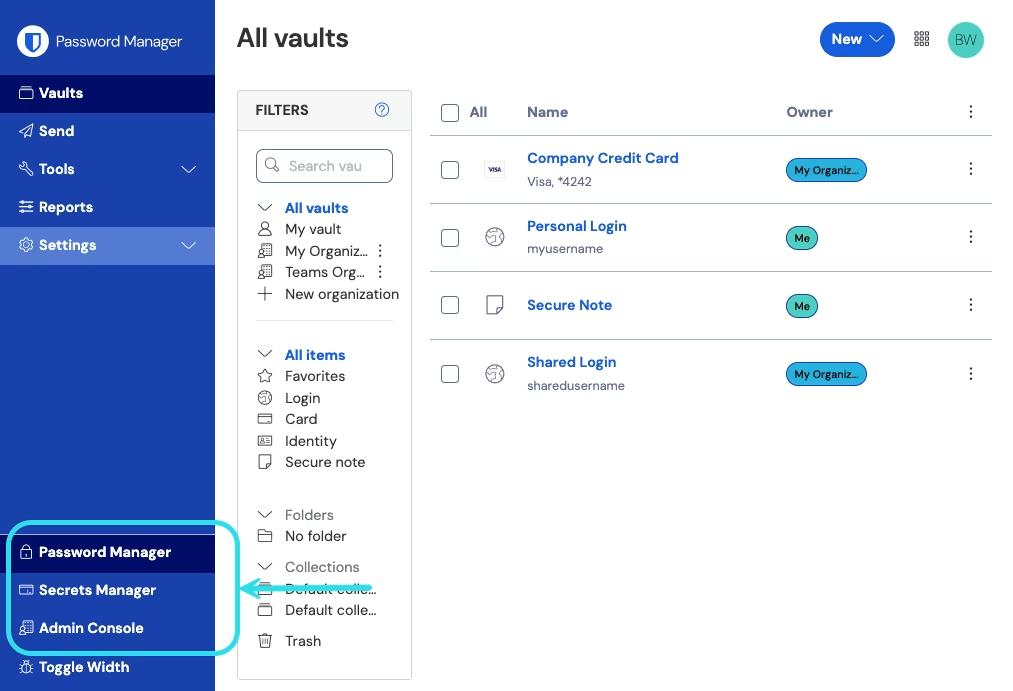
1、在 Bitwarden 网页 App 中，使用产品切换器打开管理控制台：

<div align="left" data-with-frame="true"><figure><img src="https://bitwarden.com/assets/2uxBDdQa6lu0IgIEfcwMPP/e3de3361749b6496155e25edcfdcf08b/2024-12-02_11-19-56.png?w=1013&#x26;fm=avif" alt=""><figcaption><p>产品切换器</p></figcaption></figure></div>

2、导航到**计费** → **订阅**。

3、滚动到最下面然后选择**下载许可证**按钮。

4、提示时，输入安装自托管服务器时使用的安装 ID 然后选择**提交**。如果您不知道安装 ID，可以从 `./bwdata/env/global.override.env` 获取。

{% hint style="info" %}
确保您从 [bitwarden.com/host](https://bitwarden.com/host/) 获取的安装 ID 使用的[数据区域](/docs/security/server-geographies.md)与您的组织所在的数据区域相同。
{% endhint %}

### 应用组织许可证 <a href="#apply-organization-license" id="apply-organization-license"></a>

在自托管服务器中应用您的许可证意味着您将要创建一个自托管组织。从您的自托管网页密码库：

1. 通过选择 **🞤新增组织**以在您的自托管实例中创建一个新的组织。
2. 选择**浏览...**&#x6216;**选择文件**按钮，添加已下载的许可证文件，然后选择**提交**。

{% hint style="info" %}
如果您收到一条 `version not supported`（版本不支持）的错误消息，请更新您的服务器并尝试再次上传您的许可证文件。要更新您的服务器，请备份 `bwdata` 目录，然后按照[这些说明](/docs/self-hosting/update-a-server.md)进行操作。
{% endhint %}

### 更新组织许可证 <a href="#update-organization-license" id="update-organization-license"></a>
在几种不同的情况下，组织需要更新其自托管服务器使用的许可证文件，例如：

* 要**添加用户席位**到自托管组织。自托管组织的席位数由许可证决定，因此要添加席位，必须首先将其添加到关联的云组织，然后必须更新自托管组织使用的许可证。
* 要**在许可证续订后**继续运营自托管组织。自续订之日起，您有 60 天的时间将许可证文件更新到您的自托管服务器，否则您的自托管[组织将被禁用](/docs/plans-and-pricing/organization-renewal.md)。

有两种方法可以更新自托管组织的许可证，但是**家庭组织只能手动更新**：

{% tabs %}
{% tab title="自动同步" %}
自动同步：

* 组织管理员无需手动重新上传许可证。设置完成后，管理员只需在需要更新自托管组织使用的许可证时从**组织** → **计费**触发同步。
* 使[家庭赞助](/docs/admin-console/manage-members/sponsored-families/sponsored-families-for-members.md)计划对自托管组织的成员成为可能。此类赞助的同步每天会自动进行。
* 仍在免费试用期内的组织无法设置此功能。

要设置自动同步：

### 第 1 步：启用云端通信 <a href="#step-1-enable-cloud-communication" id="step-1-enable-cloud-communication"></a>

{% hint style="info" %}
此步骤必须由对您的自托管实例的配置文件具有访问权限的人员完成。
{% endhint %}

首先，将 `bwdata/env/global.override.env` 中的以下行设置为 `true`，以将您的服务器配置为允许与 Bitwarden 云系统通信：

```systemd
globalSettings__enableCloudCommunication=true
```

设置此值后，运行 `./bitwarden.sh rebuild` 命令以应用您的更改。使用 `./bitwarden.sh start` 命令重启您的服务器。

{% hint style="info" %}
启用自动同步需要与 Bitwarden 的云端系统进行通信。如果您的环境使用防火墙阻止了出站流量，则需要允许 `https://api.bitwarden.com` 或 `https://api.bitwarden.eu` 和 `https://identity.bitwarden.com` 或 `https://identity.bitwarden.eu`。
{% endhint %}

### 第 2 步：获取计费同步令牌 <a href="#step-2-retrieve-billing-sync-token" id="step-2-retrieve-billing-sync-token"></a>

在服务器层面启用云端通信后，需要将同步令牌从用于计费的云端组织传递到您的自托管组织。要从云端 App 获取您的同步令牌：

1、打开**云端**管理控制台，然后导航到**计费** → **订阅**。

2、在「自托管」部分，选择**设置计费同步**。

3、输入主密码然后选择**生成令牌**。

4、复制生成的令牌。

### 第 3 步：应用计费同步令牌 <a href="#step-3-apply-billing-sync-token" id="step-3-apply-billing-sync-token"></a>

要将计费同步令牌应用到您的自托管组织：

1、打开**自托管**管理控制台，然后导航到**计费** → **订阅**。

2、在「许可证和计费管理」部分，选择**自动同步**选项。

3、选择**管理计费同步**按钮。

4、粘贴您生成的**计费同步令牌**然后选择**保存**。

{% hint style="info" %}
触发第一次同步后，[企业版家庭](https://help.ppgg.in/self-hosting/self-hosting-families-sponsorships)将每天同步一次。在您触发第一次同步之前，本部分中的**上次同步**字段将报告为**从不**。

用于许可证更新的同步必须始终通过选择**同步许可证**按钮来手动完成（详情请参阅下一部分）。
{% endhint %}

### 第 4 步：触发同步 <a href="#step-4-trigger-sync" id="step-4-trigger-sync"></a>

完成设置后以及**每次需要更新许可证时**都需要触发同步。企业版家庭将**每天**同步一次。要触发同步：

1. 打开**自托管**管理控制台，然后导航到**组织** → **计费**。
2. 选择**同步许可证**按钮。

{% hint style="info" %}
如果您收到一条 `version not supported`（版本不支持）的错误消息，请更新您的服务器并尝试再次上传您的许可证文件。要更新您的服务器，请备份 `bwdata` 目录，然后按照[这些说明](https://help.ppgg.in/self-hosting/update-your-instance)进行操作。
{% endhint %}
{% endtab %}

{% tab title="手动更新" %}
要手动重新上传许可证文件：

1. 按照步骤再次**获取您的许可证**。
2. 打开自托管的管理控制台，然后导航到**计费** → **订阅**。
3. 在「许可证和计费管理」部分，选择**手动上传**选项。
4. 选择**浏览...**&#x6216;**选择文件**按钮以添加您的许可证文件。
5. 选择**提交**。

{% hint style="info" %}
如果您收到一条 `version not supported`（版本不支持）的错误消息，请更新您的服务器并尝试再次上传您的许可证文件。要更新您的服务器，请备份 `bwdata` 目录，然后按照[这些说明](https://help.ppgg.in/self-hosting/update-your-instance)进行操作。
{% endhint %}
{% endtab %}
{% endtabs %}


---

# Agent Instructions: Querying This Documentation

If you need additional information that is not directly available in this page, you can query the documentation dynamically by asking a question.

Perform an HTTP GET request on the current page URL with the `ask` query parameter:

```
GET https://help.ppgg.in/docs/self-hosting/licensing-on-premise.md?ask=<question>
```

The question should be specific, self-contained, and written in natural language.
The response will contain a direct answer to the question and relevant excerpts and sources from the documentation.

Use this mechanism when the answer is not explicitly present in the current page, you need clarification or additional context, or you want to retrieve related documentation sections.